In this guide
- Before You Start: Plan Your Business Website
- WordPress.org vs WordPress.com: Which One Do You Need?
- Step 1: Choose and Register Your Domain Name
- Step 2: Choose WordPress Hosting
- Step 3: Install WordPress and Set the Basics
- Step 4: Choose a Theme and a Way to Build Pages
- Step 5: Create Your Core Pages
- Step 6: Set Up Menus, Header and Footer
- Step 7: Install Only the Plugins You Need
- Step 8: Set Up SEO Basics Before Launch
- Step 9: Test Everything and Launch
- How Long Does It Take to Create a WordPress Website?
- Common Mistakes When Creating a WordPress Website
- Keeping Your WordPress Website Healthy After Launch
- Build It Yourself or Hire a WordPress Developer?
- Frequently Asked Questions About Creating a Website in WordPress
- Build It in the Right Order and WordPress Works for You
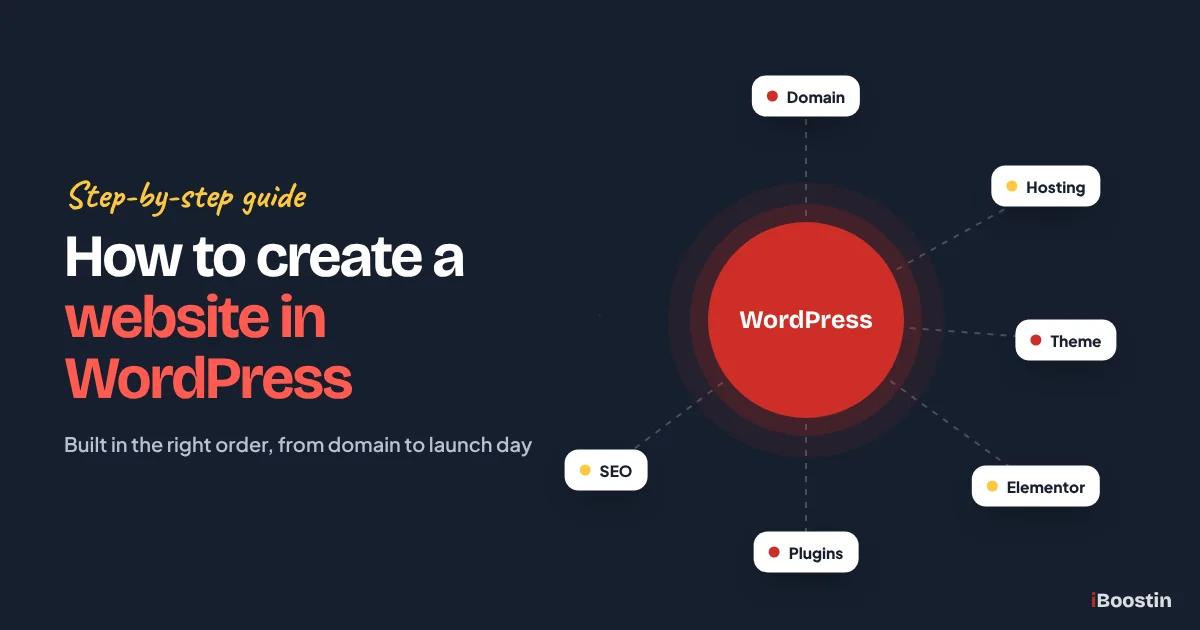
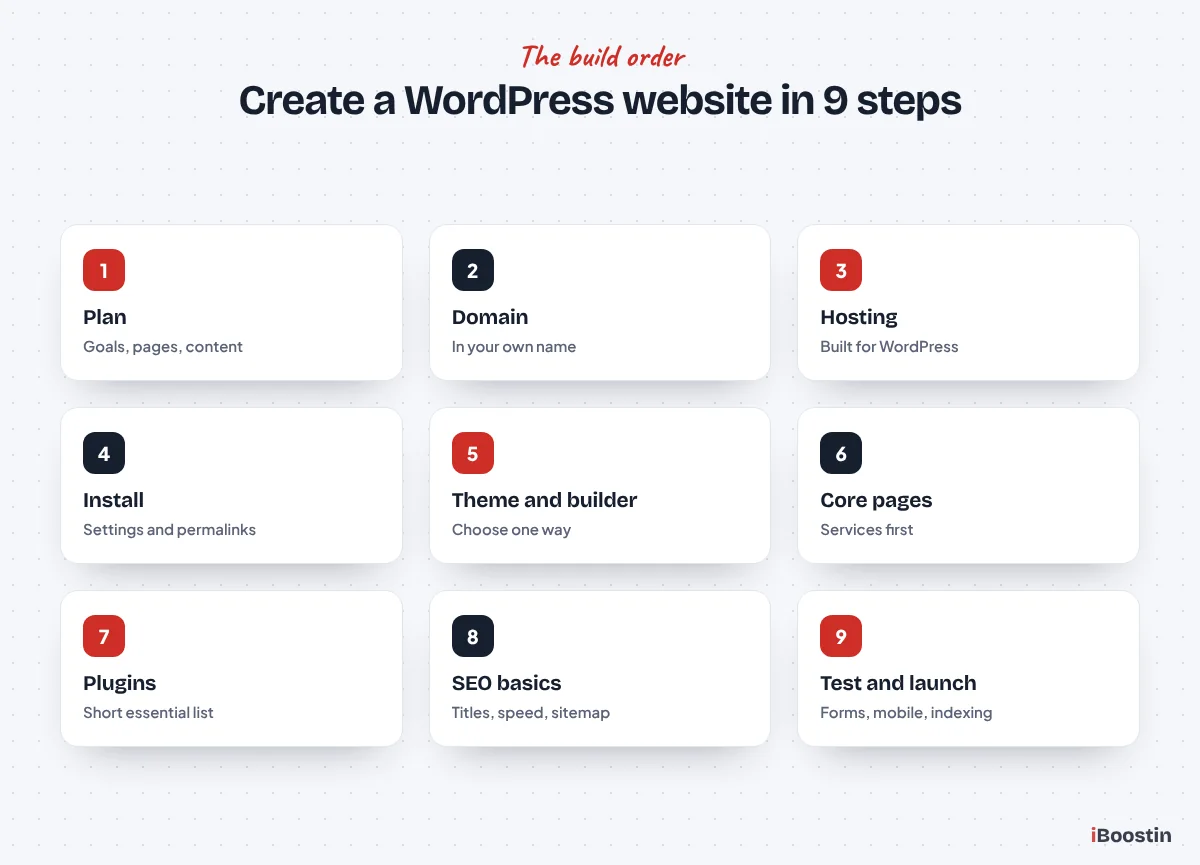
To create a website in WordPress, register a domain, choose WordPress hosting, install WordPress, pick a theme or page builder such as the block editor or Elementor, build your core pages, add a few essential plugins, set up SEO basics and test everything before launch. A simple business site can go live in days. A polished one usually takes a few weeks.
Most business owners who try this get stuck in the same places. They buy hosting and a theme, install fifteen plugins, then spend a weekend fighting a page builder while the site gets slower and messier. Or they launch with “Discourage search engines” still ticked, wonder for two months why Google never shows them, and decide WordPress does not work. WordPress works very well. It just rewards doing things in the right order.
This guide walks you through the exact order we use at iBoostin when we build WordPress websites for small businesses, from planning and domain to launch day and the first months after. It is written for business owners, so it focuses on the decisions that affect leads and sales, not on code. If at any point you decide you would rather have it built for you, our WordPress development services cover every step below.
Key takeaways
- Plan the website before you buy anything: what it must achieve, which pages it needs and what content you have.
- For a business website, use self-hosted WordPress (WordPress.org) on hosting built for WordPress, with the domain registered in your own name.
- Choose one way to build pages, either the block editor or a page builder such as Elementor, and a lightweight theme that suits it.
- Give every main service its own page, keep plugins to a short essential list and set up SEO basics before launch.
- Test forms, mobile layout, speed and search visibility before you go live, then keep the site updated and backed up.
Before You Start: Plan Your Business Website
The most expensive WordPress mistakes happen before anything is installed. A clear plan tells you which pages to build, which features you need and which plugins you can skip. It takes an hour or two, and it saves days of rework.
Decide What the Website Must Do
Start with the job your website has to do for the business. For most service businesses, the main goal is calls, quote requests or bookings. For a shop, it is online orders. For a professional firm, it may be enquiries from a specific type of client. Write that goal down, because it decides what goes on every page.
Then think about who will visit and what they need to see before they contact you: your services, the areas you cover, proof such as reviews and photos, and an easy way to get in touch. A website that answers those questions clearly will outperform a more beautiful one that does not.
List the Pages You Need
Most small business websites need the same core pages. Each one has a clear purpose, and leaving any of them out usually costs enquiries or rankings. The table below shows the pages we plan for almost every business site.
| Page | What it does |
|---|---|
| Homepage | Explains who you are, what you do and where, then sends visitors to the right service |
| One page per main service | Ranks for that service and convinces people to enquire |
| About | Builds trust with your story, team and credentials |
| Contact | Phone, form, address or service area, opening hours, map |
| Reviews or case studies | Shows proof from real customers |
| Blog or guides (optional) | Answers customer questions and supports your service pages |
| Privacy policy and legal pages | Required in many countries when you collect data |
If you serve several distinct towns or regions, you may also add location pages later. Only create them where you genuinely work, and give each one real local detail. A small, focused set of strong pages beats a large site full of thin ones.
Gather Your Content and Assets
Before building, collect your logo, brand colors, photos of your team and work, a short description of each service, your business details and any reviews you can show. Real photos and specific service descriptions make a far bigger difference than any theme choice.
If you do not have content yet, write rough notes for each page: what the service includes, who it is for, common questions and why customers choose you. Rough notes are easier to turn into good pages than a blank screen inside a page builder.
WordPress.org vs WordPress.com: Which One Do You Need?
There are two different things called WordPress, and choosing the wrong one is a common early mistake. WordPress.org is the free, open-source software you install on your own hosting. WordPress.com is a hosted service run by a company, with plans that limit what you can install on lower tiers.
The Difference in Practice
With self-hosted WordPress.org, you have full control: any theme, any plugin, your own hosting and full ownership of your files and data. This is what most business websites use and what agencies build on. With WordPress.com, hosting and updates are handled for you, but some features, plugins and customizations depend on your plan.
| WordPress.org (self-hosted) | WordPress.com (hosted service) | |
|---|---|---|
| Software | Free to use | Included in the service |
| Hosting | You choose a host | Provided by WordPress.com |
| Plugins and themes | Any you like | Depends on your plan |
| Control and ownership | Full | Limited by the platform |
| Best for | Business websites that need to grow | Simple personal sites and blogs |
The names are confusingly similar, so check which one you are signing up for. If a hosting company offers WordPress installation on your own domain, that is the self-hosted WordPress.org software.
What We Recommend for a Business
For a business that wants leads, SEO and room to grow, self-hosted WordPress.org is the better choice. It lets you use proper SEO plugins, page builders, booking tools and online store features, and you are never locked into one company’s rules. The rest of this guide assumes WordPress.org.
If you are still deciding whether WordPress is the right platform at all, compare it with the main alternatives in our guides on WordPress vs Wix for small business and WordPress vs Shopify for small business.
Step 1: Choose and Register Your Domain Name
Your domain is your address online, like yourbusiness.com. It appears on your cards, your Google Business Profile and every link to your site, so it is worth getting right the first time.
How to Choose a Good Business Domain
Use your business name if you can, keep it short and easy to spell, and avoid hyphens and numbers that people mishear. A .com is the safest choice for most businesses. A country domain like .co.uk or .ae works well if you only serve one country and customers expect it.
You do not need keywords in your domain to rank. Google ranks pages on their content and trust, not on the words in the domain. A clear brand name that customers remember is worth more than an awkward keyword domain.
Register It in Your Own Name
Register the domain through a reputable registrar or your hosting company, and make sure the account and the domain are in your name and under your email address. If a developer or agency registers it for you, ask for it to be in your name from the start.
We have seen businesses lose access to their own domain because a former web designer registered it under their personal account and then disappeared. Turn on auto-renew and keep your login details safe. Losing your domain means losing your website, your email and your rankings in one go.
Step 2: Choose WordPress Hosting
Hosting is the server where your website’s files live. It has a direct effect on speed, security and how much time you spend fixing problems. Choosing hosting only on price is one of the most common reasons small business WordPress sites end up slow.
What to Look For in WordPress Hosting
Look for hosting that is built or tuned for WordPress, with one-click installation, free SSL certificates, automatic daily backups, server-level caching and support that understands WordPress. Data centers close to your customers help speed. Easy staging, a copy of your site for testing changes, is a big plus.
| Feature | Why it matters |
|---|---|
| One-click WordPress install | Saves setup time and avoids mistakes |
| Free SSL (HTTPS) | Secure padlock, required for trust and SEO |
| Daily backups | Lets you recover quickly if something breaks |
| Server caching | Makes pages load faster |
| Server location near customers | Reduces load time for your visitors |
| WordPress-savvy support | Fixes problems faster |
| Staging site | Test updates and changes safely |
Ask the host where backups are stored, how long they are kept and how quickly you can restore one. A backup you cannot restore easily is not much help when something goes wrong. Good hosts let you restore a whole site in a few clicks.
Shared vs Managed WordPress Hosting
Shared hosting puts many websites on one server. It is the cheapest option and fine for a small, simple site, but performance can suffer when neighboring sites are busy. Managed WordPress hosting handles updates, security, caching and backups for you, usually with better performance and support.
For most small businesses, a good quality WordPress-optimized plan is enough at the start. If your website brings in a large share of your leads or sales, managed hosting is worth considering, because downtime and slow pages cost more than the difference in hosting.
Step 3: Install WordPress and Set the Basics
Most WordPress hosts install WordPress for you in a few clicks. Once it is installed, a handful of settings need changing before you build anything. Getting them right now avoids SEO and security problems later.
Install WordPress With One Click
In your hosting control panel, look for the WordPress installer, choose your domain and create an admin account. Use a unique username, not “admin”, and a strong password stored in a password manager. Make sure the site loads over HTTPS with a padlock, and ask your host to enable SSL if it does not.
Once it is installed, log in at yourdomain.com/wp-admin. You will see the WordPress dashboard, where everything else in this guide happens. Delete the sample post, sample page and any plugins or themes your host added that you do not need.
Change These Settings First
Under Settings, General, set your site title, tagline, timezone and admin email. Under Settings, Permalinks, choose “Post name” so your page addresses look like yourdomain.com/services/ rather than a string of numbers. Changing permalinks later breaks links, so do it now.
Under Settings, Reading, you will see “Discourage search engines from indexing this site”. Ticking it while you build is fine, but write a big reminder to untick it at launch. Forgetting this single box is the most common reason we find new WordPress sites missing from Google, which we cover in why your website is not showing up on Google.
Step 4: Choose a Theme and a Way to Build Pages
Your theme controls the overall look of the site. Your page builder, or the built-in block editor, controls how you design individual pages. These two choices shape how fast your site is and how easy it is to edit, so choose them together.
Block Editor, Elementor or a Theme Builder
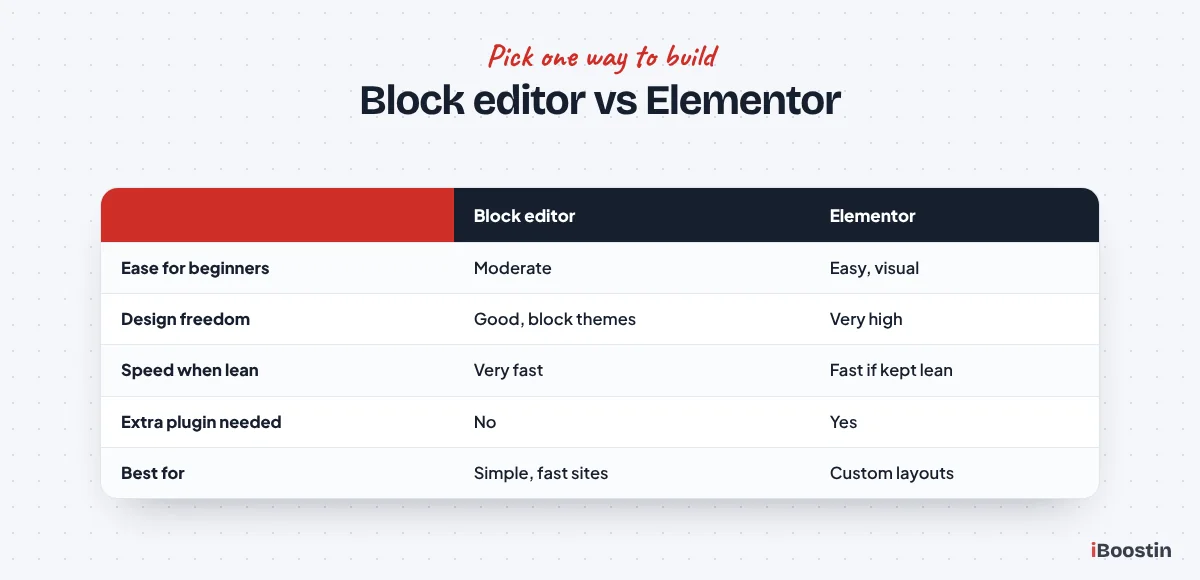
The block editor, also called Gutenberg, is built into WordPress. Combined with a modern block theme, it is fast and needs no extra plugin, but complex layouts take more effort. Elementor is the most popular page builder: you design pages visually by dragging elements, which makes custom layouts much easier, at the cost of some extra code and weight if it is not set up carefully.
Some premium themes come with their own builder and demo layouts. They can be quick to start, but you are tied to that theme’s way of working, and some are heavy. Whichever route you choose, stick to one. Mixing several builders on one site is a reliable way to make it slow and hard to maintain.
| Block editor | Elementor | Premium theme builder | |
|---|---|---|---|
| Ease for beginners | Moderate | Easy, visual | Easy with demos |
| Design freedom | Good with block themes | Very high | Depends on theme |
| Speed when set up well | Very fast | Fast if kept lean | Varies widely |
| Editing later | Built into WordPress | Visual, very easy | Tied to that theme |
How to Choose a Theme
Choose a lightweight, well maintained theme that works with your chosen builder. Check that it was updated recently, has good reviews, loads quickly in its demo and looks right on a phone. For Elementor, a minimal theme such as Hello Elementor or Astra keeps the site lean. For the block editor, choose a modern block theme.
Avoid themes that bundle many plugins, sliders and features you will not use. They add weight to every page. If you plan to use Elementor, our guide on whether Elementor is good for SEO explains how to keep it fast and search friendly.
Step 5: Create Your Core Pages
Pages are where your website wins or loses customers. Build them in this order: service pages first, then the homepage that points to them, then about and contact. Use the content you gathered during planning, written in the words customers use.
Your Homepage
Your homepage should make three things clear within seconds: what you do, where you do it and how to contact you. Put a clear headline at the top, a short line explaining who you help, and a visible button to call, book or request a quote. Below that, link to each main service, show reviews and add a short reason to choose you.
Avoid sliders, long animations and vague slogans like “Excellence in everything we do”. They slow the page and tell visitors nothing. A clear, fast homepage with obvious next steps turns more visitors into enquiries.
Service Pages
Give every main service its own page with its own address, title and heading. Each page should explain what the service is, who it is for, how the process works, what affects the price, why choose you, common questions and how to get started. Add real photos, reviews related to that service and a clear call to action.
These pages are what rank on Google for searches like “emergency plumber in Leeds” or “bookkeeping for contractors”, so they matter more than any other part of the site. A single “Services” page listing everything cannot rank for each service, however well it is designed.
About, Contact and Legal Pages
Your about page builds trust: your story, your team, how long you have been in business, credentials and what makes you different. Your contact page should include a simple form, your phone number, email, address or service area, opening hours and a map if customers visit you.
Add a privacy policy, especially if you use contact forms, analytics or cookies, and terms where they apply. WordPress includes a privacy policy page template under Settings, Privacy that you can adapt. Check the rules in your country, because requirements differ.
Step 6: Set Up Menus, Header and Footer
Navigation decides whether visitors find your services or leave. Keep it simple and predictable, so a first-time visitor knows where to go within a second.
Build a Clear Menu
Put your main services, about and contact in the main menu, plus a visible call or booking button. If you have many services, group them under a Services dropdown. Avoid more than six or seven top-level items. Depending on your theme, you build menus under Appearance, Menus or in the Site Editor.
Every important page should be reachable within two or three clicks from the homepage. That helps visitors and helps Google understand which pages matter most on your site.
Use the Footer Well
The footer is where many visitors look for contact details and key links. Include your business name, address or service area, phone number, email, opening hours, links to your main services and social profiles, and your privacy policy.
Make sure the business name, address and phone number match your Google Business Profile exactly. Consistent details across your site and listings help local rankings and help AI tools describe your business correctly.
Step 7: Install Only the Plugins You Need
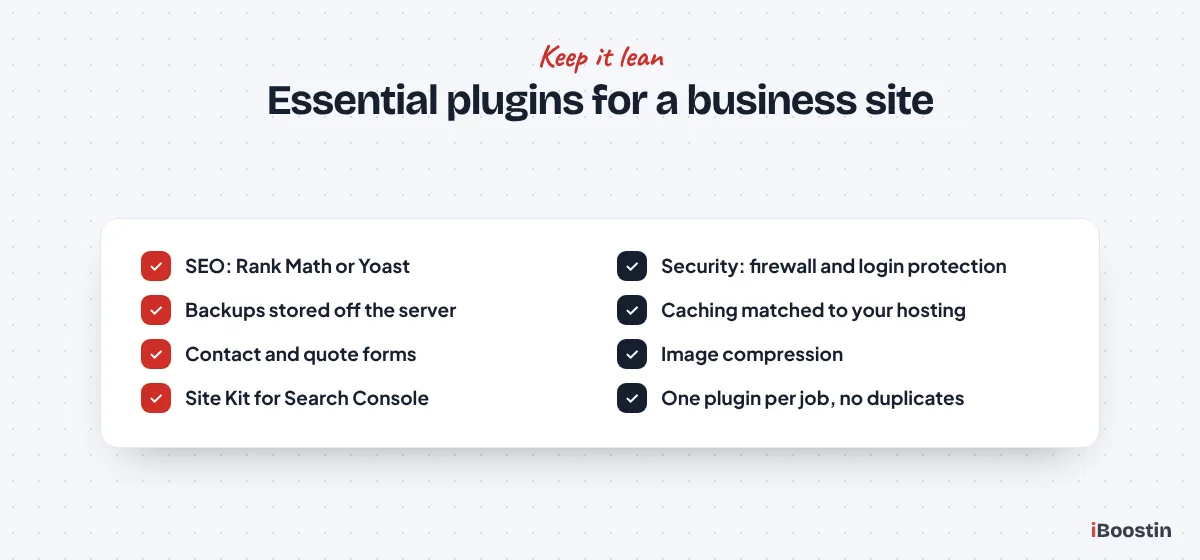
Plugins add features to WordPress, but every plugin adds code, maintenance and potential security risk. Most business websites need fewer than fifteen. The aim is a short list of well maintained plugins that each do one important job.
The Essential Plugin Types
Most business sites need one plugin from each of these categories, unless your host already provides the feature. Choose plugins with recent updates, many active installs and good reviews.
| Need | Common choices | Note |
|---|---|---|
| SEO | Rank Math, Yoast SEO | Titles, descriptions, sitemaps, schema |
| Security | Wordfence, Solid Security | Login protection, firewall, scans |
| Backups | UpdraftPlus or your host | Daily backups stored off the server |
| Caching and speed | LiteSpeed Cache, WP Rocket | Use the one that matches your hosting |
| Forms | WPForms, Fluent Forms, Contact Form 7 | Contact and quote forms |
| Image optimization | Built into many caching plugins | Compress and resize images |
| Analytics | Site Kit by Google | Connects Search Console and Analytics |
Some hosts already include caching, backups or security at the server level. In that case, you may not need a separate plugin for that job, and adding one can even cause conflicts. Check what your hosting provides before installing anything.
Plugins to Avoid
Avoid installing several plugins that do the same job, such as two SEO plugins or two caching plugins, which often conflict. Avoid nulled or pirated premium plugins, which are a common source of malware. Be careful with plugins that have not been updated in a long time.
If your site is already slow, too many or poorly built plugins are often the reason. Our guide on why your WordPress site is so slow shows how to find the culprits.
Step 8: Set Up SEO Basics Before Launch
A website that is set up for search from the start ranks sooner than one fixed later. These basics take a few hours and make every page easier for Google to understand.
Titles, Descriptions and Structure
Install an SEO plugin such as Rank Math or Yoast and run its setup wizard. For each important page, write a unique title of about 60 characters with the main keyword near the start, and a meta description of about 140 to 160 characters that invites the click. Make sure every page has one H1 heading and clear H2 and H3 headings below it.
Add descriptive alt text to images, link related pages to each other and keep URLs short and readable. Our WordPress SEO services cover this setup in detail if you want it done for you.
Speed, Mobile and Search Console
Test your main pages in PageSpeed Insights and on your own phone. Compress large images, make sure caching is on and remove anything you do not need. A fast, clean mobile experience matters for both visitors and rankings.
After launch, verify your site in Google Search Console, submit your sitemap and check that your pages are indexed. Link your website from your Google Business Profile and social profiles so Google discovers it sooner.
Step 9: Test Everything and Launch
Launching is not just making the site public. A short checklist catches the problems that cost enquiries in the first weeks, like a contact form that sends emails nowhere.
Pre-Launch Checklist
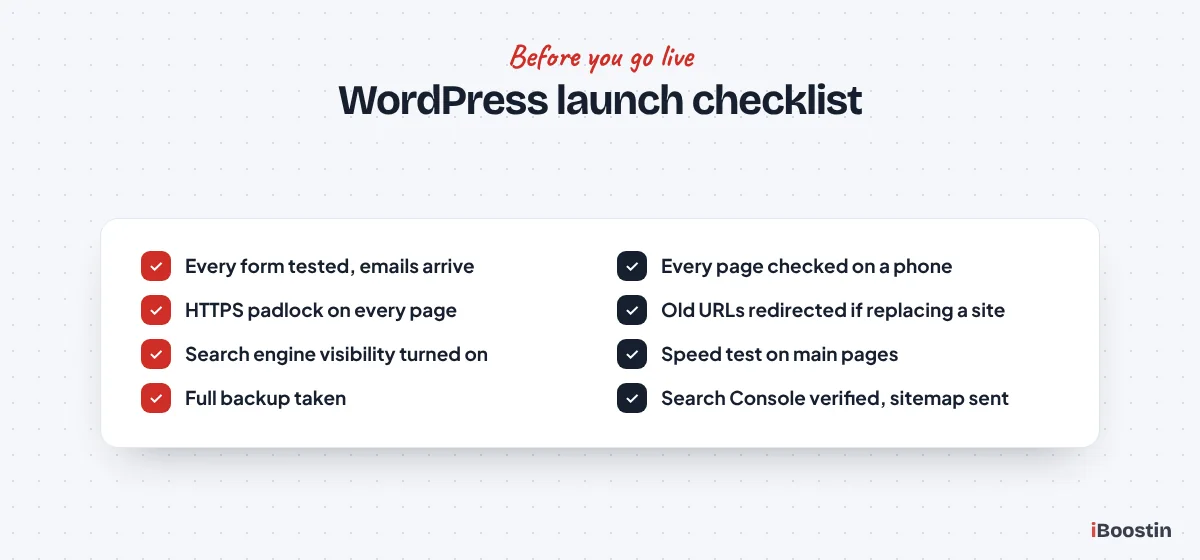
Before launch, test every form and confirm the emails arrive. Click every link and button. Check every page on a phone and a tablet. Make sure the padlock shows on every page and that old addresses redirect if you are replacing an existing site. Check spelling, phone numbers and opening hours.
Then untick “Discourage search engines from indexing this site” under Settings, Reading. Run a final speed test, take a full backup and only then announce the site. If you are replacing an existing website, follow our guide on how to redesign a website without losing SEO before switching over.
The First Weeks After Launch
In the first weeks, check Search Console for indexing errors, watch which pages start getting impressions and fix anything that does not work as expected. Ask a few customers to use the site and tell you what confused them.
Keep plugins, themes and WordPress itself updated, and make sure backups run. A website is not finished at launch. The businesses that get the most from WordPress keep improving their pages based on what visitors and Search Console tell them.
How Long Does It Take to Create a WordPress Website?
A simple brochure website with a handful of pages can be built in a few days if content and photos are ready. A typical small business site with several service pages, custom design and SEO setup usually takes two to six weeks. Online stores and complex sites take longer.
What Decides the Timeline
The biggest factor is usually content, not development. Sites wait for service descriptions, photos and approvals far more often than for design or code. Custom design, many pages, online store features and integrations with booking or CRM systems all add time.
Our guide on how long it takes to build a WordPress website breaks down timelines by type of site and shows how to speed things up without cutting corners.
Common Mistakes When Creating a WordPress Website
These are the problems we fix most often on WordPress sites built by business owners or rushed developers. Avoiding them from the start saves a lot of time later.
Too Many Plugins and a Heavy Theme
Installing a plugin for every small feature, using a theme packed with sliders and effects, or mixing two page builders all make a site slow and fragile. Slow sites lose visitors and rankings, and every extra plugin is one more thing that can break during an update.
Start lean and add features only when you need them. If a plugin is not essential, remove it rather than just deactivating it.
Launching Without Backups, Updates or a Security Plan
A new site with no backups and no update routine is vulnerable from day one. Outdated plugins and weak passwords are the most common ways WordPress sites get hacked. When that happens, a recent backup is the difference between an hour of work and a lost website.
Set up daily backups stored away from your server, keep everything updated and use strong, unique passwords. If the worst happens, our guide on what to do if your WordPress site is hacked walks you through recovery step by step.
Building Pages Without a Plan for Search
Many sites look great but have one services page, vague headings and no titles or descriptions set. They launch, get no visitors and the owner assumes WordPress is the problem. Planning one page per service and setting SEO basics before launch avoids this entirely.
If your site already exists and is not performing, our guide on the signs you need a new website helps you decide whether to fix it or rebuild.
Keeping Your WordPress Website Healthy After Launch
WordPress needs regular care. Plugins, themes and WordPress itself release updates often, and each one should be applied and checked. A neglected site gets slower, less secure and eventually breaks.
Updates, Backups and Monitoring
Plan a simple routine: check for updates weekly, test the site after updating, confirm backups are running, and keep an eye on uptime and security alerts. Many hosts and security plugins can automate parts of this.
If you would rather not handle it yourself, a maintenance plan covers updates, backups, security and fixes. Our guide on what is included in website maintenance explains what a good plan should cover, and our WordPress maintenance services handle it for you.
When the Site Needs More Than Maintenance
Over time, you will add services, refresh designs and improve pages based on results. If your site starts to feel slow, outdated or hard to edit, it may be time for a redesign rather than more patches.
Plan redesigns carefully so you keep the rankings you have built. Our WordPress website management service covers ongoing content changes and improvements for businesses that want a team to look after the site month to month.
Build It Yourself or Hire a WordPress Developer?
You can create a perfectly good WordPress website yourself by following this guide, especially for a simple site. Whether you should depends on your time, how much the website matters to your revenue and how comfortable you are with the technical steps.
When Doing It Yourself Makes Sense
DIY works well for a new business with a small budget, a handful of pages and an owner who enjoys learning. Use a lightweight theme, one builder, a short plugin list and the steps above, and you can have a solid site live within days.
The main risks are time and the details that are easy to miss: speed, security, SEO setup and mobile layout. Use the checklists in this guide, and get a second opinion before launch if you can.
When It Pays to Hire Help
Hiring makes sense when the website is a major source of leads or sales, when you need custom design or features like booking and online stores, or when your time is worth more running the business. A good developer builds faster, avoids the common mistakes and sets the site up for SEO from the start.
Our guide on how to hire a WordPress developer lists the questions to ask before you pay anyone. If you would like us to build it, our WordPress development services, custom WordPress website design and Elementor expert services cover everything from a simple brochure site to a full online store with WooCommerce.
Frequently Asked Questions About Creating a Website in WordPress
Can I create a WordPress website for free?
The WordPress software itself is free to download and use. To run a proper business website, you still need a domain name and web hosting, which are paid services, and you may choose premium themes or plugins. WordPress.com offers limited free plans, but they restrict features, plugins and branding, so most businesses use self-hosted WordPress.
Do I need to know coding to build a WordPress website?
No. You can build a complete business website with the block editor or a visual page builder such as Elementor without writing code. Basic knowledge helps with troubleshooting and small design tweaks, but themes, page builders and plugins handle most of the work. Complex custom features may still need a developer.
What is the difference between WordPress.org and WordPress.com?
WordPress.org is the free software you install on your own hosting, giving you full control over themes, plugins and data. WordPress.com is a hosted service where the company runs the hosting for you, but features and plugins depend on your plan. Most business websites use self-hosted WordPress.org.
Is WordPress good for a small business website?
Yes. WordPress powers a large share of all websites, and it suits most small businesses well: it is flexible, SEO friendly, has plugins for forms, bookings and online stores, and many developers know it. It needs regular updates and backups, so plan for maintenance or a maintenance service.
How long does it take to create a website in WordPress?
A simple site with a few pages can be built in a few days if your content and photos are ready. A typical small business website with several service pages, custom design and SEO setup usually takes two to six weeks. Online stores and sites with complex features take longer.
Should I use Elementor or the block editor?
Use the block editor with a modern block theme if you want maximum speed and fairly simple layouts. Use Elementor if you want visual drag and drop design and more layout freedom, and keep it lean with a lightweight theme. Either works well for business websites when set up carefully. Avoid mixing builders.
Can I build an online store with WordPress?
Yes. WooCommerce is a free plugin that turns WordPress into a full online store with products, payments, shipping and taxes. It suits businesses that want full control and plan to grow content and SEO alongside the store. Compare it with hosted platforms before choosing, especially if you want minimal maintenance.
Build It in the Right Order and WordPress Works for You
Creating a website in WordPress is not difficult when you follow the right order: plan the pages, secure your domain and hosting, install and configure WordPress, choose one way to build, create strong service pages, keep plugins lean, set up SEO and test before launch. Most problems people blame on WordPress come from skipping one of those steps.
If you would rather spend your time on the business, we can build the site for you, set up for speed, security and search from day one, and hand it over in a way your team can edit with confidence.