In this guide
- Signs Your WordPress Site Has Been Hacked
- What to Do in the First Hour
- Step 5: Find Out What Was Infected
- Step 6: Clean the Site
- Step 7: Update and Harden
- Step 8: Recover Your Google Visibility
- What Not to Do After a Hack
- Special Cases That Need Extra Care
- How Long Does Recovery Take?
- Common Ways WordPress Sites Get Hacked
- How to Prevent Your WordPress Site From Being Hacked Again
- Telling Customers, Staff and Partners
- When to Call a Professional
- Frequently Asked Questions About Hacked WordPress Sites
- Recover Quickly, Then Stay Protected
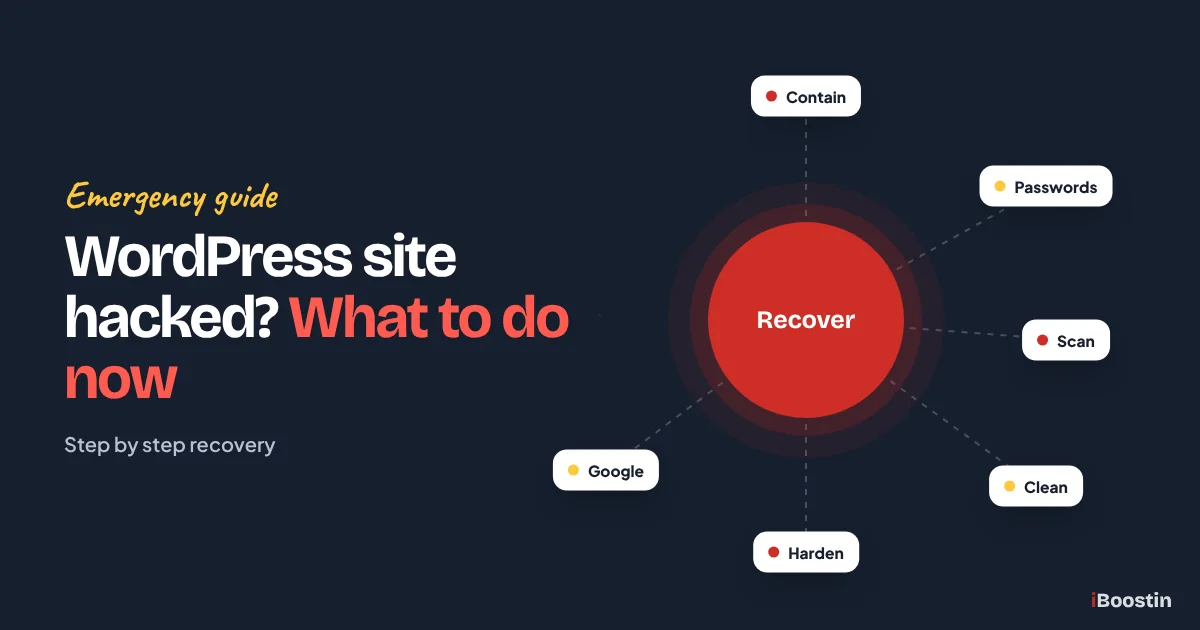
If your WordPress site is hacked, act in this order: stay calm, put the site into maintenance mode or take it offline if it is harming visitors, change every password (WordPress admin, hosting, database, FTP and email), contact your host, scan the site to find the infection, remove unknown admin users, restore a clean backup or clean the files and database, update everything, then check Google Search Console and request a review if Google has flagged the site.
Discovering that your website has been hacked is stressful. Customers may be seeing spam, being redirected to strange sites or getting browser warnings, and you may not know how it happened or how bad it is. The good news is that most hacked WordPress sites can be fully recovered, often within a day, if you follow a clear process and do not skip steps.
This guide walks you through exactly what to do, step by step, from the first hour through cleanup, Google recovery and prevention. It is written by the iBoostin team for business owners, so it explains what each step means and when to bring in help. If your site is slow but not hacked, see our guide on why your WordPress site is so slow instead.
Key takeaways
- Act quickly but in order: contain the damage, lock down access, then clean, then recover with Google.
- Change every password, not just the WordPress admin: hosting, database, FTP or SFTP, email and any connected services.
- Restoring a backup only works if the backup is clean and the hole the hacker used is closed afterwards.
- Check Google Search Console for security issues and manual actions, then request a review once the site is clean.
- Most hacks come from outdated software, weak passwords, nulled plugins or poor hosting. Fix the cause or it will happen again.
Signs Your WordPress Site Has Been Hacked
Some hacks are obvious. Others are designed to stay hidden so the attacker can keep using your site. Knowing the signs helps you act sooner.
Visible Signs
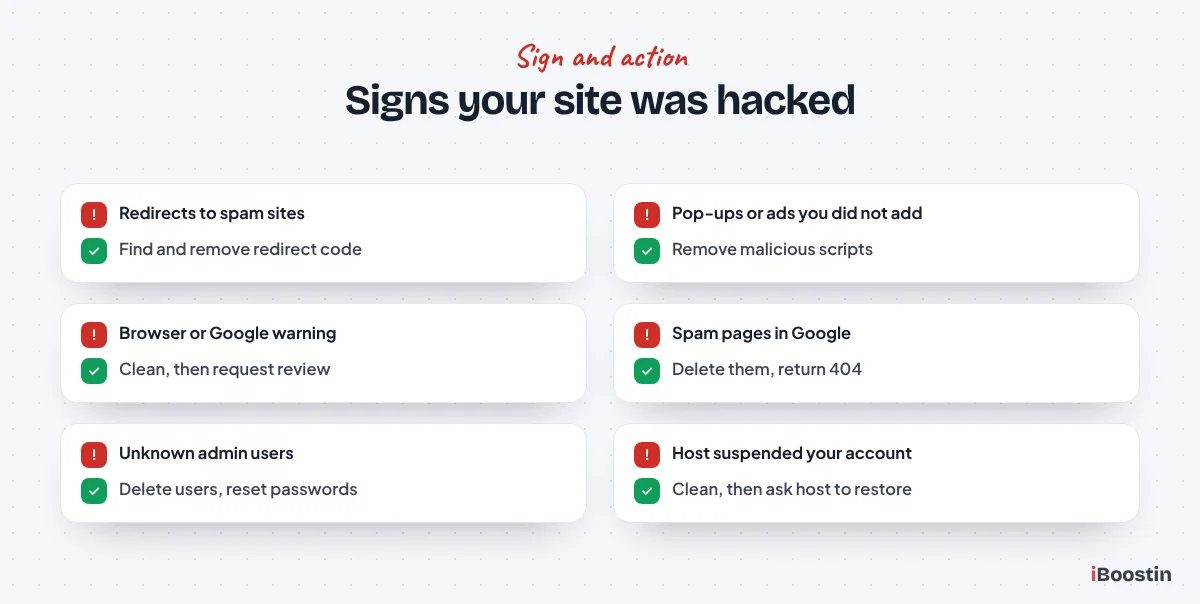
The clearest signs are a defaced homepage, pop-ups or adverts you did not add, visitors being redirected to spam or scam sites, browser warnings such as “deceptive site ahead”, or a message from your host saying your account has been suspended for malware.
Some redirects only affect visitors coming from Google or using a phone, so you may not see them when you visit your own site directly. If customers report strange behavior, take it seriously even if the site looks normal to you.
Hidden Signs
Hidden signs include spam pages in Google results when you search site:yourdomain.com, especially pages about pharmaceuticals, gambling, replica goods or foreign language content. Unknown administrator users in WordPress, new files in your hosting account, sudden spikes in traffic or server usage, and your domain sending spam emails are also warning signs.
Google Search Console may show a security issue or a manual action, and you may receive an email from Google about it. Security plugins may report changed core files or suspicious code.
What to Do in the First Hour
The first hour is about containing the damage and stopping the attacker from making things worse. Do not start deleting files at random.
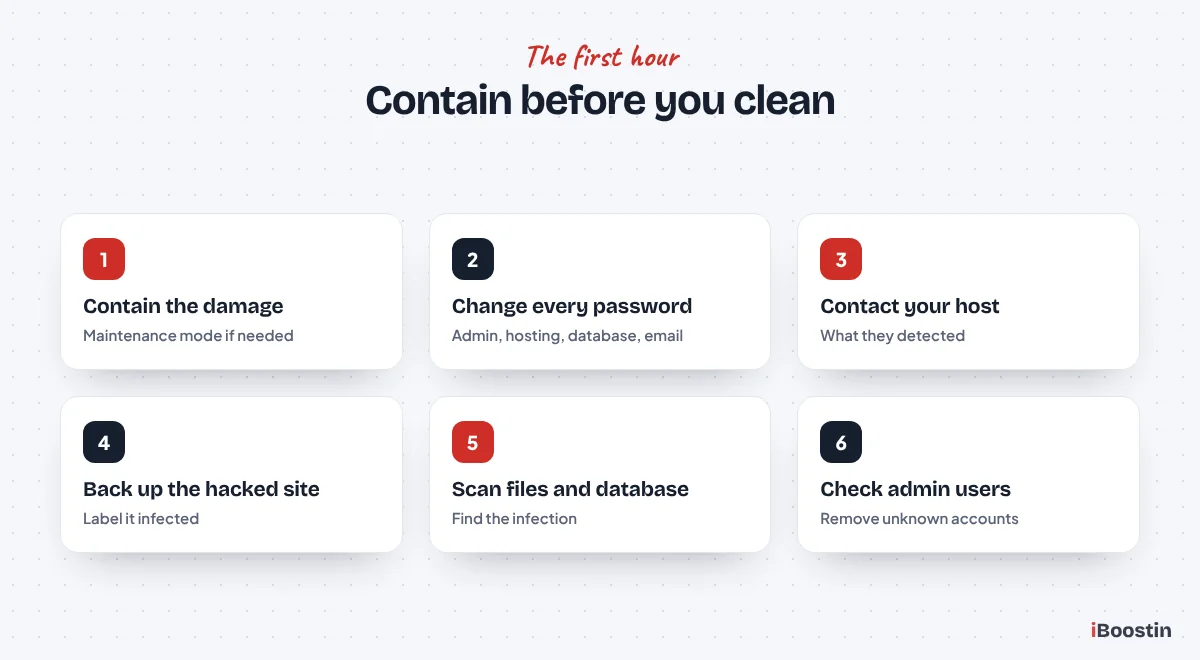
Step 1: Contain the Damage
If the site is redirecting visitors to harmful sites or showing malicious content, put it into maintenance mode or ask your host to temporarily restrict access. Protecting your visitors comes first, and a short planned outage is better than sending customers to a scam page.
If you run a store, pause new orders until you know whether checkout or customer data could be affected. Note when you first noticed the problem and what you saw. Screenshots are useful for your host, your developer and Google later.
Step 2: Change Every Password
Change passwords for all WordPress administrator accounts, your hosting control panel, the database user, FTP or SFTP accounts, and the email accounts connected to the site. If the attacker has any of these, cleaning the site is pointless because they can simply come back in.
Use long, unique passwords stored in a password manager, and switch on two-factor authentication wherever it is available. If you have shared access with past developers or agencies, remove or reset their accounts too.
Step 3: Contact Your Hosting Provider
Your host can often tell you what they have detected, when it started and which files are affected. Many hosts offer malware scanning and some help with cleanup, and they need to know if your account is sending spam or attacking other sites.
Ask whether other sites on the same hosting account may be affected. A single infected site on a shared account can reinfect others, so every site in the account needs checking.
Step 4: Take a Backup of the Hacked Site
It sounds odd, but take a full backup of the hacked site, files and database, before you change anything else. It gives you a record of the infection for investigation and a way back if cleanup accidentally removes something important.
Store this backup separately and label it clearly as infected so nobody restores it by mistake. Keep it until the investigation is complete, because it may help a professional work out how the attacker got in.
Step 5: Find Out What Was Infected
Before cleaning, find out how widespread the infection is. That determines whether a backup restore, a manual cleanup or a professional service is the right choice.
Scan the Site
Use a reputable security plugin such as Wordfence to scan files and the database, and an external scanner such as Sucuri SiteCheck to see what visitors and search engines see. Your host’s malware scanner may also give useful results.
Scanners are helpful but not perfect. They miss well-hidden backdoors, and they can flag legitimate code. Treat their results as a starting point for investigation, not a complete diagnosis.
Check Users, Files and Settings
In WordPress, go to Users and look for administrator accounts you do not recognize. Remove them, after noting their usernames and email addresses. Check Settings for changes to the site address, and check for unfamiliar plugins, including ones that hide themselves from the plugin list.
In your hosting file manager or via SFTP, look for recently modified files, PHP files in the uploads folder (which should usually only contain images and documents), and unfamiliar files in the site’s root folder. Check the .htaccess file and wp-config.php for code you did not add.
Step 6: Clean the Site
There are two main ways to clean a hacked WordPress site: restore a clean backup, or clean the existing site file by file. Often the best approach combines both.
Option A: Restore a Clean Backup
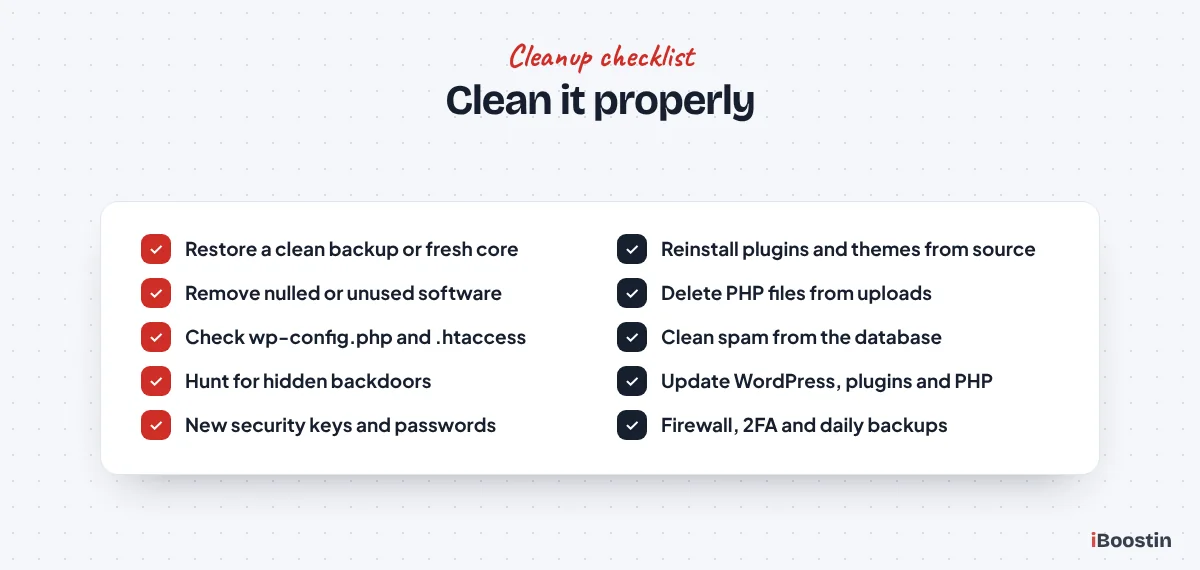
If you have a backup from before the hack, restoring it can be the fastest fix. The challenge is knowing when the hack started. Attackers often get in weeks before anything visible happens, so a recent backup may already contain a backdoor.
If you restore, scan the restored site immediately, change all passwords again, update everything and close the hole the attacker used. Otherwise, the same attacker can get back in within days. Any content or orders added since the backup will need to be re-entered.
Option B: Clean the Existing Site
When no clean backup exists, clean the site directly. Replace WordPress core files with fresh copies from WordPress.org, delete and reinstall every plugin and theme from their official sources, and remove any you do not use.
Then clean what cannot simply be replaced: the uploads folder, wp-config.php, .htaccess and the database. Remove PHP files from uploads, check the database for injected scripts and spam links in posts, options and widgets, and look for scheduled tasks or users added by the attacker.
Remove Backdoors
Attackers usually leave backdoors, small pieces of hidden code that let them return even after the visible infection is removed. They hide in theme files, plugin files, the uploads folder, fake plugin folders, the database and sometimes in files that look like legitimate WordPress files.
Finding every backdoor is the hardest part of cleanup and the main reason sites get reinfected. Comparing file lists against fresh copies, searching for suspicious functions often used to hide code and reviewing recently modified files all help. If the site keeps getting hacked after cleaning, a backdoor has almost certainly been missed, and professional cleanup is worth considering.
Step 7: Update and Harden
Cleaning removes the infection. Hardening closes the gaps that let it in. Skipping this step is the most common reason sites are hacked again.
Update Everything
Update WordPress core, every plugin and the theme to their latest versions. Replace any nulled or pirated plugins and themes with licensed copies, as these are a very common source of hidden malware. Remove plugins that are abandoned or no longer needed.
Check your PHP version and ask your host to move you to a current, supported version if needed. Outdated server software is another common entry point.
Lock Down Access
Use strong, unique passwords and two-factor authentication for every admin account. Limit admin access to the people who truly need it, and give others lower roles such as Editor. Limit login attempts and consider changing the login URL to reduce automated attacks.
Add a web application firewall, through a security plugin, your host or a service such as Cloudflare, and set up regular malware scanning and off-site backups. Generate new WordPress security keys in wp-config.php to force everyone, including the attacker, to log in again.
Step 8: Recover Your Google Visibility
Once the site is clean, the next job is to make sure Google and browsers stop warning visitors, and that spam pages disappear from search results.
Check Search Console
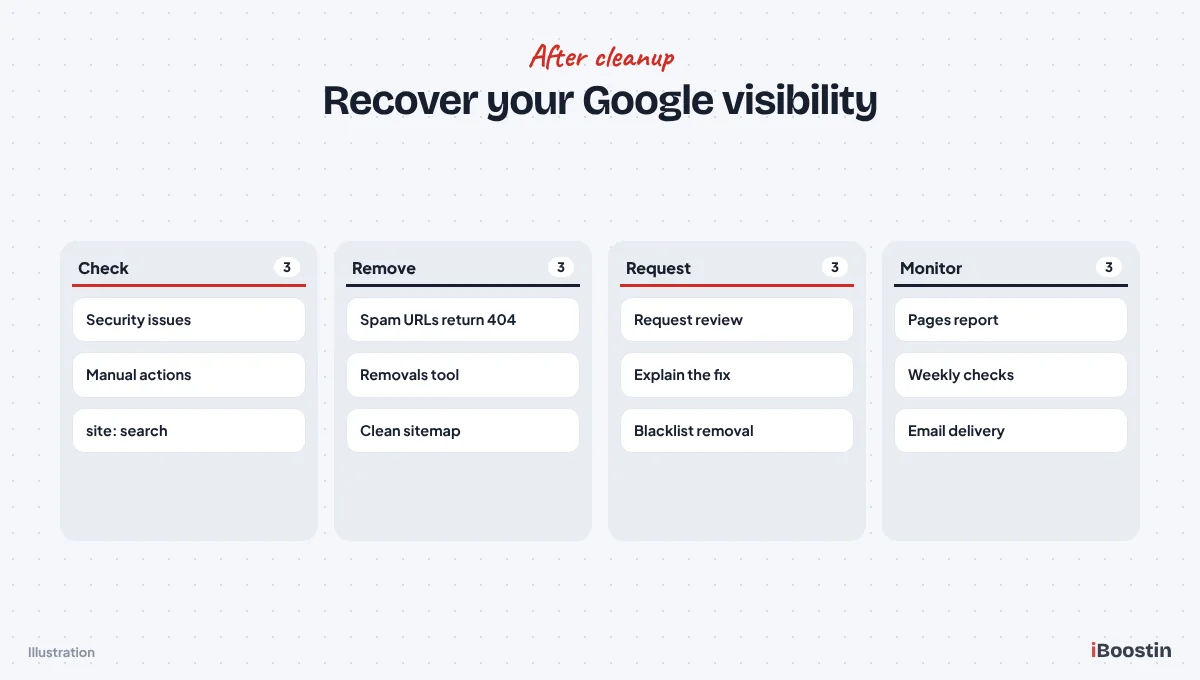
In Google Search Console, open the Security issues report and the Manual actions report. Security issues cover malware, hacked content and deceptive pages. Manual actions can include spam problems caused by the hack, such as injected links or pages.
If issues are listed, fix every example Google shows, then use the “Request review” button. Explain clearly what happened, what you removed and what you changed to prevent it happening again. Reviews often take a few days, sometimes longer.
Remove Spam Pages and Resubmit the Sitemap
Hacks often create thousands of spam URLs on your domain. Once they are deleted, make sure they return a 404 or 410 status, not a redirect to your homepage. For urgent cases, use the Removals tool in Search Console to hide spam URLs temporarily while Google recrawls.
Check that your XML sitemap only contains your real pages and resubmit it. Then monitor the Pages report and site:yourdomain.com searches over the following weeks until the spam pages disappear.
Check Blacklists and Email
Check whether your domain is on security blacklists using tools such as Sucuri SiteCheck or VirusTotal, and request removal once the site is clean. If your domain was used to send spam emails, check your email deliverability and contact your email provider if messages are being rejected.
Also review your Google Business Profile and any ads accounts for warnings or suspensions related to the hack. If your ads were paused because the site was flagged, most platforms let you request a review once the malware is removed and the warnings are cleared.
What Not to Do After a Hack
Panic leads to mistakes that make recovery slower and reinfection more likely. Avoid these common errors.
Do Not Just Delete the Visible Malware
Removing the spam page or the injected script you can see feels like progress, but it rarely solves the problem. The visible symptom is usually created by hidden code elsewhere, and the attacker’s backdoor will simply recreate it.
Treat every visible symptom as evidence of a deeper infection. Work through the full process: lock down access, find all infected files, clean or replace them and close the entry point.
Do Not Restore Without Checking
Restoring the most recent backup without scanning it often restores the infection too. Many hacks sit quietly for weeks before showing symptoms, so the backup from yesterday may already contain a backdoor.
If you restore, choose a backup from before the first known sign of trouble where possible, then scan it, change every password and update everything before putting the site back online.
Do Not Ignore It or Wait
Some owners hope a hack will go away on its own, or put off dealing with it because the site still mostly works. Meanwhile, visitors are exposed to harmful content, Google may flag the site and the attacker can use your server to attack others or send spam.
The longer a hack stays active, the more damage it does to your reputation and rankings, and the harder it is to clean. Act the same day if you can.
Special Cases That Need Extra Care
Some hacks need additional steps beyond the standard process, because more is at risk.
A Hacked WooCommerce Store
If your store is hacked, check whether checkout pages, payment scripts or customer data could have been affected. Card-skimming malware injects code into checkout pages to steal payment details as customers type them, often without any visible change to the site.
Pause checkout if you suspect this, contact your payment provider and get professional help to investigate. Depending on where you operate and what data was involved, you may have legal obligations to notify customers or authorities, so take advice early.
Your Site Is Sending Spam Email
Some hacks turn your website into a spam sender, using your server and domain to send thousands of emails. Signs include hosting warnings, bounced emails and your own messages suddenly landing in spam folders.
Cleaning the site stops the sending, but your domain’s email reputation may take time to recover. Check whether your domain or server IP is on email blacklists, request removal and make sure email authentication records such as SPF, DKIM and DMARC are set up correctly.
Redirects You Cannot Reproduce
Some malware only redirects visitors who arrive from Google, use a phone or visit for the first time, and hides from logged-in administrators. That makes the problem hard to see and easy to dismiss.
Test from a private browser window on your phone, using mobile data rather than your office connection, and click through from a Google search result. External scanners also help, because they visit the site the way an ordinary visitor would.
How Long Does Recovery Take?
Owners understandably want to know when the site will be back to normal. The answer depends on how bad the infection is, whether a clean backup exists and how quickly Google reviews the site.
Cleanup Time
A simple infection with a clean backup available can often be resolved within a few hours. A site with no clean backup, many infected files and hidden backdoors may take a day or more to clean properly, especially if the database is also affected.
Rushing cleanup to get the site back online quickly is a false economy. A site that is reinfected a week later has to go through the whole process again, often with more damage the second time.
Search and Reputation Recovery
Once the site is clean and Google has approved your review request, warnings in search results and browsers are usually removed within days. Spam pages can take several weeks to drop out of the index completely as Google recrawls them.
Rankings usually return once the spam is gone and the site is stable, although a long-running hack can take longer to recover from. Keep monitoring Search Console and your key rankings during the weeks after cleanup.
Common Ways WordPress Sites Get Hacked
Understanding how the attacker got in is essential to keeping them out. Most WordPress hacks are not targeted attacks. They are automated bots scanning thousands of sites for known weaknesses.
Outdated Plugins and Themes
The most common cause is a vulnerability in an outdated plugin or theme. When a security flaw is published, bots start scanning for sites that have not updated. Sites that skip updates for months are easy targets.
Abandoned plugins, ones no longer maintained by their developers, are especially risky because their flaws never get fixed.
Weak Passwords and Shared Access
Weak or reused passwords let bots break into admin, hosting or FTP accounts by guessing. Old accounts for former staff, developers or agencies that were never removed give attackers more chances.
Nulled themes and plugins, downloaded free from unofficial sites, often contain hidden malware from day one. Cheap hosting with poor isolation between accounts can also allow infections to spread from one site to another.
How to Prevent Your WordPress Site From Being Hacked Again
Prevention is a routine, not a one-off task. These habits stop the vast majority of attacks.
Build a Security Routine
Keep WordPress, plugins and themes updated, ideally weekly, with backups taken first. Use only licensed software from reputable developers. Run daily off-site backups and test a restore every few months. Monitor for malware and uptime, and act quickly on alerts.
Use strong unique passwords and two-factor authentication, review user accounts regularly and use a firewall. Our guide on what is included in website maintenance explains a full routine that covers all of this.
Choose Good Hosting and Support
Quality WordPress hosting with server-level security, malware scanning, isolation between sites and current PHP versions removes many risks before they reach your site. Good hosts also respond faster when something goes wrong.
Finally, decide who is responsible for security. Whether it is you, a team member or a maintenance provider, someone needs to own it, or it gets forgotten until the next hack.
Telling Customers, Staff and Partners
A hack is not only a technical problem. The people who rely on your website may need to know what happened and what you are doing about it.
When to Tell Customers
If customers were redirected to harmful sites, saw warnings or may have had personal or payment data exposed, tell them clearly and promptly what happened, what you have done and what they should do, such as watching for suspicious emails or checking their card statements.
Honest, timely communication protects trust far better than silence. If personal data may have been exposed, check your legal obligations in your country or state, because notification rules can apply.
Keep Your Team Informed
Let staff know the site was hacked, what to tell customers who ask and which passwords they need to change. Make sure nobody restores old backups, reinstalls removed plugins or shares new logins while cleanup is under way.
Afterwards, review who has access to the website, hosting and email, and remove anyone who no longer needs it. A hack is a good moment to tighten access across the business, not just on the website.
When to Call a Professional
Many owners can handle a simple hack with a clean backup and good guidance. Others need help quickly.
Situations That Need Expert Help
Get professional help if you have no clean backup, the site keeps getting reinfected, you run an online store or handle customer data, Google has flagged the site, your host has suspended your account, or you are simply not comfortable editing files and databases.
Professional cleanup services remove malware and backdoors, harden the site and usually guide you through Google’s review process. They work faster because they have seen the same infections many times.
If the Site Is Too Damaged
Sometimes a site is so outdated or heavily infected that rebuilding is safer than cleaning. If your site was already struggling with old software and poor performance, a hack can be the moment to start fresh. Our guide on signs you need a new website helps you decide.
Our WordPress development services can rebuild it on secure, maintainable foundations. If you rebuild, our guide on how to create a website in WordPress explains the setup choices that keep a new site secure.
Frequently Asked Questions About Hacked WordPress Sites
What should I do first if my WordPress site is hacked?
First, contain the damage by putting the site in maintenance mode if it is harming visitors. Then change every password, including WordPress admin, hosting, database, FTP and email, contact your host, and take a backup of the hacked site before you start cleaning.
How do I know if my WordPress site has been hacked?
Common signs include redirects to spam sites, pop-ups or adverts you did not add, browser or Google warnings, spam pages appearing in Google results, unknown admin users, new or changed files, hosting suspension notices and your domain sending spam emails.
Can I fix a hacked WordPress site myself?
Sometimes. If you have a clean backup and are comfortable with WordPress and hosting tools, you can restore, update and harden the site yourself. If there is no clean backup, the site keeps getting reinfected, or it is a store or flagged by Google, professional help is usually faster and safer.
Will restoring a backup fix a hacked site?
Only if the backup is from before the hack and you close the security hole afterwards. Attackers often get in weeks before visible symptoms appear, so recent backups may contain backdoors. Scan the restored site, change all passwords and update everything immediately.
How long does it take Google to remove a hacked site warning?
After you clean the site and request a review in Google Search Console, reviews usually take a few days, though they can take longer. Spam pages may take several weeks to disappear from results as Google recrawls your site.
How did my WordPress site get hacked?
Most hacks come from outdated plugins or themes with known vulnerabilities, weak or reused passwords, nulled software containing malware, old user accounts that were never removed and insecure hosting. Identifying the cause is essential to prevent it from happening again.
How can I stop my WordPress site from being hacked again?
Keep everything updated, use only licensed plugins and themes, use strong passwords with two-factor authentication, remove old accounts, add a firewall, run daily off-site backups, monitor for malware and choose good hosting. A regular maintenance routine covers all of this.
Recover Quickly, Then Stay Protected
A hacked WordPress site feels like a disaster, but it is usually recoverable. Contain the damage, change every password, clean thoroughly, close the security hole and work through Google’s review process, in that order.
Once the site is clean, the real protection comes from what happens next: regular updates, backups, monitoring and good hosting. If you would rather not handle a hack alone, we can clean your site, harden it and keep it protected every month.