In this guide
- How to Measure Your WordPress Site Speed
- 12 Reasons Your WordPress Site Is Slow
- What to Fix First
- Quick Wins You Can Do Today
- Choosing Hosting That Keeps WordPress Fast
- Speed Problems Specific to WooCommerce Stores
- Common Speed Mistakes to Avoid
- Why WordPress Sites Get Slower Over Time
- When to Get Professional Help
- Frequently Asked Questions About Slow WordPress Sites
- Fix the Biggest Cause First
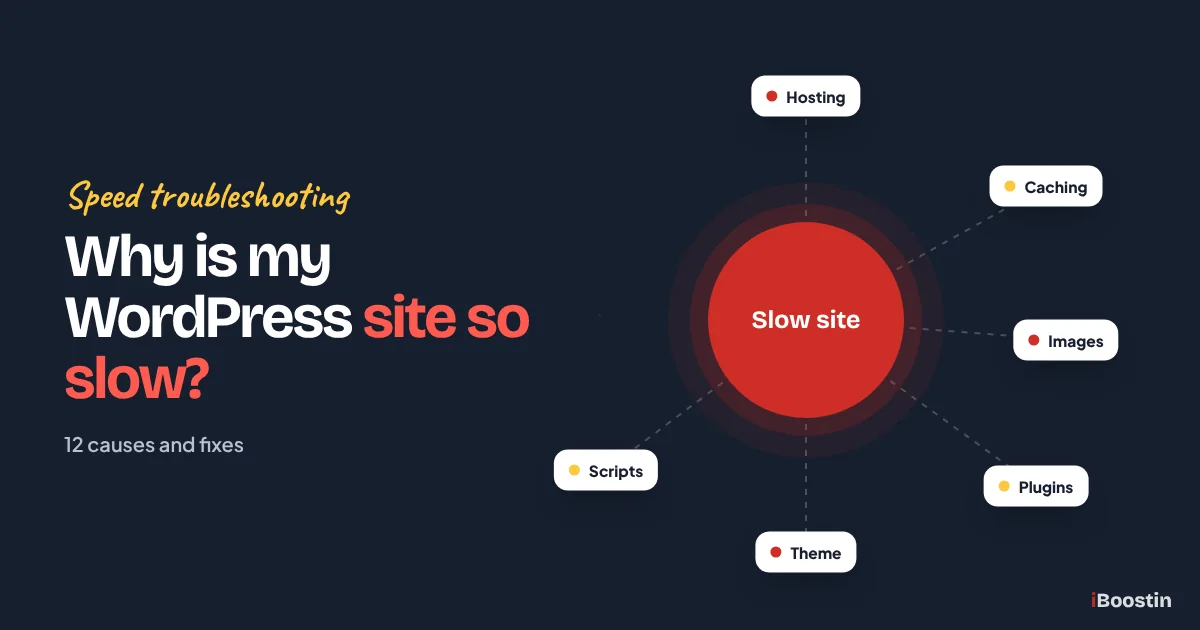
A WordPress site is usually slow because of one or more of these problems: weak or overloaded hosting, no page caching, large unoptimized images, too many or poorly built plugins, a heavy theme or page builder setup, an outdated PHP version, a bloated database, too many third-party scripts, or no CDN for visitors far from your server. The fix is to measure first, find which of these applies to your site, and fix the biggest problem before the smaller ones.
A slow website costs more than patience. Visitors leave before the page appears, enquiries drop, and Google’s page experience signals start working against you. The frustrating part is that most slow WordPress sites are not slow for one dramatic reason. They are slow because several small problems add up.
This guide explains the twelve most common causes we find when we audit slow WordPress sites, how to check each one yourself, and what to fix first. It is written by the iBoostin team for business owners, so it focuses on what you can check and decide, with technical detail only where it helps. If your site is also outdated in other ways, our guide on signs you need a new website will help you decide whether to fix or rebuild.
Key takeaways
- Measure before you change anything: test key pages on mobile with PageSpeed Insights and note server response time and the largest content load.
- Hosting and caching are the foundation. If the server is slow to respond, no plugin can fully fix it.
- Images, plugins, the theme and third-party scripts are the most common front-end causes.
- An outdated PHP version and a bloated database quietly slow down older sites.
- Fix causes in order of impact, test after each change, and keep a maintenance routine so the site stays fast.
How to Measure Your WordPress Site Speed
Before you install any plugin or change hosting, find out how slow the site really is and where the time goes. Guessing leads to changes that do nothing, or that break something else.
Use the Right Tools
Google PageSpeed Insights is the best starting point because it shows both lab tests and, for busier sites, real visitor data from Chrome users. Test your homepage, your most important service or product page and a blog post, always on the mobile tab first.
For more detail, tools like GTmetrix or WebPageTest show a waterfall of every file the page loads, in order. That waterfall tells you whether the delay is the server, large images, scripts or fonts. Run each test two or three times, because results vary from one run to the next.
If your site gets enough traffic, Google Search Console also has a Core Web Vitals report that groups your pages by real visitor experience. It shows which page types are slow for actual users, which is more useful than any single lab test when you decide what to fix.
Understand the Key Numbers
Focus on a few numbers rather than the overall score:
- Server response time (TTFB): how long the server takes to start sending the page. If this is slow, the problem starts at hosting, caching or the database.
- Largest Contentful Paint (LCP): when the main content, often a hero image or heading, appears. Large images and render-blocking files usually affect this.
- Interaction to Next Paint (INP): how quickly the page responds to taps and clicks. Heavy JavaScript is the usual cause.
- Cumulative Layout Shift (CLS): how much the page jumps around as it loads, often caused by images without dimensions, fonts or late-loading banners.
Keep in mind that mobile results are usually much slower than desktop, because tests simulate a mid-range phone on a slower connection. That is closer to what many real visitors experience. Write these numbers down for each page. They are your baseline, and you will compare against them after every fix.
12 Reasons Your WordPress Site Is Slow
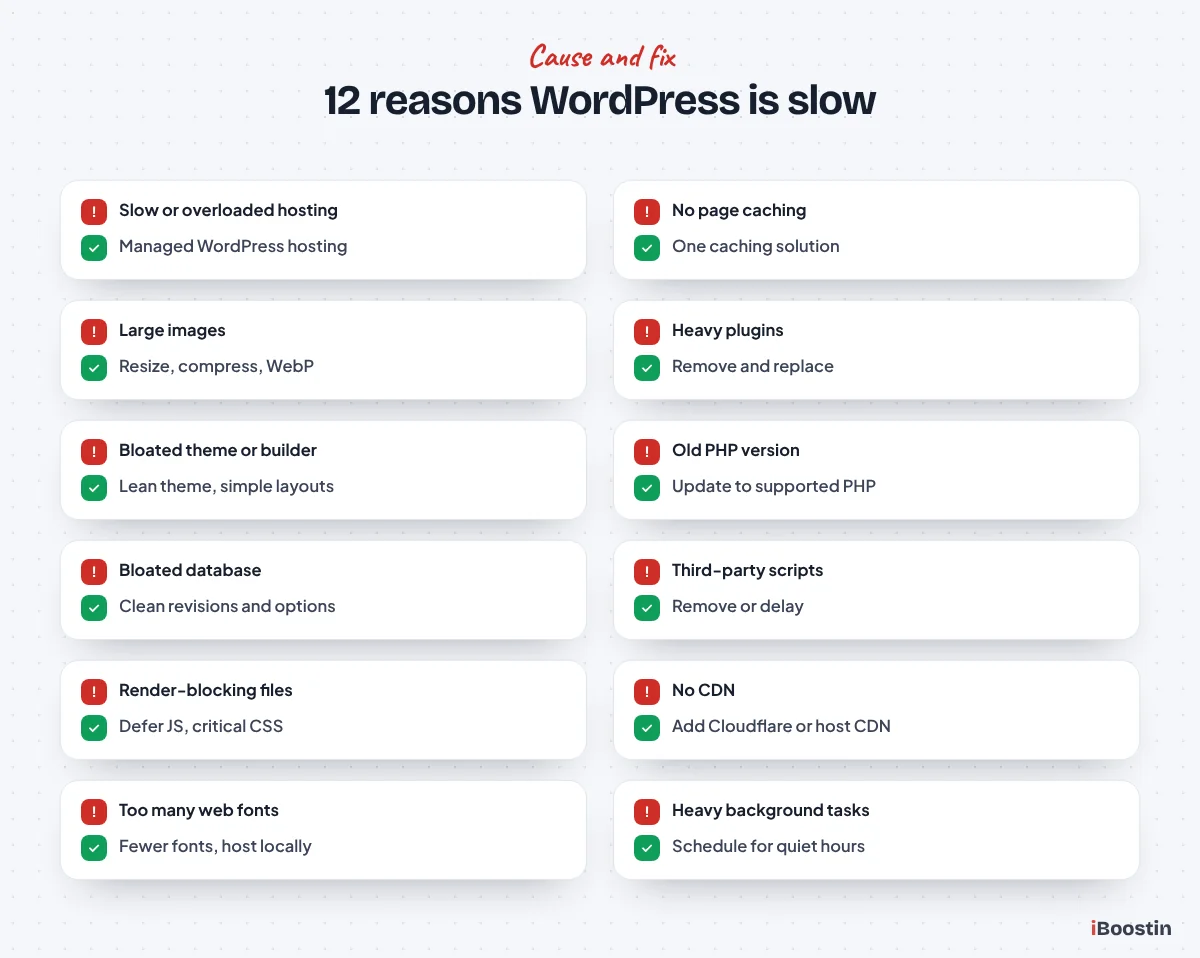
Here are the causes we see most often, roughly in order of how much difference fixing them makes. Each includes how to check it and what to do.
1. Slow or Overloaded Hosting
Hosting is the foundation. Cheap shared hosting puts your site on a server with many others, and when they are busy, your site slows down. Limited memory, old server software and servers far from your visitors all add delay before anything appears.
How to check: look at server response time in PageSpeed Insights or the first bar of a GTmetrix waterfall. If it is consistently slow even on simple pages, or your host’s dashboard shows resource limits being hit, hosting is likely a major cause.
Fix: move to quality managed WordPress hosting or a well-configured cloud server with current PHP, server-level caching and enough resources for your traffic. For many sites, this single change makes the biggest difference.
2. No Page Caching
Without caching, WordPress builds every page from scratch for every visitor: running PHP, querying the database and assembling the HTML. Caching saves a ready-made copy and serves it instantly.
How to check: check whether your host provides server caching or whether a caching plugin such as WP Rocket, LiteSpeed Cache or W3 Total Cache is active and configured. Look at the response headers in your browser’s developer tools for cache hits.
Fix: enable host-level caching where available, or configure one good caching plugin. Use only one caching solution, as several together cause conflicts. Exclude cart, checkout and account pages on stores.
3. Large, Unoptimized Images
Images are often the heaviest part of a page. Photos uploaded straight from a camera or phone can be many times larger than needed, and the hero image is frequently the element that delays the main content.
How to check: in the PageSpeed report, look for “properly size images”, “serve images in next-gen formats” and “efficiently encode images”. In the waterfall, check the size of the largest images.
Fix: resize images to the size they display at, compress them, serve WebP or AVIF, and lazy load images below the first screen. Do not lazy load the main hero image, as that delays the most important content.
4. Too Many or Poorly Built Plugins
The number of plugins matters less than what they do. One badly coded plugin can slow a site more than twenty well-built ones. Plugins that load scripts and styles on every page, run heavy database queries or call external services add up quickly.
How to check: list every active plugin and ask whether you still need it. Use Query Monitor to see which plugins add slow database queries, and check the waterfall for scripts loaded by plugins on pages where they are not used.
Fix: remove plugins you do not need, replace heavy ones with lighter alternatives and stop plugins from loading assets on pages where they are not used. Test after each change on a staging copy if possible.
5. A Heavy Theme or Page Builder Setup
Multipurpose themes often load large amounts of code for features you never use. Page builders like Elementor can be fast, but heavy layouts with many nested sections, widgets, animations and add-on packs make pages larger and slower.
How to check: look at the total page size and the number of CSS and JavaScript files in the waterfall. Compare a simple page with a complex one. If even simple pages are heavy, the theme is likely the problem.
Fix: use a lightweight theme such as Hello, GeneratePress or Astra, enable the builder’s performance features, simplify layouts and remove unused add-ons. Our guide on whether Elementor is good for SEO covers the Elementor settings that help speed. If you are starting a new site, our guide on how to create a website in WordPress explains how to choose a lean setup from day one.
6. An Outdated PHP Version
PHP is the language WordPress runs on. Newer versions are significantly faster and more secure. Many older sites still run on versions that are no longer supported because nobody updated them.
How to check: go to Tools, then Site Health, then Info, then Server in WordPress to see your PHP version. Compare it with the versions currently supported by PHP and recommended by WordPress.
Fix: update to a current supported PHP version through your hosting panel, after testing on staging. Old themes or plugins may need updating or replacing first if they are not compatible.
7. A Bloated Database
Over time, the database collects post revisions, spam comments, expired temporary data and leftovers from plugins you deleted long ago. Large autoloaded options are a common hidden cause, because they load on every single page request.
How to check: look at the database size in your hosting panel, and use a plugin like Query Monitor or Advanced Database Cleaner to see slow queries and the size of autoloaded options.
Fix: clean up revisions, spam and expired data, limit future revisions, and remove leftover tables and options from deleted plugins. Back up before any database cleanup.
8. Too Many Third-Party Scripts
Chat widgets, tracking pixels, embedded social feeds, review widgets, maps, video embeds and marketing tags all load code from other servers. Each one adds requests and processing, and you cannot control how fast those servers respond.
How to check: in the waterfall, look for files loaded from domains other than yours. PageSpeed Insights lists third-party code and how much time it uses.
Fix: remove scripts you no longer use, load the rest only on pages that need them and delay non-essential scripts until after the page loads or the visitor interacts. Replace heavy embeds like videos and maps with lightweight placeholders that load on click.
9. Render-Blocking CSS and JavaScript
Some CSS and JavaScript files must be downloaded before the browser can show the page. Many of them are not needed for the first screen at all, but they still hold up everything.
How to check: PageSpeed Insights reports “eliminate render-blocking resources” and “reduce unused CSS and JavaScript”.
Fix: use your caching or optimization plugin to defer non-critical JavaScript, generate critical CSS for the first screen and remove unused CSS where safe. Test carefully, because aggressive settings can break menus, sliders or forms.
10. No CDN for Visitors Far From Your Server
If your server is in one country and your visitors are spread across others, every file has to travel a long way. A content delivery network stores copies of your files on servers around the world.
How to check: check where your hosting server is located and where your visitors come from in Google Analytics. Test your site from different locations in GTmetrix or WebPageTest.
Fix: add a CDN such as Cloudflare or your host’s built-in CDN to serve images, CSS and JavaScript from servers near your visitors.
11. Web Fonts Loaded Inefficiently
Custom fonts make a site look distinctive, but loading several families and weights from external servers adds requests and can delay text or cause it to shift.
How to check: count the font files in the waterfall and check whether they come from external servers. Look for “ensure text remains visible during webfont load” in PageSpeed.
Fix: use fewer font families and weights, host fonts locally, preload the main font and use font-display swap so text appears immediately.
12. Background Tasks and Heavy Admin Activity
WordPress runs scheduled tasks for things like backups, emails, scans and imports. If these run during busy times, or a plugin runs them too often, they slow the site for visitors. Constant admin-ajax requests from plugins can do the same.
How to check: use a plugin like WP Crontrol to see scheduled tasks and how often they run, and check your host’s resource usage graphs for spikes.
Fix: schedule backups and scans for quiet hours, reduce unnecessary background tasks, consider replacing WordPress’s built-in cron with a real server cron job and reduce the Heartbeat API frequency where appropriate.
What to Fix First
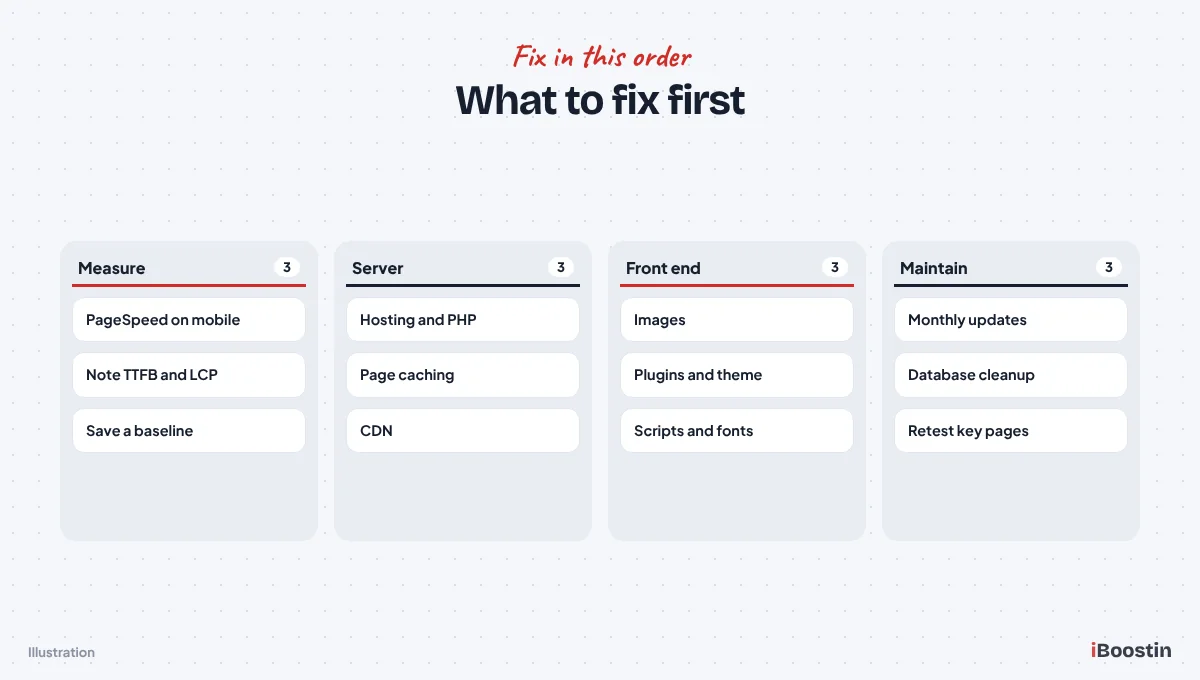
Fixing causes in the right order saves time and avoids wasted effort. Start with the foundation, then work outwards.
Start With the Server
If server response time is slow, fix hosting, PHP version and caching first. These affect every page and every visitor. Front-end optimizations cannot make up for a server that takes too long to respond.
Once the server responds quickly, images are usually the next biggest win. They are easy to fix and often make a dramatic difference to how quickly the main content appears.
Then Work Through the Front End
After hosting and images, review plugins, the theme and builder setup, third-party scripts and fonts. These affect how heavy each page is and how quickly it becomes usable.
Change one thing at a time and test again after each change. That way, if something breaks or speed gets worse, you know exactly what caused it.
Quick Wins You Can Do Today
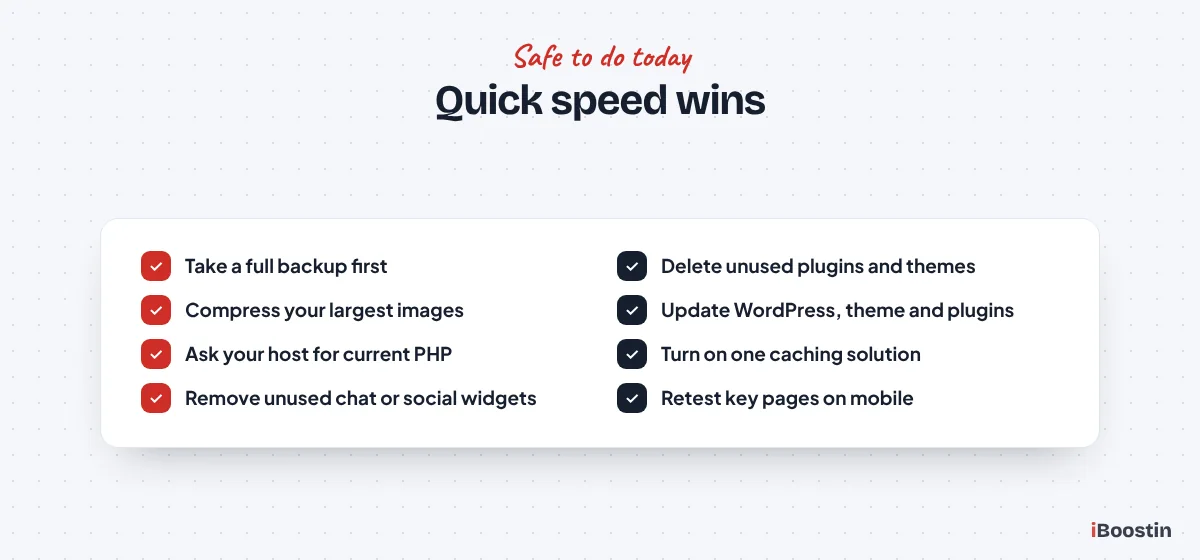
Some improvements are safe and fast enough to do yourself, even without technical experience. Always take a backup first.
Clean Up and Compress
Delete plugins and themes you no longer use, compress the largest images on your key pages and remove widgets and embeds you do not need. These steps reduce weight with very little risk.
Check that WordPress, your theme and plugins are up to date, since updates often include performance improvements as well as security fixes.
Ask Your Host for Help
Contact your hosting provider and ask which PHP version you are on, whether server caching is enabled and whether your site is hitting resource limits. Good hosts will help, and some will update PHP or enable caching for you.
If the answers show your hosting plan is too small or outdated, it may be time to move. A good host often solves more speed problems than any plugin.
Choosing Hosting That Keeps WordPress Fast
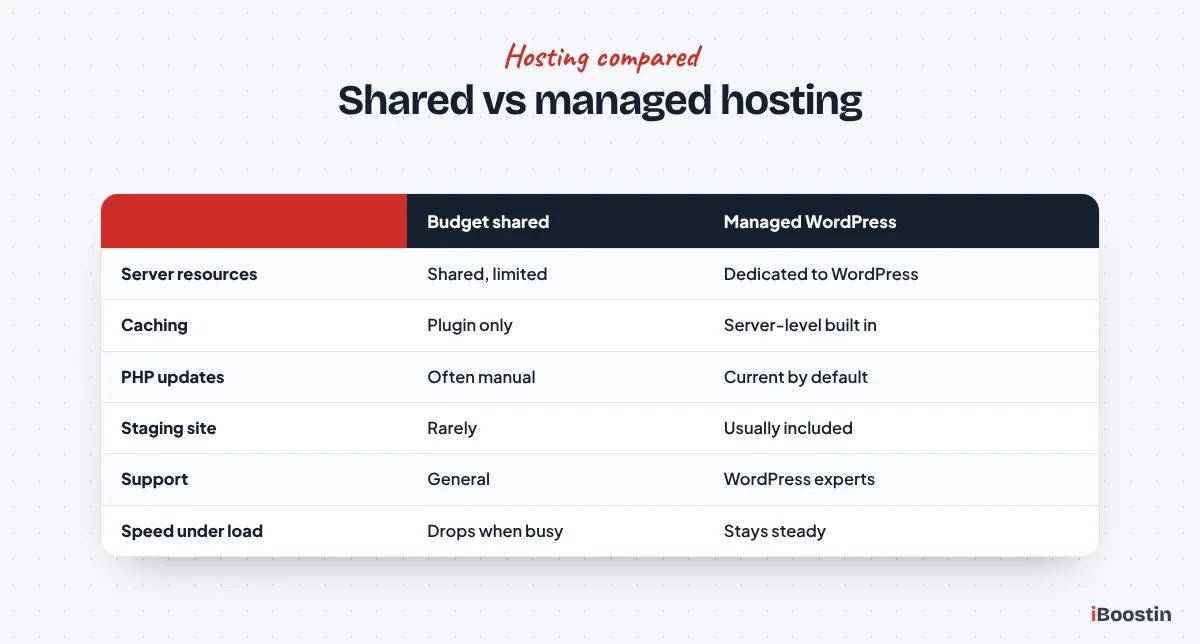
Because hosting is the most common root cause, it deserves a closer look. The right hosting makes every other optimization easier. The wrong hosting limits how fast the site can ever be.
What to Look For in a Host
Look for hosting built or tuned for WordPress, with current PHP versions, server-level caching, enough memory for your site, solid-state storage, a data center close to most of your visitors and a CDN option. Daily backups and staging sites are valuable extras that also make speed work safer.
Support matters too. A host whose support team understands WordPress can quickly tell you whether a slowdown comes from the server or from your site, which saves hours of guesswork.
When It Is Time to Move
Consider moving if server response time stays slow after caching is set up, if your host regularly warns about resource limits, if PHP cannot be updated to a current version or if support cannot explain problems. Moving hosts is a routine job for an experienced developer and usually takes little downtime.
Test the new host with a copy of your site before switching the domain. Compare server response time and key page speeds side by side, so you know the move is worth it.
Speed Problems Specific to WooCommerce Stores
Online stores have extra speed challenges, because many pages are personal to each visitor and cannot be cached in the usual way. A slow store loses sales directly, so these issues are worth extra attention.
Cart, Checkout and Account Pages
Cart, checkout and account pages must be excluded from page caching, which means they rely more heavily on server speed and database performance. Cart fragments, a WooCommerce feature that updates the mini cart on every page, can also add requests to pages that do not need them.
Strong hosting, object caching such as Redis, a clean database and limiting cart fragment requests to pages that need them all help. Test checkout speed on a phone, because that is where most abandoned orders happen.
Large Catalogs and Filters
Stores with many products, variations and filters run heavier database queries, especially on category and search pages. Poorly built filter plugins can make category pages very slow as the catalog grows.
Use well-built filtering tools, optimize product images carefully and keep an eye on database size. Our WooCommerce development team regularly tunes stores with large catalogs.
Common Speed Mistakes to Avoid
Many owners make speed worse while trying to improve it. Avoiding these mistakes saves time and prevents broken pages.
Stacking Optimization Plugins
Installing several caching or optimization plugins at once usually causes conflicts, duplicate processing and broken layouts. Each one tries to control the same files in different ways.
Choose one well-supported caching and optimization solution, configure it properly and remove the rest. If your host provides server caching, check whether it recommends a specific plugin to work with it.
Chasing a Perfect Score
A perfect lab score is not the goal. Real visitors on real phones matter more. Some changes improve the score while hurting the experience, such as delaying scripts so much that menus or forms stop working when visitors try to use them.
Aim for fast loading of the main content, quick responses to taps and a stable layout on your most important pages. Then check that everything still works as visitors expect.
Optimizing Without Backups or Testing
Speed changes touch the theme, plugins, server settings and database. Without a backup and a staging copy, a single wrong setting can take the site down or break checkout.
Always back up first, test changes on staging where possible and check key pages and forms after every change on the live site.
Why WordPress Sites Get Slower Over Time
Many owners notice their site was fast at launch and slowly became sluggish. That is normal if nobody looks after it.
How Sites Gather Weight
Every new plugin, tracking script, image and page adds a little weight. Revisions and leftover data build up in the database. Hosting that was enough for a small site struggles once traffic and content grow. None of these changes is dramatic on its own, but together they slow the site down.
Updates also matter. Outdated plugins and PHP versions run slower and can conflict with each other, and skipped updates make later updates riskier.
Keeping Your Site Fast
A regular maintenance routine keeps performance steady: updates, database cleanup, reviewing plugins, checking new images are optimized and testing speed every month or two. Our guide on what is included in website maintenance explains what that routine should cover.
Treat speed as an ongoing part of running the site rather than a one-off project, and it will stay fast as the business grows. Before adding any new plugin, widget or tracking script, ask what it adds to every page load and whether the benefit is worth it. That one habit prevents most slowdowns before they start.
When to Get Professional Help
Many speed fixes are safe to do yourself. Others carry real risk if done without testing, especially on stores and busy sites.
Signs You Need an Expert
Get help if the server response is slow and you are not sure why, if optimization plugins break your layout or forms, if your store checkout is slow, or if the site has slowed suddenly without any changes. These usually need deeper investigation.
A professional audit looks at hosting, database queries, plugin performance and front-end loading together, then fixes them in a safe order with testing at each step.
What a Good Speed Service Includes
A good speed optimization service starts with measurement, explains the causes in plain language, makes changes on a staging copy first and gives you before-and-after results on the same pages. It should also tell you what to do to keep the site fast.
Ask for the test pages, tools and conditions to be the same before and after, so the comparison is fair and you can repeat it yourself later. Be cautious of anyone who promises a perfect score on every page. Real-world speed for real visitors matters more than a single lab score. Our WordPress speed optimization service focuses on that, and our WordPress development services can rebuild sites whose foundations are too slow to fix.
Frequently Asked Questions About Slow WordPress Sites
Why is my WordPress site so slow?
The most common causes are weak hosting, no page caching, large unoptimized images, too many or poorly built plugins, a heavy theme or page builder setup, an outdated PHP version, a bloated database and too many third-party scripts. Most slow sites have several of these problems at once.
How do I check what is slowing down my WordPress site?
Test key pages on mobile in Google PageSpeed Insights, then look at a waterfall in GTmetrix or WebPageTest to see which files take longest. Use the Query Monitor plugin to find slow database queries and plugins. Check your PHP version in Site Health and your hosting resource usage.
Do plugins slow down WordPress?
They can. Poorly built plugins, or plugins that load scripts on every page, add weight and database queries. The number of plugins matters less than their quality and what they do. Remove what you do not need and replace heavy plugins with lighter alternatives.
Will changing hosting make my WordPress site faster?
Often, yes. If your server response time is slow, moving to quality managed WordPress hosting with current PHP and server-level caching can make the single biggest difference. If your server is already fast, other causes such as images and scripts are more likely to be the problem.
Does Elementor slow down WordPress?
Elementor adds some weight, but a well-built Elementor site on good hosting can be fast. Heavy layouts, many add-ons, animations and a bloated theme are the usual problems. Use a lightweight theme, enable Elementor’s performance features and keep layouts simple.
How often should I check my WordPress site speed?
Check key pages every month or two, and after any major change such as adding a plugin, changing the theme or launching new pages. Regular checks catch slowdowns early, before they affect visitors and rankings.
Can a slow website affect my Google rankings?
Yes. Page experience, including loading speed and responsiveness, is one of the signals Google considers, and slow pages also lose visitors who leave before the page loads. Fixing speed helps both rankings and conversions.
Fix the Biggest Cause First
A slow WordPress site is almost always fixable. The key is to measure first, find the causes that matter most for your site and fix them in order, starting with hosting and caching, then images, plugins, the theme and scripts.
If you would rather have experts handle it, we can audit your site, fix the causes safely and show you the before-and-after results, so your visitors get a fast experience on every device.