In this guide
- How Should You Use These GoHighLevel Workflow Examples?
- Capture and Speed to Lead Workflows
- Booking and No-Show Workflows
- Nurture and Reactivation Workflows
- After the Sale: Review, Referral and Payment Workflows
- Internal Team Alerts and Pipeline Hygiene Workflows
- How Do You Stop These Workflows From Clashing?
- Which GoHighLevel Workflows Should You Build First?
- Should You Build These Workflows Yourself or Get Help?
- Frequently Asked Questions About GoHighLevel Workflow Examples
- Build the Workflows That Book the Calls
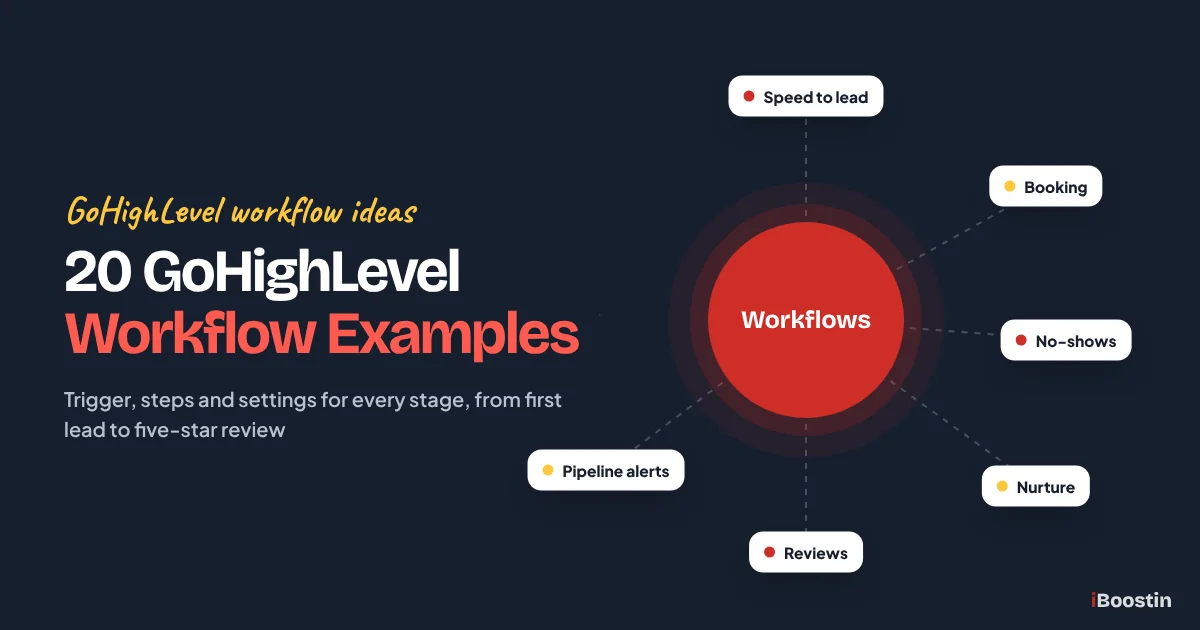
The most useful GoHighLevel workflow examples cover five jobs: replying to new leads within a minute, getting them booked and to the appointment, following up with people who went quiet, collecting reviews, referrals and payments after the sale, and alerting your team when a lead or deal stalls. Below are 20 proven workflows, each with its trigger, steps and settings.
Most accounts we open look nothing like that. There is one workflow called “New Workflow 3” that sends a single text when a form is submitted, and nothing at all after the booking. Leads book a call, forget about it, and nobody notices until the calendar that looked full turns out to be half empty chairs.
This guide gives you 20 workflow examples grouped by stage, from first contact to paid invoice. Each one lists the trigger, the steps in order, the settings that make or break it (re-entry, stop on response, quiet hours), short message wording and when it is worth building. They come from the iBoostin team’s hands-on builds in client accounts. New to the platform? Start with what GoHighLevel is and how it works.
Key takeaways
- Group your workflows by stage: capture, booking, nurture, after the sale and internal alerts. A gap in any one stage leaks leads you already paid for.
- Every example here has a filtered trigger, a short list of actions and a clear exit: a goal event, a reply branch or a Remove from Workflow step.
- Settings change behavior as much as steps do. Decide Allow Re-entry, Stop on Response and the time window for each workflow on purpose.
- Keep messages short and human: one idea, one link, a real name.
- Build in order: instant reply and missed call first, then confirmations and reminders, then no-shows, reviews, nurture and pipeline alerts.
How Should You Use These GoHighLevel Workflow Examples?
Each example is a recipe you can rebuild in your own sub-account. We do not repeat the click-by-click builder tutorial here. If you have never built a workflow, read our guide on how to build workflows in GoHighLevel first, which covers triggers, wait steps, If/Else branches, goal events and the Settings tab one by one, then come back and pick what to build.
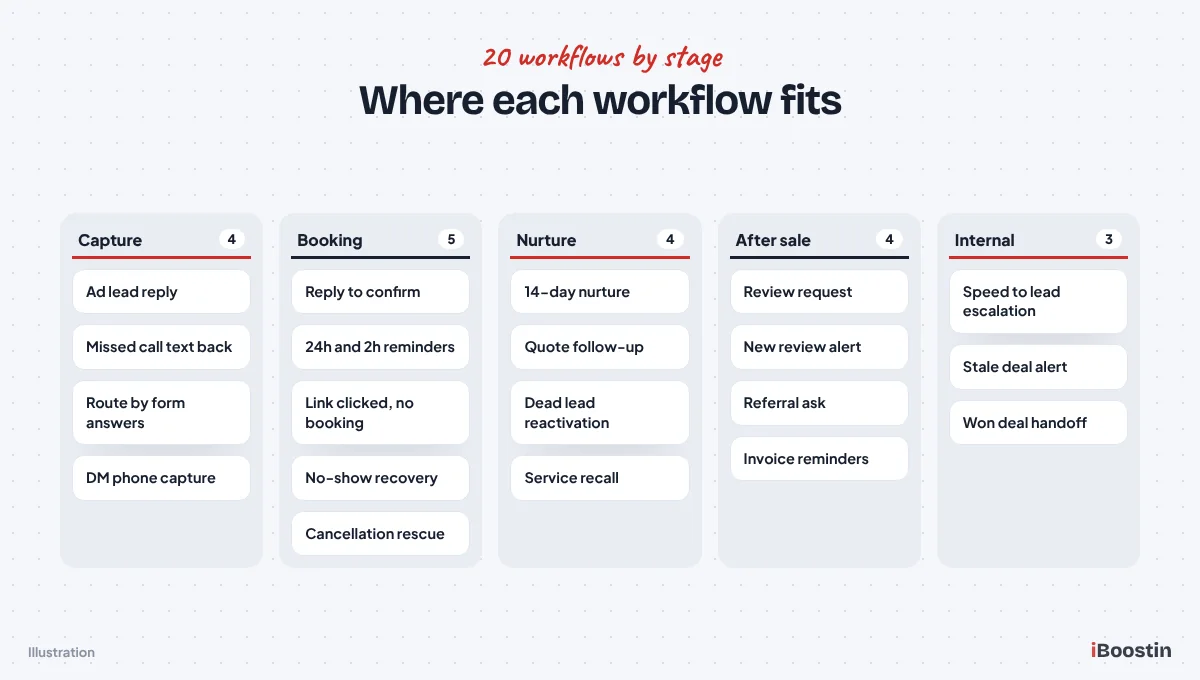
What every example assumes is already set up
You need a Sales pipeline with stages that match how you sell (for example New Lead, Contacted, Booked, No-show, Quote Sent, Won and Lost), at least one booking calendar, a phone number that can send texts and an email sending domain. If you text US contacts from a local number, your A2P 10DLC registration must be approved, or carriers will filter the messages these workflows send.
We also save the booking link and business name as custom values and insert those in every message, so a changed link is updated once instead of in twenty workflows. If any of this groundwork is missing, fix it first.
How to read each example
Each example opens with what it does. Trigger names the event and the filter it needs. The numbered steps are the actions in order. Settings to watch covers Allow Re-entry, Stop on Response and the time window (your quiet hours). When to use it says which businesses gain the most.
Message examples use {{contact.first_name}} for the merge field and square brackets for parts you replace. Name each workflow with a pattern such as “APPT | No-show recovery | v1” so they sort by stage and read clearly in logs.
Capture and Speed to Lead Workflows
These four workflows decide whether a new lead talks to you or to a competitor. The website form version, from Form Submitted to booked call, is built step by step in the workflow builder guide, so we cover the other entry points here.
Example 1: Instant reply to Facebook and Google lead ads
Lead ad forms collect a name and number inside Facebook, Instagram or Google, and many people forget they submitted one within the hour. This workflow texts and emails the lead within a minute, creates the deal and alerts your team.
Trigger: Facebook Lead Form Submitted, filtered to the exact lead form, plus Google Lead Form Submitted if you run Google lead forms. Both ad accounts must be connected in the sub-account’s integrations first.
- Wait 1 minute so the contact record and answers finish saving.
- Create/Update Opportunity in the Sales pipeline, stage New Lead, and add a tag such as “src-fb-lead”.
- Send SMS with the booking link and an opt-out line, then Send Email with the same offer.
- Send Internal Notification to the assigned user with the name, phone and form answers.
- Wait for the contact to reply on SMS, with a 1 day timeout. Reply branch: notify the team and end. Timeout branch: one more text, then add the tag “nurture-14-day”, which starts Example 10.
- Goal Event on Appointment Status for your sales calendar, then move the deal to Booked.
Message example: “Hi {{contact.first_name}}, it’s Sam from [Business]. Thanks for your request about [service]. Pick a time that suits you here: [link]. Reply STOP to opt out.”
Settings to watch: Allow Re-entry on, because people submit lead forms again next season. Stop on Response off, since the reply wait already hands responders to a person. Leave the time window off so the first reply goes out at night too, and use Advance Window on the follow-up wait so the second text lands in business hours.
When to use it: Any business running lead ads. Name the offer in the first line, because ad leads often forget who they asked.
Example 2: Missed call text back
When a call to your HighLevel number goes unanswered, this workflow texts the caller within a minute so they do not ring the next business. The workflow version adds a pipeline card, team alerts, a follow-up and after-hours wording that the built-in setting cannot.
Trigger: Call Details, filtered to inbound calls on your business number that were not answered. The exact filters, plus 20 ready-to-use messages, are in our full guide to missed call text back in GoHighLevel.
- Wait 1 minute so a caller leaving a voicemail is not texted mid-message.
- Send SMS with a short apology and a question.
- Create/Update Opportunity in New Lead with the tag “src-missed-call”, and send an internal notification.
- Wait for the contact to reply, with a 3 hour timeout. Reply branch: notify the team. Timeout branch: one follow-up text the next morning, then end.
Message example: “Hi, this is [Business]. Sorry we missed your call. What can we help you with? You can also book a time here: [link]”
Settings to watch: Re-entry on, because customers call more than once. A contact still inside the workflow cannot re-enter, which stops double texts when someone calls three times in five minutes. Turn off the built-in missed call setting, or callers get two texts.
When to use it: Every local business that takes calls, especially trades and clinics where the owner is often on a job or with a patient.
Example 3: Qualify and route leads by their form answers
Not every form submission deserves the same reply. This workflow reads the answers on your quote form and sends each lead down the right path: qualified leads get a booking link, commercial jobs go to a senior estimator, and out-of-area leads get a polite no instead of a wasted sales call.
Trigger: Form Submitted, with Form Is set to your quote form. Make the routing fields dropdowns or radio buttons, not free text, so the If/Else can match them reliably.
- Wait 1 minute so all answers are saved.
- If/Else with three branches: “Out of area” (service area is Other), “Commercial” (job type is Commercial) and the None branch, renamed “Residential”.
- Out of area: send a polite decline, add the tag “out-of-area” and end.
- Commercial: Assign to User (senior estimator), create the opportunity and add a task to call today.
- Residential: Assign to User with round robin, create the opportunity and send the booking link.
Message example (out of area): “Hi {{contact.first_name}}, thanks for reaching out. We only cover [area] at the moment, so we can’t help with this job. Sorry about that, and good luck with the project.”
Settings to watch: Re-entry on, since people come back with new jobs. Test every branch with a real submission, because some dropdown conditions match the stored option value rather than the label you see.
When to use it: When your team complains about junk leads, when you serve a fixed area, or when big jobs need a different person than small ones.
Example 4: Capture a phone number from Facebook, Instagram and chat messages
People who message you on Facebook, Instagram or website chat often never leave a number, and the conversation dies when they close the app. This workflow gives your team a few minutes to answer, then asks for the best number and moves the lead to SMS once it arrives.
Trigger: Customer Replied, with Reply Channel set to Facebook, Instagram and Live Chat, plus “Doesn’t Have Tag” filters for “dm-phone-asked” and “customer”.
- Add Contact Tag “dm-phone-asked” so later messages do not restart the workflow.
- Send Internal Notification to whoever handles the inbox.
- Wait for a user to reply, with a 5 minute timeout. If your team answers, end.
- Timeout path: send a message on the same channel asking for the best number.
- Wait until conditions are met (Phone is not empty), with a 1 day timeout, then create the opportunity and send a first SMS with the booking link.
Message example: “Thanks for the message! Happy to help with that. What’s the best number to text you a couple of time options?”
Settings to watch: Keep Stop on Response off, or the reply that contains the number removes the lead before the condition wait sees it. Facebook and Instagram only allow standard business replies for a limited window after the person’s last message, so ask early. To let AI hold the whole conversation, see our guide to setting up Conversation AI in GoHighLevel.
When to use it: Businesses that get regular DMs from ads, posts or a chat widget, such as med spas, gyms, salons and real estate agents.
Booking and No-Show Workflows
A booked appointment is only worth something if the person turns up. These five workflows confirm, remind, chase people who looked but did not book, and recover no-shows and cancellations.
Example 5: Booking confirmation with reply to confirm
The moment someone books, this workflow confirms the date and time, moves the deal to Booked, pulls the contact out of every lead follow-up and asks them to reply C to confirm. Their answer updates the appointment status, so your team sees who confirmed and who needs a call.
Trigger: Customer Booked Appointment, filtered to the calendars this workflow covers.
- Send SMS confirming the day, time and place, with the reply to confirm request.
- Send Email with the address or meeting link, what to bring and how to reschedule.
- Create/Update Opportunity to move the deal to Booked, then Remove from Workflow for your lead reply, nurture and link-chase workflows.
- Wait for the contact to reply on SMS, with a 1 day timeout.
- If/Else on the reply: contains “C” or “yes” goes to Update Appointment Status (Confirmed) and a thank-you text. Contains “R” sends the reschedule link and notifies the team. The None branch notifies the team to read the reply.
Message example: “Hi {{contact.first_name}}, you’re booked with [Business] on [day and time]. Reply C to confirm or R if you need a different time.”
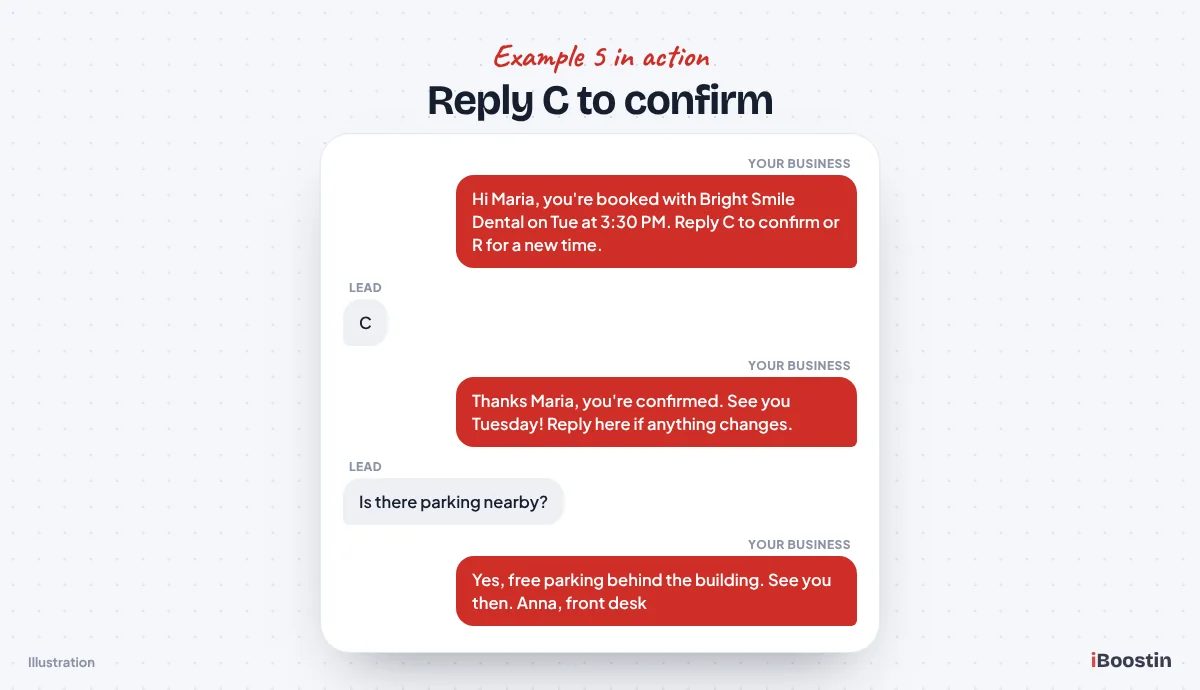
Settings to watch: Appointment triggers allow one run per appointment whatever the re-entry setting says. Stop on Response must stay off, or the contact is removed the moment they reply C, before the If/Else reads it. Calendars can also send their own confirmations from the calendar notification settings, so choose one source.
When to use it: Every booking calendar. A contact who has not confirmed by the day before is the one your front desk should call.
Example 6: Appointment reminders at 24 hours and 2 hours
Reminders are the biggest lever against no-shows, and they are easy to get subtly wrong. This workflow sends one reminder the day before and one a couple of hours before, then flags anyone still unconfirmed.
Trigger: Customer Booked Appointment, filtered to the same calendars as Example 5. Keep reminders in their own workflow so you can change timing without touching confirmations.
- Wait for the upcoming appointment, 1 day before. If that time has passed (a same-day booking), skip to the next wait instead of sending.
- Send SMS and Send Email with the reminder and reschedule link.
- Wait for the upcoming appointment, 2 hours before, then send a short SMS.
- If/Else on appointment status: not Confirmed sends an internal notification to call the contact.
- Wait until 30 minutes after the appointment, then add a task for staff to mark it Showed or No-show, which feeds Examples 8 and 14.
Message example: “Reminder: your [service] with [Business] is tomorrow at [time]. Address: [address]. Need to move it? [reschedule link]”
Settings to watch: If your workflow time window starts at 9 a.m. and someone books an 8 a.m. slot, the 2 hour reminder is held until 9 a.m. and arrives after the appointment started. Leave the window off on reminder workflows and rely on appointment-based waits. Test a reschedule too: book a test slot, move it and read the execution log. If the reminder still points at the old time, add the Appointment Status trigger for rescheduled appointments.
When to use it: Every business with a calendar. Clinics with long lead times often add a third reminder a week out.
Example 7: Clicked the booking link but did not book
Some leads click your booking link, look at the calendar and leave because no time suited them or they had a question. This workflow notices the click and sends a personal nudge offering to find a time by text.
Trigger: Trigger Link Clicked, filtered to a trigger link you create under Marketing for your booking page. Use that trigger link in your texts instead of the raw calendar URL.
- Wait 2 hours, with Advance Window set to business hours.
- If/Else: opportunity stage is Booked goes to the end. The None branch continues.
- Send SMS offering to find a time manually, and add the tag “link-chase-sent”.
- Add Task for a team member to call if there is no reply by the next day.
Message example: “Hi {{contact.first_name}}, looks like you were checking our calendar earlier. If none of the times worked, reply with a day that suits and we’ll make it work. [Name]”
Settings to watch: Turn re-entry on but add “Doesn’t Have Tag: link-chase-sent” to the trigger, so each lead gets one nudge per sales cycle. Example 20 removes the tag when the deal closes. Use trigger links mainly in SMS, because some email security systems open links automatically and can fire the trigger.
When to use it: When your calendar gets plenty of visits but fewer bookings than you expect.
Example 8: No-show recovery
When a contact misses the appointment, most businesses do nothing, or the owner sends one awkward text two days later. This workflow reaches out within minutes in a friendly tone, offers a new time and keeps trying for a few days. A no-show is often just someone who got busy.
Trigger: Appointment Status, filtered to your calendar, with the status set to No-show. It only fires when someone marks the appointment, so the marking task from Example 6 matters.
- Wait 10 minutes, then Send SMS with the reschedule link.
- Create/Update Opportunity to move the deal to No-show, and send an internal notification.
- Wait for the contact to reply, with a 1 day timeout. Reply branch: notify the team. Timeout branch: send an email with the reschedule link.
- Wait 2 days with Advance Window on, then send a final SMS.
- Goal Event on Appointment Status (booked) for the same calendar: move the deal back to Booked and end.
Message example: “Hi {{contact.first_name}}, we had you down for [time] today and missed you. No problem, things come up. Want to grab another time? [link]”
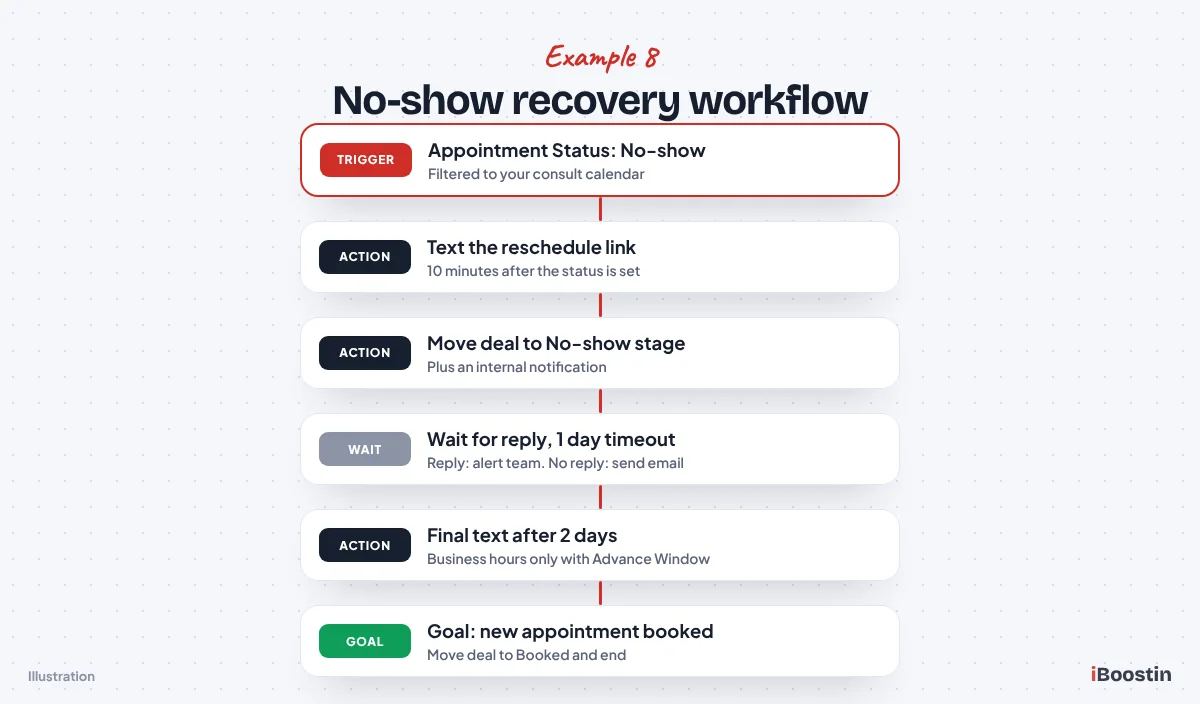
Settings to watch: Appointment triggers run once per appointment, so a repeat no-show on a new booking gets its own run. Stop on Response stays off because the reply wait handles responders, and the goal event skips every remaining nudge the moment they rebook.
Common mistake: Nobody marks appointments as no-shows, so the workflow never runs. Make the status update part of the daily routine, or keep the end-of-appointment task from Example 6.
Example 9: Cancellation rescue
A cancellation frees the slot, but it still leaves a lead who wanted your service a few days ago. This workflow acknowledges the cancellation, makes rebooking one tap away and tells your team a slot just opened.
Trigger: Appointment Status, filtered to your calendar, with the status set to Cancelled.
- Wait 5 minutes, then Send SMS offering a new time.
- Send Internal Notification that a slot has opened, so the front desk can fill it from a waitlist.
- Create/Update Opportunity to move the deal back to Contacted.
- Wait for the contact to reply, with a 2 day timeout. Timeout branch: send one email, then add the tag “nurture-14-day”.
- Goal Event on Appointment Status (booked): move the deal to Booked and end.
Message example: “Hi {{contact.first_name}}, your appointment on [day] is cancelled. If you’d still like to come in, here’s the calendar for a new time: [link]. Or just reply and we’ll sort it.”
Settings to watch: When your team cancels from the calendar, the same trigger fires. Agree a rule: staff add a tag such as “cancel-by-us” before they cancel, and an If/Else right after the trigger ends the workflow for that tag. Keep Stop on Response off and the time window off for the first text.
When to use it: Businesses with regular cancellations or a waitlist, such as clinics, salons and trainers.
Nurture and Reactivation Workflows
Most leads do not book on the first message. These four workflows keep the conversation going, chase quotes, wake up old contacts and bring past customers back when their next service is due.
Example 10: 14-day nurture for leads who never booked
Leads who did not answer your first follow-up are busy, comparing options or waiting on someone else. This workflow sends five spaced messages over two weeks, each with a different reason to book, and a goal event stops everything the moment they do.
Trigger: Contact Tag added, “nurture-14-day”. Examples 1, 2 and 9 add this tag on their timeout paths, so one nurture workflow serves every entry point.
- Wait 2 days, then Send Email answering the question you hear most often.
- Wait 2 days, then Send SMS with a short story of a recent job and the booking link.
- Wait 3 days, then Send Email explaining what happens on the first call.
- Wait 3 days, then Send SMS with a simple yes or no question.
- Wait 4 days, then Send Email saying you will stop following up.
- Goal Event on Appointment Status (booked). Contacts who finish without booking get the tag “nurture-long-term” and move to No Response.
Message example (day 10): “Hi {{contact.first_name}}, still looking for help with [service]? Reply YES and I’ll send a couple of times, or NO and I’ll stop messaging about it.”
Settings to watch: This is where we turn Stop on Response on, because any reply means a person should take over. Pair it with a small workflow on Customer Replied, filtered with Replied to Workflow set to this nurture, that alerts the lead’s owner. Time window on (weekdays, business hours, contact’s timezone), and re-entry on.
When to use it: Every business with a lead form or ads. Useful messages on days 2 and 7 make the day 10 question far more likely to get an answer.
Example 11: Quote and estimate follow-up
Quotes go out and then sit while the customer compares, waits on a partner or simply forgets. This workflow checks in a day later, hands replies to the estimator and makes a final “should I close this?” check, stopping the moment the deal is won.
Trigger: Estimates, with the event set to sent, if you send estimates from HighLevel. If quotes go out from other software, use Pipeline Stage Changed with the stage Quote Sent.
- Wait 1 day, with Advance Window set to weekday business hours.
- Send SMS checking the quote arrived and inviting questions.
- Wait for the contact to reply, with a 2 day timeout. Reply branch: task for the estimator to call. Timeout branch: Send Email explaining what happens after they accept.
- Wait 4 days, then Send SMS offering to hold a date. Wait 7 more days, then ask whether to close the quote.
- Goal Event on estimate accepted or opportunity won. Anyone reaching the end moves to Quote No Response with a task for the estimator.
Message example: “Hi {{contact.first_name}}, just checking the quote for [job] came through OK. Any questions, reply here and [Estimator] will give you a call.”
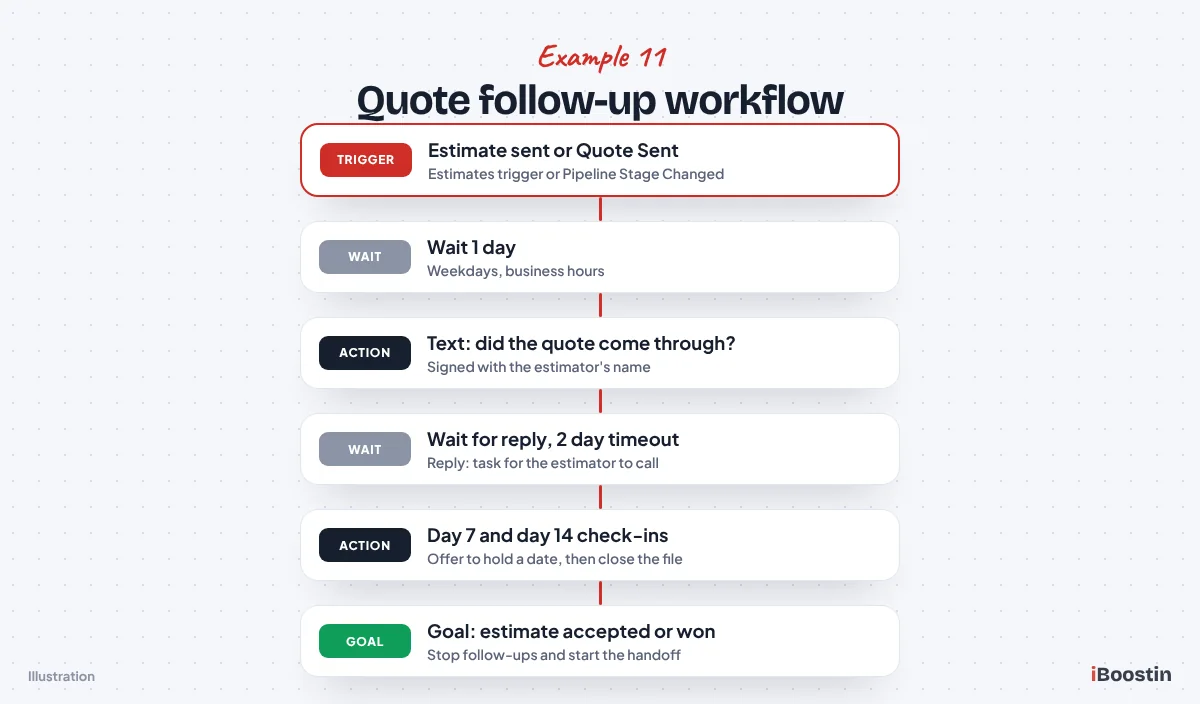
Settings to watch: Keep Allow multiple Opportunities on if one customer can have several quotes open, so each gets its own follow-up. Re-entry on, Stop on Response off. Sign texts with the estimator’s name, since quotes are personal.
When to use it: Trades, contractors, agencies and any business that sells through a written quote. If quotes expire, mention the date in the day 7 message.
Example 12: Dead lead reactivation
Every CRM holds leads who asked about your service months ago and never bought. This workflow sends them one short, personal question and routes every reply to your team. It is the quickest way we know to fill a quiet week with conversations.
Trigger: Contact Tag added, such as “reactivate-q4”. Build a smart list first (created more than six months ago, no appointment, not a customer, not DND), then tag the whole list in bulk.
- Drip Mode, releasing contacts in small batches so replies arrive at a pace your team can handle.
- Send SMS with one simple question.
- Wait for the contact to reply, with a 3 day timeout.
- Reply branch: create an opportunity in New Lead, add the tag “reactivated” and notify the team. Timeout branch: add “reactivation-no-reply” and end.
Message example: “Hi {{contact.first_name}}, it’s [Name] from [Business]. You asked about [service] a while back. Is that still something you need help with?”
Settings to watch: Only message contacts who gave consent and have not opted out. Carriers watch for bursts of identical texts, so drip the sends and keep the wording personal. Re-entry off, time window on, Stop on Response off. STOP replies are marked DND automatically.
When to use it: Accounts with a backlog of old leads and a slow month ahead. Run it once a quarter at most, and never on bought lists.
Example 13: Service recall and renewal reminders
Repeat work is the cheapest sale you will make, but customers forget when their next service is due. This workflow reads a date field such as “Next service due” and reminds them two weeks before, with a booking link.
Trigger: Custom Date Reminder on the “Next service due” field, set to 14 days before. Staff or the handoff workflow in Example 20 fill in the date when a job is completed.
- Send SMS with a friendly reminder and the booking link.
- Send Email with what the service covers and why timing matters.
- Wait for the contact to reply, with a 4 day timeout. Timeout branch: send one more SMS.
- Goal Event on Appointment Status (booked): move the deal to Booked and end.
Message example: “Hi {{contact.first_name}}, your [service] with [Business] is due this month. Want to lock in a time before the [season] rush? [link]”
Settings to watch: Re-entry must be on, because the same customer should get this every cycle. Update the date field after each visit so next year’s reminder is ready. Time window on, contact’s timezone.
When to use it: HVAC tune-ups, dental recalls, pest control, pool and gutter cleaning, car servicing and annual reviews for accountants or insurance agents.
After the Sale: Review, Referral and Payment Workflows
These four workflows collect reviews, react to new ones, ask happy customers for referrals and get invoices paid without awkward chasing. They make next month’s leads cheaper.
Example 14: Review request after a completed appointment
A review request sent while the experience is fresh gets far more responses than one sent a week later. This workflow waits a couple of hours after the appointment is marked as showed, then sends one short request with your review link.
Trigger: Appointment Status, filtered to your calendar, with the status set to Showed. For jobs without appointments, use Opportunity Status Changed to Won or Pipeline Stage Changed to Job Complete.
- Wait 2 hours, with Advance Window set to business hours.
- If/Else: has the tag “review-requested” goes to the end, so regulars are not asked after every visit.
- Send Review Request (the link and message come from your reputation settings), or Send SMS with your Google review link.
- Add Contact Tag “review-requested”, wait 3 days, send one gentle reminder and end.
Message example: “Thanks for choosing [Business] today, {{contact.first_name}}. If you have a minute, a quick Google review helps a small team like ours a lot: [link]. If anything wasn’t right, just reply and I’ll sort it. [Name]”
Settings to watch: Do not decide who gets the link based on how happy they seem. Google’s policies do not allow businesses to ask only satisfied customers for reviews, though inviting a private reply as well is fine. Turn Stop on Response on, so a reply such as “done, thanks” stops the reminder.
When to use it: Every local business that depends on Google search or Maps. It is one of the first workflows we build in any account, because reviews compound every month it runs.
Example 15: New review alert and response
Reviews arrive at random times and the owner often sees them days later. This workflow alerts the right person the moment a review lands, so happy customers get a quick public thank-you and unhappy ones get a phone call first.
Trigger: New Review Received. If your account shows a rating filter on this trigger, build two versions, one for low ratings and one for high.
- Send Internal Notification to the owner or manager with the review details, by SMS and in-app.
- Low rating version: Add Task for the manager to call the customer within one working day, and reply publicly after the call.
- High rating version: Add Task to reply publicly within two days, and tag the reviewer “promoter” if they match a contact.
Message example (internal alert): “New 2-star Google review from [reviewer name]. Please call them today before we reply publicly.”
Settings to watch: Re-entry on, time window off, because this is internal. A reviewer is not always matched to a contact in your CRM, so keep this workflow focused on alerting your team. Without a rating filter, send every review to the owner and let a person decide.
When to use it: Businesses with a steady flow of reviews, or several locations nobody watches daily.
Example 16: Referral ask from happy customers
Happy customers will refer you if someone asks at the right moment and makes it easy. This workflow waits until the customer has enjoyed the result, then sends a link they can forward. A second small workflow catches the referred lead.
Trigger: Contact Tag added, “promoter” (from Example 15 or added by staff after a great job), or Opportunity Status Changed to Won with a longer wait.
- Wait 7 days, with Advance Window set to business hours.
- Send SMS with a link to a referral page whose form includes a “Who referred you?” field.
- Add Contact Tag “referral-asked” and end.
- Second workflow: Form Submitted (referral form) creates the opportunity with a “src-referral” tag, sends the new lead a booking link and adds a task to thank the person they named.
Message example: “Hi {{contact.first_name}}, glad the [job] went well. If you know anyone who needs [service], send them this link and we’ll look after them: [link]. Thank you!”
Settings to watch: Re-entry off, so each customer is asked once. Never create contacts for friends your customers mention and text them yourself, because those people never gave consent. Let the referred person fill in the form.
When to use it: Trades, clinics, coaches, agencies and real estate, anywhere customers know other likely buyers.
Example 17: Unpaid invoice reminders and payment thank-you
Chasing invoices is the job everyone puts off. This workflow sends polite, spaced reminders after an invoice goes out, escalates to a call task, and thanks the customer the moment they pay.
Trigger: Invoice, filtered to the sent status. The list of invoice statuses can change as HighLevel updates its payments features, so check the options in your account.
- Wait 3 days, then Send SMS with a friendly reminder and the invoice link.
- Wait 4 days, then Send Email with the invoice details.
- Wait 7 days, then Add Task for the owner to call.
- Goal Event on Invoice Paid at the bottom: send a thank-you text, move the opportunity to Paid and add the tag “paid”.
Message example: “Hi {{contact.first_name}}, friendly reminder that invoice [number] for [job] is still open. You can pay securely here: [link]. Any questions, just reply.”
Settings to watch: Invoice triggers allow one run per invoice. Invoices can also send reminders from the invoice settings, so use one or the other. Turn Stop on Response on so “paid this morning” stops the reminders, with a reply alert to the owner as in Example 10.
When to use it: Contractors, agencies and consultants who invoice after the work. If you take payment at booking, keep only a Payment Received thank-you.
Internal Team Alerts and Pipeline Hygiene Workflows
Automation starts conversations, but people close deals. These three workflows escalate leads nobody answered, flag deals that went quiet and clean up every sales workflow when a deal is won.
Example 18: Speed to lead escalation when nobody replies
Most lead workflows send an alert and hope someone acts. This one checks. If the assigned person has not replied within 15 minutes, a manager is told, and if nobody replies within an hour, the lead is reassigned.
Trigger: Opportunity Created, filtered to the Sales pipeline and the New Lead stage.
- Wait 1 minute, with Advance Window set to your staffed hours, so after-hours leads start the clock when the team arrives.
- Send Internal Notification to the assigned user by SMS and in-app.
- Wait for a user to reply, with a 15 minute timeout. Reply branch: move the deal to Contacted and end.
- Timeout branch: notify the manager and add a task.
- Wait for a user to reply again, with a 45 minute timeout. Timeout branch: Assign to User for a different team member.
Message example (internal): “New lead waiting 15 minutes: {{contact.first_name}} {{contact.last_name}}, [service]. Please reply or call now.”
Settings to watch: Allow multiple Opportunities on and re-entry on, so each deal gets its own clock. A text from the inbox counts as a user reply, but a phone call may not, so call a test lead and check the execution log.
When to use it: Teams of two or more sharing leads, or any business that has lost a lead because “I thought you called them.”
Example 19: Stale opportunity alert
Pipelines fill with cards that have not moved in weeks. This workflow watches chosen stages and, when a deal sits untouched for a set number of days, creates a task for the owner and later tells the manager if it is still stuck.
Trigger: Stale Opportunities, with In Pipeline set to Sales, Pipeline Stage set to Contacted or Quote Sent, and Duration in Days matched to your sales cycle (we start with 5 and adjust).
- Add Task for the assigned user: call, update or close the deal.
- Send Internal Notification to the same user.
- Wait 3 days.
- If/Else: the opportunity is still in the same stage notifies the manager, and after another week can move the deal to No Response.
Message example (internal): “Deal stuck 5 days in Quote Sent: [contact name]. Please call, update or close it today.”
Settings to watch: The stale clock only starts after you add the trigger, so it will not flag old deals on day one, and it resets when the opportunity is updated or moves stage. Re-entry on and Allow multiple Opportunities on. For different limits per stage, add one trigger per stage.
When to use it: Any pipeline with more open deals than one person can track, especially agencies and contractors with long sales cycles.
Example 20: Won deal handoff and workflow cleanup
When a deal is won, every sales message must stop and delivery must start. This workflow does both: it removes the customer from lead and nurture workflows, creates the delivery card, tells operations and sends the customer a clear “what happens next” message.
Trigger: Opportunity Status Changed, filtered to the Sales pipeline, with the status set to Won.
- Remove from Workflow for every sales workflow: lead replies, nurture, quote follow-up, link chase and reactivation.
- Remove sales tags such as “nurture-14-day” and “link-chase-sent”, and add the tag “customer”.
- Create/Update Opportunity in your Delivery pipeline, then notify the operations lead and add a task to schedule the job.
- Send SMS and Send Email welcoming the customer.
- Update Contact Field for “Customer since” and, where it applies, “Next service due”, which feeds Example 13.
Message example: “Thanks for choosing [Business], {{contact.first_name}}! [Name] will be in touch by [day] to schedule your [job]. Save this number, it’s the fastest way to reach us.”
Settings to watch: Allow multiple Opportunities on and re-entry on, so each won deal gets its own handoff. Add “Doesn’t Have Tag: customer” filters to your lead workflows, so customers who fill in a form go to service, not sales.
When to use it: Every account with a pipeline. Without it, customers who just paid keep getting “still interested?” texts.
How Do You Stop These Workflows From Clashing?
Twenty workflows in one account will overlap unless you plan the handoffs. The symptoms: two confirmations for one booking, or a nurture text an hour after someone paid.
Give every workflow a clear exit
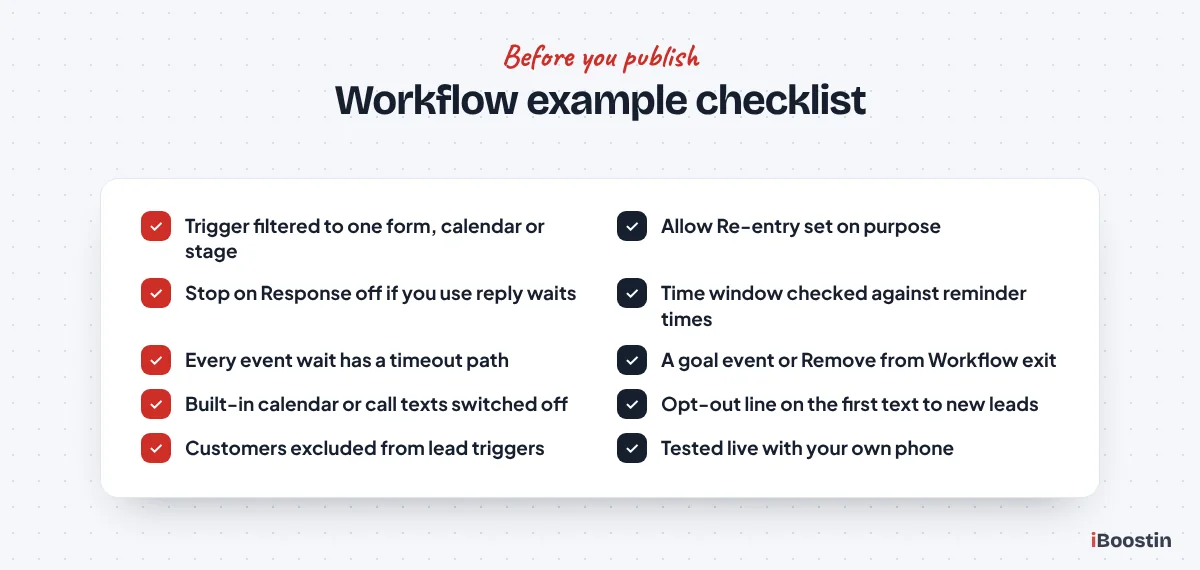
Every example here ends one of three ways: a goal event that catches the result, a reply branch that hands the contact to a person, or a Remove from Workflow step in the next workflow. Write down how a contact leaves a workflow before you write a single message. If the only exit is “they reach the end after 30 days”, it will message people who already booked or bought.
Tags do the rest. A “customer” tag excluded on every lead trigger keeps customers out of sales sequences, and one tag naming style, such as lowercase with hyphens, keeps filters matching.
Use one source for each message
Several HighLevel features can send the same message: calendar notifications, the built-in missed call text back, invoice reminders and old templates still running in the background. Pick one source for each message and switch the others off. In audits, this single check fixes more double texts than anything else.
Before you publish, search your workflow list for anything else that starts on the same trigger and filter, and merge or separate them. When something still does not run as expected, our guide on why a GoHighLevel workflow is not triggering walks through the causes in the order we check them.
Pro tip: Keep a one-page map of every published workflow: what starts it, what stops it and where it hands contacts next.
Which GoHighLevel Workflows Should You Build First?
You do not need all 20 on day one. Build in the order that protects the leads you already have, then add the ones that create new revenue.
| Phase | Workflows to build | Why this order |
|---|---|---|
| Week 1 | Lead reply (1), missed call (2), confirmation (5), reminders (6) | Every lead gets an answer and every booking a reminder |
| Week 2 | No-show (8), review request (14), won handoff (20), escalation (18) | Recovers appointments and stops sales texts to customers |
| Week 3 | Nurture (10), quotes (11), cancellations (9), stale deals (19) | Follows up leads who did not book straight away |
| Later | Routing (3), DMs (4), link chase (7), reactivation (12), recall (13), reviews (15), referrals (16), invoices (17) | Extra revenue once the core flows run cleanly |
Run each phase for a week and read the execution logs for a few real contacts before adding the next.
Should You Build These Workflows Yourself or Get Help?
You can build every example here yourself. With a few evenings to learn the builder and the patience to test each branch with your own phone, you end up with a system you understand well. Start with the week 1 workflows.
Getting help makes sense when leads are already coming in and broken follow-up costs bookings every week, when your account inherited workflows nobody understands, or when you need routing, invoices and several pipelines working together. Our team can build and test these GoHighLevel workflows in your account, and if the problem is an existing account full of tangled automations, a GoHighLevel automation expert can audit and repair it.
| Build it yourself | Get expert help | |
|---|---|---|
| Best for | A few simple flows, owners who enjoy tools | Live lead flow, inherited accounts, many workflows |
| Main risk | Clashing workflows and default settings | Hiring someone who does not document |
| What you end up with | Deep understanding of your system | Tested workflows, a map and handover notes |
If you hire, keep admin access to your own account and get a written map of what each workflow does. A good GoHighLevel expert will happily walk you through the canvas and the logs.
Frequently Asked Questions About GoHighLevel Workflow Examples
What are the most useful GoHighLevel workflows for a small business?
For most service businesses, the first four are an instant reply to new leads, missed call text back, a booking confirmation and appointment reminders. Next come no-show recovery, review requests and a handoff workflow that stops sales messages when a deal is won. Together they cover the moments where leads are most often lost: the first minute, the day before the appointment and right after the sale.
Does GoHighLevel come with workflow templates?
Yes. Go to Automation, open Workflows, click Create Workflow and choose to start from a template, then filter by category such as lead nurture or onboarding. Templates load triggers, actions and placeholder messages into the builder. Treat them as drafts: pick the right form, calendar or tag on every trigger, rewrite the copy and check the settings before you publish.
How do I stop a contact getting messages from two workflows at once?
Give every workflow a clear exit and use tags to keep contacts in one lane. Add Remove from Workflow steps to your booking and won-deal workflows that pull contacts out of lead and nurture sequences, filter lead triggers to exclude customers, and make sure calendar notifications and workflow reminders are not both switched on for the same booking.
Should I turn on Stop on Response for every workflow?
No. Stop on Response removes a contact as soon as they reply, which suits simple nurture and reminder sequences where any reply means a person should take over. It breaks workflows that use a wait for reply step, an If/Else that reads the reply or a goal event, such as reply to confirm and no-show recovery. Choose it per workflow, not by habit.
Can I copy a workflow into another GoHighLevel sub-account?
Yes, agencies usually do it with snapshots. A snapshot copies workflows along with the pipelines, calendars, forms, tags and custom values they depend on, and loads them into another sub-account. After loading, check every trigger filter, sender number, booking link and message, because the new business will have different assets and wording.
Can these workflows send WhatsApp messages instead of SMS?
Yes, if WhatsApp is connected in your sub-account. Swap the Send SMS action for the WhatsApp action and keep the rest of the logic. WhatsApp only allows free-form business messages within a limited window after the contact’s last message. Outside that window you need approved message templates, which matters for reminders and reactivation messages sent days later.
How many workflows does a GoHighLevel account need?
There is no ideal number. A small service business can run well on the four week 1 workflows from this guide, while a busy clinic or agency may run dozens. What matters is that each workflow has one job, a filtered trigger, a defined exit and a clear name, so you can trace any contact’s path in the execution logs.
Build the Workflows That Book the Calls
The best GoHighLevel setups are not the ones with the most automations. They are the ones where every stage is covered: a fast reply, confirmations and reminders, a friendly no-show recovery, steady follow-up for people who are not ready, and a clean handoff, review request and invoice reminder after the sale.
Pick the week 1 workflows, build them one at a time, test each with your own phone and read the logs. If you would rather have the whole set planned, built, tested and documented by a team that does this every week, we are happy to help.