In this guide
- What Is Missed Call Text Back in GoHighLevel?
- What Do You Need Before You Set It Up?
- Built-In Setting vs Workflow: Which Should You Use?
- How to Turn On the Built-In Missed Call Text Back Setting
- How Do You Build a Missed Call Text Back Workflow in GoHighLevel?
- Business Hours vs After Hours: Two Versions of the Same Workflow
- Ready-to-Use Missed Call Text Back Messages (20 Templates)
- How Do You Keep Missed Call Texts Compliant?
- How to Test Missed Call Text Back Properly
- Why Is Missed Call Text Back Not Sending? Common Causes and Fixes
- Should You Set Up Missed Call Text Back Yourself or Get Help?
- Frequently Asked Questions About GoHighLevel Missed Call Text Back
- Stop Losing Callers You Already Paid For
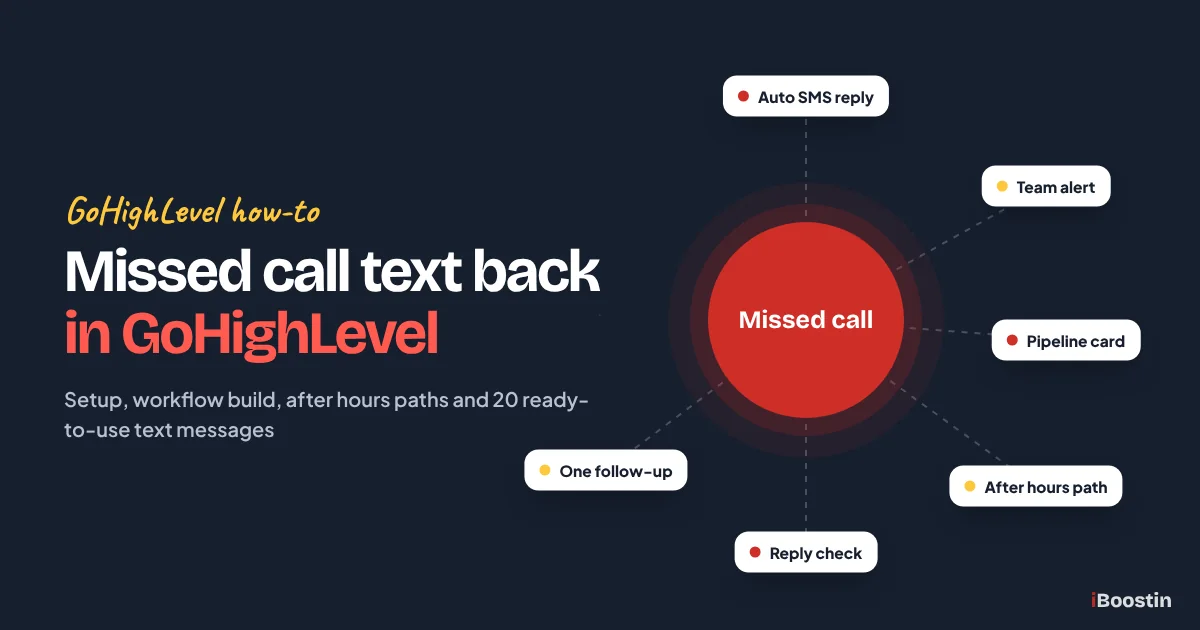
GoHighLevel missed call text back sends an automatic SMS to anyone whose call to your HighLevel number goes unanswered. You can switch on the built-in setting under Settings, Phone System, Voice, or build it as a workflow that triggers on a no-answer, busy or voicemail call, texts the caller, alerts your team and logs the lead.
Picture a roofer on a ladder at 2 p.m. His phone buzzes in his pocket, and he cannot answer. The caller has a leak and three roofers open in a Google search. By the time he climbs down, she has already booked someone else, because the second company answered or texted her first. That gap between a missed call and a callback is where local service businesses lose good jobs every day.
This guide shows you how to set up missed call text back properly: what you need first, the built-in setting versus a workflow, a full workflow build with business hours and after hours paths, 20 ready-to-use text messages, compliance basics, testing and the reasons it fails to send. It comes from the builds the iBoostin team runs every week for clinics, contractors and agencies. New to the platform? Start with what GoHighLevel is and how it works.
Key takeaways
- Missed call text back only works on calls that reach a HighLevel number, so routing your calls there through forwarding, porting or your Google Business Profile comes first.
- US texting from a local number needs approved A2P 10DLC registration, or your texts get filtered and never arrive.
- The built-in setting texts every missed call. A workflow adds a short delay, team alerts, a pipeline card, one follow-up and a stop when the caller replies.
- Never run the built-in setting and a workflow at the same time, or callers get two texts.
- Write messages under 160 characters, name your business, ask one question and do not rely on the caller’s first name.
What Is Missed Call Text Back in GoHighLevel?
Missed call text back is a feature in HighLevel’s phone system (LC Phone) that sends a text message to a caller when nobody answers. The caller dials your business number, it rings out or goes to voicemail, and within a minute or so they get a text from your business saying you saw their call and asking how you can help. The conversation then continues by text in your conversations inbox, where your team can reply from the desktop or the LeadConnector mobile app.
It sounds small, but it changes what a missed call means. Without it, a missed call is a dead end unless someone remembers to call back. With it, a missed call becomes an open text thread with a real person who still needs help, and most people would rather reply to a text than play phone tag.
What counts as a missed call
HighLevel treats a call as missed when it is not answered before the incoming call timeout ends. HighLevel’s help docs suggest keeping that timeout somewhere around 10 to 20 seconds. Calls marked as no answer, busy or sent to voicemail all count. An answered call never triggers the text back, and that includes calls that look answered to the system even though no person picked up, which we cover in the troubleshooting section.
This detail matters more than people expect. If calls ring through to a team member’s cell phone and that phone’s own voicemail grabs the call first, HighLevel can log the call as answered. The caller hears a voicemail greeting, but no text goes out. Getting the timeout and forwarding right is half of a working setup.
Why it matters for local service businesses
Local service businesses live on phone calls. A dentist’s front desk is busy with patients at check-in, an HVAC tech is in an attic, a lawyer is in a meeting, and a med spa provider is mid-treatment. Calls get missed for normal reasons, not because anyone is careless. The caller, though, usually has a problem now and other options one tap away.
A text that arrives while the caller is still holding the phone keeps your business in the conversation. In the accounts we set up, missed call text back is one of the first workflows we switch on, because it works from day one, needs no ad spend and catches leads the business is already paying to generate through its website, Google Business Profile and ads.
What Do You Need Before You Set It Up?
Missed call text back depends on three pieces being in place: a HighLevel number that can send texts, your calls actually reaching that number, and permission from the carriers to text. Skip any one of them and the feature looks switched on but never sends. Here is what to check first.
A HighLevel phone number that can send texts
You need at least one phone number inside the sub-account, bought under Settings, then Phone Numbers. For US businesses this is usually a local 10-digit number in your area code, which callers trust more than an unknown number. Toll-free numbers also work for texting once they pass toll-free verification. Whatever you choose, confirm the number shows SMS as a capability, not just voice.
If your account has more than one number, HighLevel picks the sending number in a set order: the number the customer called if it can send SMS, then a number you have texted that contact from before, then your default outbound number, then any other eligible number in the location. That means the text can come from a different number than the one the caller dialed. In our builds we keep one main number per location so the caller sees the same number they called.
Calls routed to that number
HighLevel can only text back calls that ring through a HighLevel number. You have three ways to get there. You can port your existing business number into HighLevel, so the number on your van and website becomes a HighLevel number. You can set up call forwarding on your current line, either forwarding all calls or only unanswered and busy calls, to your HighLevel number. Or you can use HighLevel’s Google Business Profile call tracking, which places a HighLevel tracking number in the primary phone slot on your profile and moves your real number to the secondary slot.
Forwarding is the fastest route and the one most clients start with. Most US carriers use star codes for forwarding all calls or only missed calls, and the exact codes differ by carrier, so check your carrier’s instructions. Watch for call loops: if your HighLevel number forwards to your cell, and your cell forwards back to HighLevel, the call bounces between them. HighLevel’s help docs warn about this directly. Test from a different phone after any forwarding change.
A2P 10DLC registration for US texting
If you text US numbers from a local 10-digit number, carriers require A2P 10DLC registration: a brand registration for your business and a campaign registration that describes what you text and how people opt in. In current HighLevel accounts this lives under Settings, Phone Numbers, Trust Center. Until the campaign is approved, carriers filter or block your texts. The worst part is that messages can look sent inside HighLevel and still never reach the phone.
Your campaign description should mention that you send texts in reply to customer calls and enquiries, and the sample messages should look like the ones you actually send. A missed call text back message is a good sample. Our step-by-step guide on how to register for A2P 10DLC in GoHighLevel walks through every field, and if you have already been rejected, our A2P 10DLC registration service prepares the submission for carrier review.
Your business hours and who handles replies
Before you write a single message, decide two things. First, what are your real hours, including weekends and holidays? The message a caller gets at 2 p.m. on a Tuesday should not be the same one they get at 11 p.m. on a Saturday. Second, who answers the text when the caller replies? A text back with nobody watching the inbox only moves the missed opportunity from your phone to your inbox.
Pick one person or a small group as owners of missed call replies, and make sure they have the LeadConnector app with notifications on. In the workflow version below, we assign the contact to that person and send them an alert, so replies never sit unread. If nobody can reply in working hours, an AI reply can cover the gap, which we touch on later.
Built-In Setting vs Workflow: Which Should You Use?
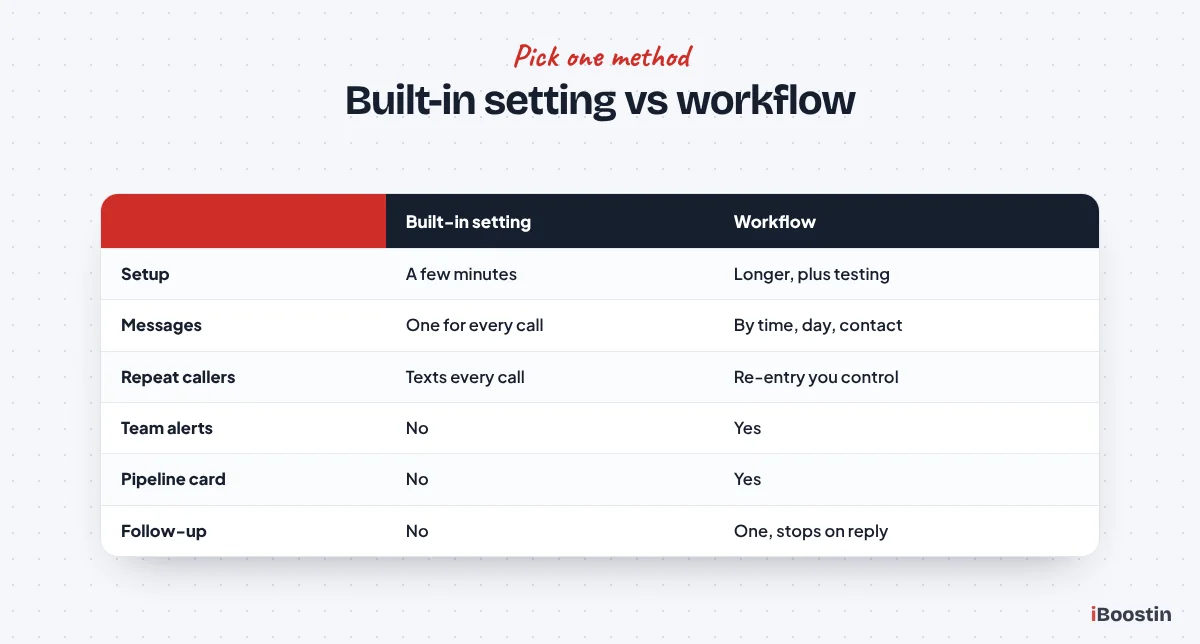
HighLevel gives you two ways to do the same job. The built-in setting is a single switch and one message. The workflow version is something you build in Automation, with as many steps as you need. Both send a text to the caller. The difference is everything that happens around that text.
| Built-in setting | Workflow | |
|---|---|---|
| Where you set it | Settings, Phone System, Voice | Automation, Workflows |
| Setup time | A few minutes | Longer, plus testing |
| Messages | One message for every missed call | Different messages by time, day, contact type |
| Repeat callers | Texts every missed call, even repeats | You control re-entry and cooldowns |
| Team alerts and tasks | No | Yes |
| Pipeline card | No | Yes |
| Follow-up if no reply | No | Yes, with a stop when they reply |
| Best for | Solo operators, quick start | Teams, clinics, contractors, agencies |
When the built-in setting is enough
The built-in setting is fine for a one-person business that wants something working today. A solo cleaner, a mobile detailer or a freelance photographer who answers texts from their own phone does not need a pipeline card or a team alert. They need the caller to get a quick, friendly text, and the switch does exactly that. It also needs no workflow knowledge at all.
Its limits show up quickly once you have a team or steady call volume. It sends the same message at 10 a.m. and at midnight. HighLevel’s own help docs note it sends a text for every missed call, including repeat calls from the same person a few minutes apart, so a caller who tries three times gets three identical texts. There is no follow-up if the caller ignores the first text, and no record in your pipeline.
When to build it as a workflow
Build it as a workflow as soon as you have more than one person on the phones, real business hours, or any reporting on leads. The workflow lets you send a different message after hours, skip the text for existing customers or send them a different one, alert the right team member, create a task to call back, add a card to your pipeline and send one gentle follow-up if the caller does not reply.
HighLevel’s help docs themselves point users with repeat-caller problems toward a workflow with a wait step or tags. In our builds, every client with a front desk or a field team gets the workflow version. If you are new to the workflow builder, read our guide on how to build workflows in GoHighLevel first, because the steps below assume you know where triggers and actions live.
Common mistake: Leaving the built-in setting switched on after you publish the workflow. Both fire on the same missed call, and the caller gets two texts that say slightly different things. Pick one method per sub-account.
How to Turn On the Built-In Missed Call Text Back Setting
The built-in setting moved over the years. Older guides send you to Business Profile or to each phone number’s settings. In current HighLevel accounts, HighLevel’s help docs place it in the phone system settings. If your menus look different, your account may be on an older layout, so search the settings for “missed call”.
- Open the sub-account and click Settings in the bottom-left corner.
- Click Phone System in the left menu, then open the Voice tab.
- Open Voicemail & Missed Call Text Back, then click Missed Call Text Back in the side panel.
- Tick Enable Missed Call Text Back, then click Customize.
- Write your message in the message field. Use the tag icon to insert custom values such as your business name.
- Enter your own number in the test field and send a test message.
- Click Save.
While you are in this area, check the incoming call timeout and your voicemail greeting. The timeout decides how long a call rings before HighLevel treats it as missed. If calls forward to a team cell phone, set the timeout shorter than the time that phone takes to send a call to its own voicemail, otherwise the cell’s voicemail answers first and HighLevel logs the call as answered.
Pro tip: Do not put the contact’s first name in the built-in message. HighLevel’s help docs note that merge fields such as the name only fill in when the system already knows the caller. For a brand new caller, a message that starts “Hi {{contact.first_name}}” goes out as “Hi ,” which looks like spam.
How Do You Build a Missed Call Text Back Workflow in GoHighLevel?
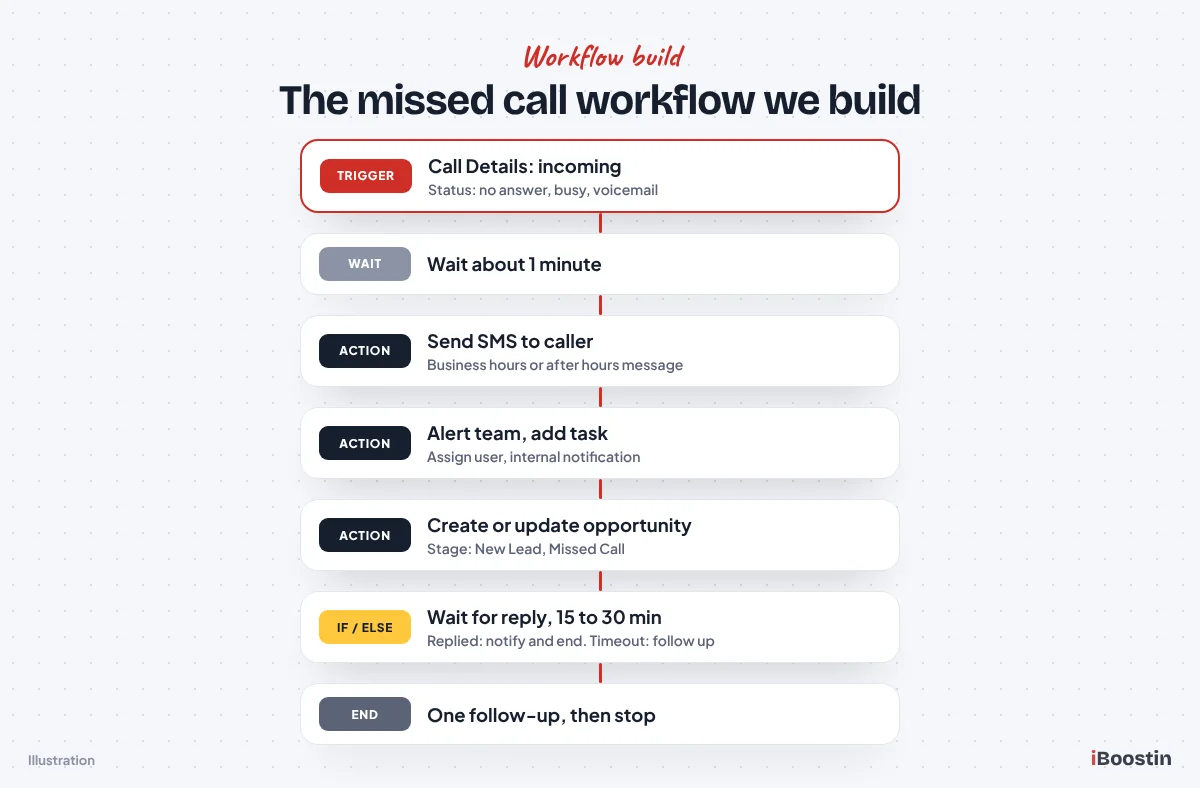
The workflow version takes longer to build, but it is the one we trust for clients who depend on the phone. Below is the exact structure we use: an unanswered call trigger, a short wait, the first text, a team alert, a pipeline card, a reply check, one follow-up and a clean stop. You can also start from HighLevel’s missed call recipe in the workflow templates and adjust it, but building it once from scratch teaches you what every step does.
Step 1: Create the workflow and name it
Go to Automation, then Workflows, and click Create Workflow. Choose Start from scratch so you control every step. Name it something your whole team will understand later, such as “Missed Call Text Back: Main Line”. If you run several numbers for different services or locations, add the number or service to the name.
Before you add anything else, write down your business hours and the person who owns missed call replies. You will need both in later steps. We also keep the workflow in draft until testing is done, because draft workflows do not process live events, so nothing reaches a real caller while you build.
Step 2: Set the Call Details trigger for unanswered calls
Click Add New Trigger and choose Call Details from the Events group. Some older accounts and guides call this trigger “Call Status”. Add a Call Direction filter set to incoming, then a Call Status filter set to the unanswered outcomes: no answer, busy and voicemail. Exact labels can vary a little between account versions, so pick every status that means a person did not pick up.
If the sub-account has more than one number, add the In Phone Number filter and pick the number this workflow should watch. That way a call to your recruiting line does not get a “How can we help with your repair?” text. HighLevel evaluates every workflow’s trigger separately, so one call can enroll the same contact in several workflows. Check that no other workflow in the account already texts on missed calls.
Step 3: Adjust the workflow settings
Open the workflow Settings tab. Allow Re-entry decides whether a contact can go through the workflow again later. Leave it on, so a past caller who calls again in three months still gets a text. A contact who is still active in the workflow cannot re-enter it anyway, which already protects you from back-to-back repeat calls while the workflow is running.
Stop on Response removes a contact from the workflow when they reply to a message it sent. It sounds perfect for this job, and for a simple build it is. In our builds we usually leave it off here, because the reply branch in Step 7 already ends the automation, and we want the replied path to run its alert and pipeline steps first. Test how it behaves in your account before you rely on it. Set the Timezone to the account timezone, and leave the workflow-wide Time Window off, because it would hold the first text back for an after hours caller who just called you.
Step 4: Add a short wait, then send the first text
Add a Wait action set to A set period of time and choose about one minute. The pause makes the text feel human rather than robotic, and it gives a team member who is calling the person straight back a chance to connect first. Then add a Send SMS action with your first message. Leave the from number empty to use the workflow sender, or pick the main number.
Use one of the messages from the library later in this guide. Start with your business name, say you missed the call and ask one simple question. Insert custom values with the tag icon in the SMS editor, and preview the message with a test contact before you move on. If the caller was already a contact, you can personalize with first name in a separate branch, which we explain in the existing customers section.
Step 5: Notify your team
Add an Assign To User action so the contact has an owner, then an Internal Notification action. Send the alert to the assigned user, or to a specific user if one person owns all missed calls. Most teams prefer an app notification or an SMS to the user’s own phone. Write the alert so it is useful at a glance, for example “Missed call from {{contact.phone}}. Auto text sent. Reply in Conversations.”
Add an Add Task action as well, such as “Call back missed caller”, due within the hour during business hours. A task is harder to ignore than a notification, and it shows in reporting. In the accounts we manage, the task is what turns a missed call into a callback, because the front desk works the task list every hour.
Step 6: Create or move the opportunity
Add a Create Or Update Opportunity action. Pick your sales pipeline and a stage such as “New Lead: Missed Call”, set the opportunity name to the caller’s phone or name, and set the lead’s origin in the opportunity so reporting shows how many jobs came from missed calls. Using the update version of the action means a caller who already has an open opportunity gets their card updated instead of a duplicate card.
This is the step most DIY builds skip, and it is the one owners care about later. Without it, missed callers live only in the inbox, and nobody can answer “how many missed calls turned into booked jobs last month?” If your pipeline stages do not match how you sell yet, our GoHighLevel CRM setup page shows how we structure them.
Step 7: Wait for a reply and branch with If/Else
Add another Wait action, this time set to The contact to reply, with the timeout switched on at around 15 to 30 minutes and the reply channel set to SMS. This wait splits into two paths: one for a contact who replied and one for the timeout. If your builder shows the wait as a single path, follow it with an If/Else action that checks whether the contact replied.
On the replied path, move the opportunity to a stage such as “Contacted”, send a short notification to the assigned user that the caller has replied, and end the workflow. Your team now handles the conversation by hand, or an AI agent does if you use one. On the timeout path, the caller has not answered your first text, so you move to one follow-up. We do not stack more texts than that.
Step 8: Send one follow-up, then stop
On the timeout path, add a Wait action of a few hours with the advanced window set to resume only between your daytime hours, so the follow-up never lands at night. Then send one follow-up SMS from the second follow-up section of the library. Add an Add Contact Tag action such as “missed call: no reply” so you can find these contacts later, and end the workflow.
One follow-up is the right number for a missed call. The caller contacted you, so a second nudge is helpful. A third and fourth start to feel like marketing, which raises opt-outs and compliance risk. If you want a longer nurture for people who never reply, put it in a separate workflow with proper opt-in. Our GoHighLevel workflow examples include nurture and reactivation flows you can borrow.
Step 9: Publish and turn off the built-in setting
Click Save, run the tests in the testing section below, and only then switch the workflow from draft to Publish. Straight after, go back to Settings, Phone System, Voice and untick Enable Missed Call Text Back, so the built-in feature does not send a second text alongside the workflow.
Write a short note for your team in the workflow description or a shared document: what the workflow does, who gets alerts and how to pause it. Months later, when someone asks why a caller got a text, that note saves an hour of digging. If the workflow does not fire after publishing, our guide to why a GoHighLevel workflow is not triggering covers the usual causes.
Business Hours vs After Hours: Two Versions of the Same Workflow
A caller at 10 a.m. and a caller at 10 p.m. need different messages. During the day, the honest message is “we are with a customer, we will call you back shortly”. At night, the honest message is “we are closed, here is what happens next”. Sending the daytime message at night creates an expectation of a quick callback that your team cannot meet.
You do not need two separate workflows for this. One workflow with an If/Else right after the trigger handles both, and it keeps reporting in one place. Place the branch before the first wait, so each path has its own message, alert and follow-up timing.
Setting up the business hours branch
Add an If/Else action with a branch named “Open”. Use the current day of the week condition set to your working days, and the current hour condition set to on or after your opening hour and before your closing hour. Every other case falls into the else path, which you name “Closed”. Check the workflow timezone first, because these conditions use it.
The Open path runs the build from the previous section exactly as written: one-minute wait, daytime text, alert, task due within the hour, pipeline card, reply wait and one follow-up. Keep the task due time short on this path. A caller who hears back within the hour during business hours is very likely to stay with you rather than calling the next company.
What the after hours branch should do differently
On the Closed path, send the after hours message straight away. The caller just called, so a prompt reply is expected even at night, and it stops them from calling a competitor. Say clearly that you are closed and when you will be back, invite them to text what they need, and add a booking link if your calendar takes online bookings.
Change the follow-up behavior too. Skip the immediate internal alert to a personal phone at night unless you offer emergency service, and set the callback task due at opening time the next working day. Hold any follow-up text with the advanced window on the wait, so it goes out after you open. For businesses with an on-call tech, add a keyword branch: if the caller replies URGENT, notify the on-call person right away.
Weekends and holidays
Weekends get their own message, because “we will call you first thing tomorrow” is wrong on a Saturday night. Add a second If/Else inside the Closed path that checks whether the current day is Saturday or Sunday, and send the weekend message there. If you open Saturday mornings, include Saturday in the Open branch’s working days and adjust the hours.
Holidays are easiest to handle by hand. A day or two before a public holiday, edit the after hours message to mention the holiday and your return date, or add a temporary branch with the current date condition. In the accounts we manage, we add a calendar reminder to switch holiday messages on and off, because a “closed for the holiday” text on a normal Tuesday looks careless.
Ready-to-Use Missed Call Text Back Messages (20 Templates)
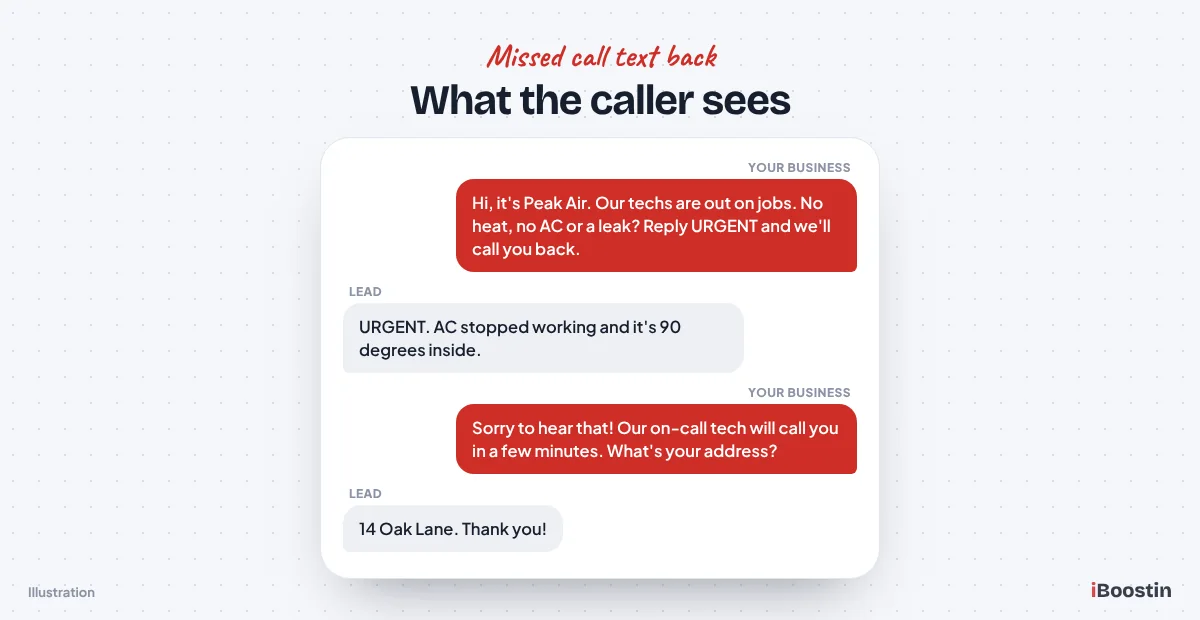
Every message below is written to stay under 160 characters with a typical business name, so it sends as a single SMS segment. Replace {{location.name}} with your business name custom value, and swap [booking link] for your booking link custom value. We left room in each for the short opt-out line HighLevel can add automatically. Use plain straight apostrophes, because emojis and curly quotes switch the message to a different encoding with a much shorter segment limit.
The pattern is the same for every industry: name the business, say you missed the call, ask one easy question or offer one action. Avoid long apologies, avoid “a representative will contact you”, and avoid promising a callback time you cannot keep. Read each one out loud before you use it. If it sounds like a person texting, it is right.
General service business
These two work for almost any local service business, from cleaners to pest control. The first is the safe default. The second suits busy shops where the phone is often missed because the team is on another call, and it sets a realistic expectation.
Use the first as your built-in message if you are starting with the simple switch. Use the second as the daytime message in the workflow version. Both ask the caller to reply, which keeps the conversation in your inbox where it is tracked.
- Message 1 (default): Hi, this is {{location.name}}. Sorry we missed your call! What can we help you with? Reply here and we’ll get right back to you.
- Message 2 (busy line): Hi, it’s {{location.name}}. We’re on another call right now. Text us what you need and we’ll call you back shortly.
Dentist and dental office
Dental callers are usually new patients shopping around, existing patients rescheduling, or someone in pain. The first message sorts new from existing patients in one reply, which tells your front desk who to prioritize. The second gives patients in pain a fast lane without making every caller feel like an emergency.
Do not ask for health details by text. Keep messages to scheduling and routing, and let your team handle anything clinical on a call. If your practice takes online bookings, swap the question for a booking link once the patient replies.
- Message 3 (new or existing): Hi, this is {{location.name}}. Sorry we missed you! Are you a new or existing patient, and how can we help today?
- Message 4 (pain triage): Hi, it’s {{location.name}}. We’re with a patient. If you have tooth pain or swelling, reply URGENT and we’ll call you first.
HVAC and plumbing
Home service calls split into urgent and routine. A homeowner with no heat in January or water on the floor is not shopping on price. They want the first company that responds. The first message sorts the job type, and the second gives emergencies a one-word reply that your workflow can route to the on-call tech.
Pair Message 6 with a keyword check in the workflow: if the reply contains URGENT, send an internal notification to the on-call phone at once. Without that branch, the word URGENT sits in the inbox like any other reply, which defeats the purpose.
- Message 5 (job type): Hi, this is {{location.name}}. Sorry we missed your call! Is this for repair, maintenance or a new system? Reply and we’ll help.
- Message 6 (emergency): Hi, it’s {{location.name}}. Our techs are out on jobs. No heat, no AC or a leak? Reply URGENT and we’ll call you right back.
Roofing contractor
Roofing calls are high value and often storm driven, so speed matters and so does qualifying. The first message tells the caller why you missed them, which feels honest, and asks the question your estimator needs answered. The second moves straight to booking an inspection by asking for an address.
Roofers get many callers after a storm, so the address reply in Message 8 is gold for routing estimators by area. Add an If/Else on a “storm” tag or campaign if you run storm ads, and send Message 8 to those callers instead of Message 7.
- Message 7 (on the roof): Hi, this is {{location.name}}. Sorry we missed you, our crew is on a roof. Is this about a leak, storm damage or a new roof?
- Message 8 (inspection): Hi, it’s {{location.name}}. Need a roof inspection? Reply with your address and a good time, and we’ll set it up.
Med spa and aesthetics clinic
Med spa callers are usually comparing treatments and providers, and many prefer to book online. The first message goes straight to a booking link, which suits a clinic with a well-set-up calendar. The second asks which treatment they want, which lets your coordinator reply with the right details.
Keep the tone warm but simple. Avoid medical claims and before-and-after promises in an automated text. If your calendar has separate services for consults and treatments, link the consult calendar, because new callers almost always need a consult first.
- Message 9 (book online): Hi, it’s {{location.name}}. Sorry we missed you! Book a consult here: [booking link]
- Message 10 (treatment): Hi, it’s {{location.name}}. We’re with a client. Which treatment are you asking about? Reply and our team will help.
Law firm
Law firm messages need extra care. Never give anything that reads like legal advice in an automated text, and do not ask for sensitive case details by SMS. The goal is simply to keep the caller from moving on to another firm and to get a callback booked with intake.
The first message invites a short note, which helps intake prepare without asking for specifics. The second confirms a callback and asks for a good time. Have your firm review both before use, since rules on attorney communications vary by state.
- Message 11 (intake): Hi, this is {{location.name}}. Sorry we missed your call. Please reply with your name and a short note on your legal matter.
- Message 12 (callback): Hi, it’s {{location.name}}. An intake team member will call you back today. Is there a best time to reach you?
After hours
After hours messages should set expectations clearly. The caller knows it is late, so “we’re closed” is not bad news. What matters is telling them what happens next. The first message promises a reply first thing, and the second gives them a way to book without waiting.
Only use “first thing” if your team really does work missed call tasks at opening. For businesses that take online bookings, Message 14 often books the appointment before anyone on your team wakes up, which is the best outcome you can get from a missed call.
- Message 13 (closed): Hi, this is {{location.name}}. We’re closed for the night but saw your call. Text us what you need and we’ll reply first thing.
- Message 14 (closed with link): Hi, it’s {{location.name}}. We’re closed now. Reply with your question or book a time: [booking link]
Weekend
Weekend messages fix the timing problem in the after hours text. A Saturday caller who reads “we’ll reply first thing” expects Sunday morning. Name the day you will call back. The second message is for businesses with on-call weekend cover, such as plumbers and HVAC companies.
If you use Message 16, make sure the URGENT keyword branch notifies the on-call person on weekends, not the office manager who is off. We set this up as its own If/Else inside the weekend path so the routing is easy to see and change.
- Message 15 (weekend): Hi, this is {{location.name}}. We’re closed for the weekend. Reply with what you need and we’ll call you Monday morning.
- Message 16 (on-call): Hi, it’s {{location.name}}. Weekend emergency? Reply URGENT and our on-call tech will get back to you.
Second follow-up messages
The follow-up goes out only when the caller has not replied to the first text. Keep it lighter than the first message and give an easy yes or no. Message 17 is a gentle check-in, and Message 18 offers to do the work for them by calling.
Send one follow-up, never more. Hold it inside your daytime window with the advanced window on the wait step. A caller who ignores two texts either solved their problem or is not interested, and a third text tends to earn an opt-out.
- Message 17 (check-in): Just checking in from {{location.name}}. Still need help? Reply here or call us back any time today.
- Message 18 (offer a call): Hi again from {{location.name}}. We didn’t want you to slip through the cracks. Want us to call you? Reply YES.
Existing customers
Existing customers and patients deserve a different message, because “how can we help?” feels cold to someone you have served for years. Add an If/Else near the top of the workflow that checks for a tag such as “customer” or a won opportunity, and send these instead. For known contacts, you can safely use the first name custom value here.
Message 19 asks whether the call is about a past job, which helps your team pull up the right history. Message 20 is for appointment-based businesses where most existing customers call to book. Both keep the conversation short and useful.
- Message 19 (returning): Hi, it’s {{location.name}}, thanks for calling again! Is this about your last visit or something new? Reply and we’ll help.
- Message 20 (rebook): Hi, it’s {{location.name}}. Sorry we missed you! Book your next visit here: [booking link]
How Do You Keep Missed Call Texts Compliant?
Missed call text back is about as low risk as business texting gets, because the person contacted you first and you are replying about their call. That does not mean anything goes. Carriers review your A2P campaign, and US texting rules still apply to how you identify yourself, how people opt out and when you send. This section is practical guidance from our builds, not legal advice, so check anything you are unsure about with your own counsel.
Opt-out wording
Every first message to a new number should name your business and give a way to opt out. HighLevel can handle the opt-out line for you. Under Settings, Phone Numbers, the Messaging tab and Messaging Compliance, you can add an opt-out message such as “Reply STOP to unsubscribe” and sender information, and enable a periodic opt-out reminder. New sub-accounts have this switched on by default, older ones may not, so check yours.
When someone replies STOP, HighLevel marks the contact as opted out of SMS, and future texts to them are blocked. Respect that in your process too. Do not have a team member text an opted-out contact from their personal phone, and do not remove the DND status without a clear new opt-in from the contact. Your A2P campaign registration should describe the same opt-out process your messages actually use.
Quiet hours and time windows
Federal rules on telephone solicitations use an 8 a.m. to 9 p.m. window in the recipient’s local time, and some states set narrower windows or extra rules. HighLevel’s messaging compliance settings even include an option tied to Texas. A direct reply to a call someone just made is generally treated differently from marketing, but follow-ups are where businesses drift into risk.
Our rule in client builds is simple. The first reply goes out right away, at any hour, because the caller just called. Every follow-up waits for daytime hours using the advanced window on the wait step. Nothing promotional goes in a missed call workflow at all. If you want to send offers to past callers, do it in a separate campaign with clear marketing consent.
What not to send
Keep missed call texts free of anything that looks like a marketing blast: no discount codes, no “limited time” language, no link shorteners from public services, and no all-caps. Carriers filter messages that look like spam, and A2P reviewers compare your live messages to the samples you registered. A plain reply about a missed call rarely gets filtered.
Also avoid sensitive information. Clinics should not mention treatments or conditions in the first text, and law firms should not reference case types. The caller may share a phone with family. A neutral “sorry we missed your call, how can we help?” protects them and you.
How to Test Missed Call Text Back Properly
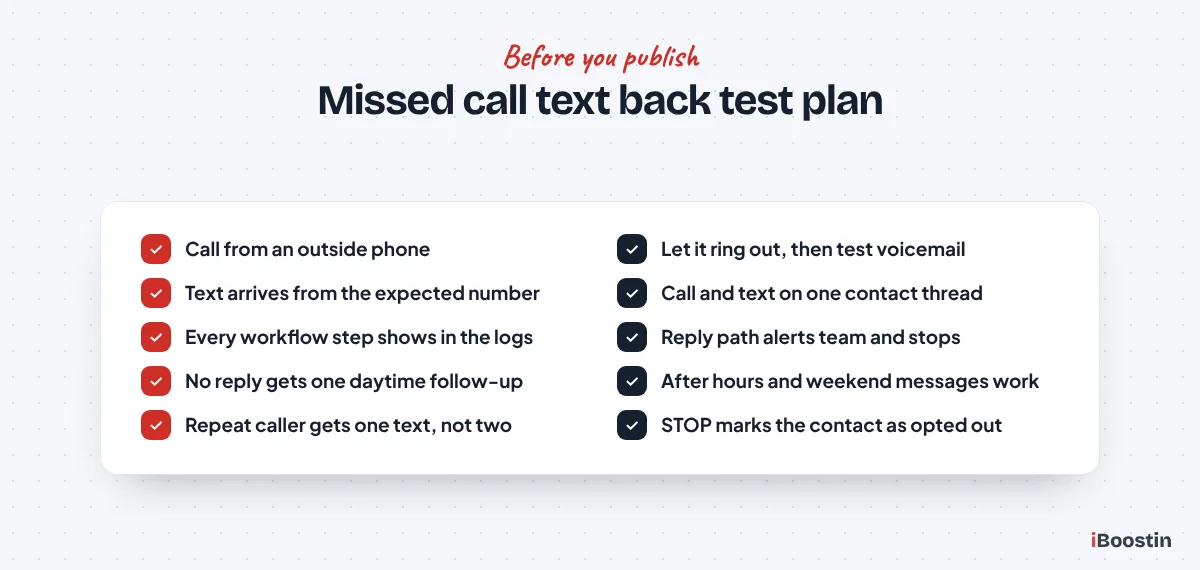
Most broken missed call setups were never tested with a real call. A test SMS from the settings page proves the message looks right. It does not prove that calls reach HighLevel, that the trigger fires, that the right number sends, or that carriers deliver. Run these tests before you publish and after any phone or forwarding change.
- Use an outside phone. Call from a cell phone that is not a user in the account and not your forwarding target. Calls from your own numbers can behave differently.
- Let it ring out. Do not decline the call. Let it ring past the timeout and hang up, then repeat once and leave a voicemail, so you test both no answer and voicemail statuses.
- Check the text arrives on the phone. Confirm the text lands on the test phone, from the number you expect, with the business name filled in and no blank merge fields.
- Check the contact and conversation. In Conversations, confirm the call and the text appear on one contact thread. If the text failed, the reason shows there.
- Check the workflow history. Open the workflow’s execution logs and confirm each step ran: wait, SMS, alert, task and opportunity.
- Test the reply path. Reply from the test phone and confirm the team alert fires, the opportunity moves and no follow-up goes out.
- Test the timeout path. Do not reply on a second test and confirm the follow-up waits for daytime hours.
- Test after hours and weekends. Temporarily change the If/Else hours so the current time counts as closed, run the test, then change them back.
- Test a repeat caller. Call twice within a few minutes and confirm the caller gets one text, not two.
- Test STOP. Reply STOP from the test phone and confirm the contact is marked as opted out, then remove the test contact.
Keep a short test log with the date, the phone used and what happened. When a client tells us “the missed call texts stopped working”, the log tells us what last worked and when, which halves the time to find the cause.
Why Is Missed Call Text Back Not Sending? Common Causes and Fixes
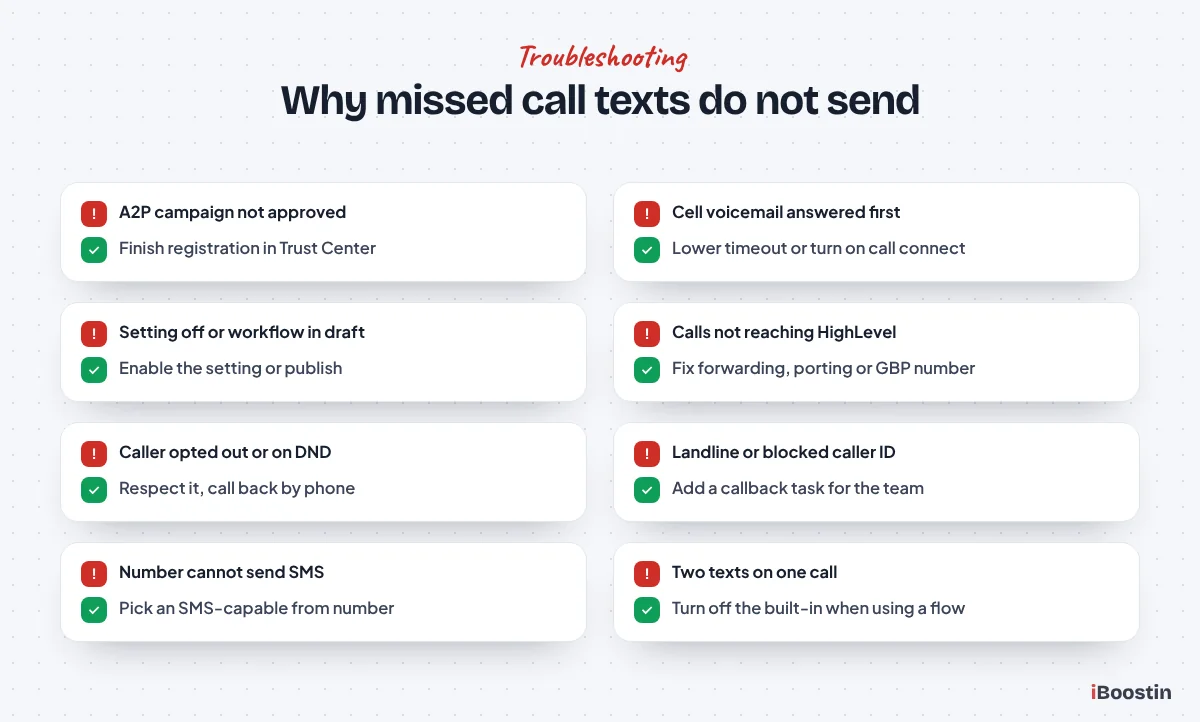
When missed call text back stops working, it is almost always one of the causes below. Work through them in order, because the first few are both the most common and the quickest to check. The contact’s conversation thread and the workflow’s execution logs will usually point you to the answer.
A2P registration is missing, pending or rejected
This is the cause we see most often for US accounts. The settings are right, the workflow runs, the conversation even shows the text, but the caller never gets it because carriers are filtering unregistered traffic. Check the status under Settings, Phone Numbers, Trust Center. Brand approval alone is not enough. The campaign must be approved and the number attached to it.
If the campaign was rejected, read the rejection reason carefully. The usual problems are a website without a privacy policy or SMS terms, opt-in wording that does not match what you send, and sample messages that look nothing like your real texts. Fix those, resubmit, and use the time to finish testing everything else.
The call was answered by a voicemail somewhere else
If calls forward from HighLevel to a team member’s cell, that cell’s own voicemail can pick up before HighLevel’s timeout ends. HighLevel then logs the call as completed, not missed, and no text goes out. The caller hears a voicemail greeting, so from the outside it looks like the feature is broken.
Fix it by lowering the incoming call timeout so HighLevel gives up before the cell’s voicemail starts, or by turning on the call connect option on the number, which asks the person answering to press a key before the call connects, so a personal voicemail cannot count as an answer. HighLevel’s trigger docs point to call connect for exactly this reason. Then run the ring-out test again.
The feature is off or the workflow is still in draft
It sounds obvious, but it happens weekly. The built-in setting is unticked, or the workflow was saved but never published. Draft workflows do not process live trigger events. Someone may also have paused the workflow while making edits and forgotten to switch it back.
Check the built-in setting under Settings, Phone System, Voice, and check the workflow status shows published. If you have a workflow, confirm the trigger filters still match: a changed phone number or a deleted number in the In Phone Number filter stops the trigger quietly.
Calls are not reaching a HighLevel number
If the caller dialed a number that does not route through HighLevel, the system never sees the call. This happens when forwarding was set up for missed calls only but the carrier’s code was entered wrong, when someone turned forwarding off on the office line, or when the Google Business Profile shows your old number again after an edit.
Look at the contact record or call reporting in HighLevel. If the test call does not appear at all, the problem is routing, not texting. Re-apply the forwarding with your carrier’s codes, check your Google Business Profile, and test from an outside phone again. Watch for call loops while you do it.
The caller opted out, is on DND or used a landline
HighLevel respects a contact’s communication preferences. If the caller once replied STOP, or someone set SMS to Do Not Disturb on their contact, no text goes out. That is correct behavior. Check the contact’s DND settings before assuming the workflow is broken.
Landlines and some VoIP numbers cannot receive SMS at all, so the text fails. Blocked or private caller IDs give HighLevel no number to text. The conversation will show a failed message with a reason. For businesses with many older or office callers, add the task in Step 5 so a person calls back anyone the text cannot reach.
The number cannot send SMS or the wrong number sends
Some numbers are voice only, and some toll-free numbers are not yet verified for texting. If the number the caller dialed cannot send SMS, HighLevel moves down its list of sending numbers, and if none qualifies, the attempt fails with a reason in the conversation. Check each number’s capabilities under Settings, Phone Numbers.
In sub-accounts with several numbers, a text may come from a different number than the one the caller dialed. Callers then ignore it as an unknown number. Set the main number as the default, and in the workflow, choose the from number on the Send SMS action, so missed call texts always come from the line the caller recognizes.
Callers get two texts, or none on a repeat call
Two texts at once almost always means the built-in setting and a workflow are both on, or two workflows share the same trigger. Turn off the built-in setting once the workflow is live, and search your workflows for any other Call Details trigger with missed statuses.
No text on a repeat call usually means Allow Re-entry is off, so a contact who went through the workflow once never enters again. Turn re-entry on. The contact still cannot re-enter while active in the workflow, which already stops back-to-back duplicates. If you want a longer cooldown, add a tag at the start, check for it with an If/Else, and remove it with a wait at the end.
Should You Set Up Missed Call Text Back Yourself or Get Help?
You can set this up yourself. The built-in setting takes a few minutes, and a single-path workflow is a good first project for anyone learning the builder. If you run a small business with one number, answer your own texts and already have A2P approved, start with the built-in switch today and add a workflow later.
Getting help makes sense when the phone is your main lead source and every missed call has a real cost. The parts that trip people up are not the SMS action. They are call routing, forwarding loops, voicemail grabbing calls, A2P rejections, duplicate texts and reply branches that never fire. Agencies running dozens of sub-accounts also need the same tested workflow in every account, which is where a clean build saved into a snapshot pays off.
| Do it yourself | Get it built | |
|---|---|---|
| Best for | Solo owners with one number | Teams, clinics, contractors, agencies |
| What you get | Built-in switch or a simple workflow | Full workflow with hours, alerts, pipeline, follow-up |
| Main risk | Silent failures from routing or A2P | Lower, when every path is tested with real calls |
| Time | An afternoon plus testing | Usually days, depending on A2P status |
If you want it done for you, our GoHighLevel workflow automation service builds missed call text back alongside your lead reply, booking and review workflows, and our GoHighLevel experts can audit an existing setup that has stopped sending. Many clients also add an AI agent to reply to missed call texts out of hours. Our guide on how to set up Conversation AI in GoHighLevel shows how to train it to answer questions and book appointments, and our GoHighLevel AI chatbot service builds it for you.
Frequently Asked Questions About GoHighLevel Missed Call Text Back
Where is missed call text back in GoHighLevel?
In current HighLevel accounts, go to Settings in the sub-account, then Phone System, the Voice tab, and Voicemail & Missed Call Text Back. Tick Enable Missed Call Text Back, click Customize, write your message and save. Older guides point to Business Profile or individual phone number settings, which reflects earlier layouts. If your menus differ, search settings for missed call.
Is missed call text back free in GoHighLevel?
The feature itself is part of HighLevel’s phone system, but every text it sends is a normal outbound SMS billed to your phone usage, and carrier fees apply too. Costs depend on your plan, rebilling settings and message length, so check current pricing in your account. Keeping messages under 160 characters keeps each text to a single segment.
Do I need A2P 10DLC for missed call text back?
Yes, if you text US numbers from a local 10-digit number. Carriers require an approved A2P 10DLC brand and campaign, with your number attached to the campaign. Without it, texts are filtered or blocked, even though they may look sent inside HighLevel. Toll-free numbers need toll-free verification instead. Registration lives under Settings, Phone Numbers, Trust Center.
Can missed call text back work with my existing business number?
Yes. You can port your existing number into HighLevel, or keep it with your current carrier and forward calls to a HighLevel number, either all calls or only unanswered and busy calls. HighLevel’s Google Business Profile call tracking is a third option. The text back only works on calls that pass through a HighLevel number, so routing must be set first.
Why did a caller get two missed call texts?
Usually because the built-in setting and a workflow are both switched on, or two workflows use the same missed call trigger. The built-in setting also sends a text for every missed call, so a person who calls three times gets three texts. Turn off the built-in setting when you use a workflow, and keep re-entry rules sensible.
Can I send a different missed call text after hours?
Not with the built-in setting, which sends one message at all times. Build it as a workflow and add an If/Else right after the trigger that checks the current day and hour against your business hours. Send the daytime message on the open path and an after hours or weekend message on the closed path, each with its own follow-up timing.
Does missed call text back work for landlines?
No. Most landlines cannot receive SMS, so the text fails and the conversation shows a failed message with a reason. The same applies to some VoIP numbers and to blocked or private caller IDs. Add a callback task to your missed call workflow so a team member phones anyone the text cannot reach, rather than relying on SMS alone.
How fast should a missed call text go out?
Within about a minute works well. A short wait of around one minute feels human and gives a team member who is calling back a chance to connect first. Waiting much longer lets the caller move on to the next business. For after hours callers, send the first text straight away and hold only the follow-up for daytime.
Stop Losing Callers You Already Paid For
Every missed call came from somewhere you invested in: your website, your Google Business Profile, your ads, your reputation. Missed call text back makes sure those callers hear from you within a minute instead of whenever someone remembers to call back. Set up the routing and A2P first, pick the built-in switch or a workflow, write short honest messages and test with real calls.
If you want the full version with business hours paths, team alerts, pipeline tracking and a clean stop when callers reply, iBoostin builds it inside your own GoHighLevel account and tests every path before it goes live. You keep full access, and you get a written note of exactly what was built.