In this guide
- What Is Conversation AI in GoHighLevel?
- What You Need Before You Start
- How Do You Create a Conversation AI Bot in GoHighLevel?
- How Do You Train Conversation AI So It Gives Correct Answers?
- How Do You Set the Bot’s Goal and Actions?
- Which Channels Can Conversation AI Answer?
- How Do You Set Guardrails, Tone and Stop Conditions?
- How Do You Test Conversation AI Before Going Live?
- Sample Training Script and Conversation
- How Do You Connect Conversation AI With Workflows?
- How Do You Monitor Conversation AI After Launch?
- Should You Set Up Conversation AI Yourself or Get Help?
- Frequently Asked Questions About Setting Up Conversation AI in GoHighLevel
- Get Your Conversation AI Bot Booking Calls the Right Way
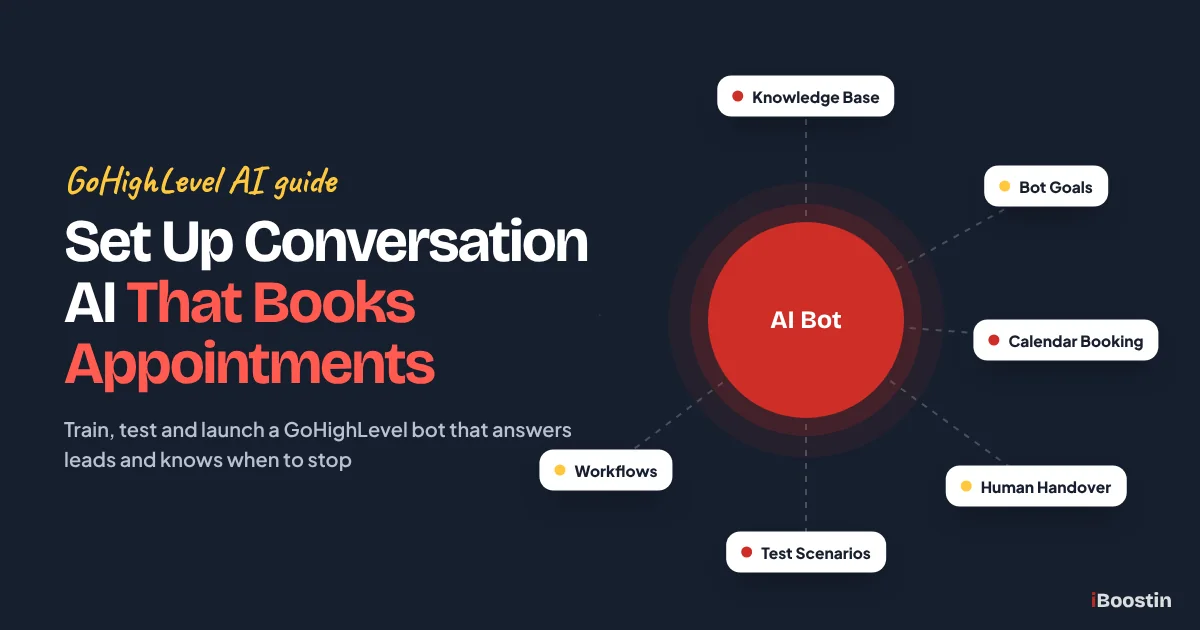
To set up Conversation AI in GoHighLevel, open your sub-account, go to AI Agents, then Conversation AI, and click Create Bot. Name the bot, pick its channels, train it on your FAQs and website, turn on appointment booking with your calendar, add human handover rules, test it, then switch from Suggestive to Auto-Pilot mode.
That is the short version. The long version is where most bots go wrong. We have seen it many times: a new lead texts at 9 pm asking if you service their area, the bot answers with a confident yes for a town you never cover, offers a slot on a day the calendar should have blocked, and nobody on the team notices until the customer calls to complain. The software did what it was told. It just was never told enough.
This guide walks you through the full setup the way the iBoostin team does it in client accounts: what Conversation AI is and is not, how to create and train the bot, how to make it book appointments and hand off to a person, how to test it before a real lead sees it, and how to keep an eye on it after launch. New to the platform? Start with what GoHighLevel is and how it works, then come back here.
Key takeaways
- Conversation AI lives under AI Agents, then Conversation AI, inside each sub-account, and it runs as part of HighLevel’s AI Employee offering.
- The bot is only as accurate as its training. Short, direct FAQs and clean service pages beat a crawl of your whole website.
- Turn on appointment booking only after your calendar’s availability, buffers and reminders are correct, because the bot books exactly what the calendar allows.
- Set human handover, a message cap and a fallback message before you ever switch to Auto-Pilot.
- Test with real scenarios, run Suggestive mode with live leads first, and review conversations every week after launch. No bot is perfect.
What Is Conversation AI in GoHighLevel?
Conversation AI is HighLevel’s built-in chatbot for text conversations. It reads incoming messages from your leads and customers, looks up answers in the content you trained it on, and replies on channels such as SMS, website chat, Facebook, Instagram and WhatsApp. It can also take actions inside your account, like booking an appointment, saving a detail to the contact record or passing the chat to a team member.
Because it sits inside the same account as your CRM, it works with the same contact record, calendar and workflows. That is the real advantage over a separate chatbot tool: a lead who books through the bot shows up on your calendar, in your pipeline and in your reminders without any copying or extra integrations.
Where it lives now: AI Agents, Conversation AI and AI Employee
HighLevel renames and moves its AI tools often, so it helps to know the current structure. In a sub-account, the left menu has an item called AI Agents. Inside it you will find Conversation AI (text chat bots), Voice AI (phone call agents) and the Knowledge Base, where training content is stored. Your bots are listed under Conversation AI in the Agent List.
AI Employee is the name HighLevel uses for the bundle of AI products, including Conversation AI, Voice AI, Reviews AI and Content AI, and for how they are switched on and billed. If you watched an older tutorial that told you to look under Settings for a Conversation AI tab, that path is out of date. Expect labels to keep shifting, and if a button in this guide has a slightly different name in your account, look for the nearest match in the same area.
What Conversation AI can do well
In the accounts we set up, Conversation AI is strongest at the repetitive first part of a conversation. It answers the same 20 to 30 questions your front desk answers every day: hours, service areas, what a service includes, how long it takes, what to bring, how to book. It replies in seconds, at night and on weekends, which is when many leads go cold.
It is also good at collecting details and booking. It can ask for a name, email and phone number, skip questions the contact already answered, offer open times from your calendar, book the slot, and on some setups reschedule or cancel. It can then trigger a workflow so your normal confirmation and reminder messages go out.
What it cannot do, and should not be asked to do
Conversation AI does not know anything you did not give it. If your training content does not cover a question, it will either fall back, hand off or, in a badly set up bot, guess. It does not take payments during the booking flow, it cannot see private calendar notes, and it is not a replacement for a trained person on complaints, refunds, medical or legal questions, or anything that needs judgment.
It can also make mistakes even with good training. It may misread a vague message, mix up two similar services or answer a question slightly outside its scope. That is why every setup in this guide includes guardrails, a handoff path and a review routine. Treat the bot as a fast junior assistant that needs clear rules and a supervisor, not as a finished employee.
What You Need Before You Start
Most failed bots we are asked to fix were built before the rest of the account was ready. Before you open the bot builder, check that you have access to the feature and that the parts the bot depends on already work.
Check that Conversation AI is available in your account
Conversation AI is part of HighLevel’s AI Employee offering. The agency account owner switches AI Employee on at the agency level and then controls which sub-accounts can use AI Agents. HighLevel offers a pay-per-use option and monthly AI plans, and what is included changes from time to time, so check current pricing and limits in your account rather than relying on a blog post or video.
If you are a business owner on an agency’s account, ask the agency whether AI Agents are enabled for your sub-account. Two other costs sit outside the AI itself: text messages are billed as normal messaging usage, and WhatsApp needs HighLevel’s WhatsApp connection set up for the sub-account before the bot can reply there.
Get the foundations working first
The bot uses your calendar, your phone number and your contact fields. If those are wrong, the bot will be wrong at scale. Before you build, make sure of the following:
- Your booking calendar is correct. Availability, time zone, buffers, minimum notice and reminders all need to be right, because the bot will book any slot the calendar shows as open. Our GoHighLevel calendar booking setup page lists what a clean calendar build includes.
- Your SMS number is registered. If the bot will text US contacts from a local number, A2P 10DLC registration must be approved first. More on this in the channels section.
- Your contact fields exist. If you want the bot to save details like service type or ZIP code, create those custom fields now.
- A person owns handoffs. Decide who gets the conversation when the bot hands over, and make sure that user has notifications switched on.
- Your answers are written down. Collect your real FAQs, service list, service areas, policies and booking rules in one document. You will turn this into training content.
How Do You Create a Conversation AI Bot in GoHighLevel?
Creating the bot itself is quick. The decisions you make in these first screens, especially the build method and the mode, shape everything that follows.
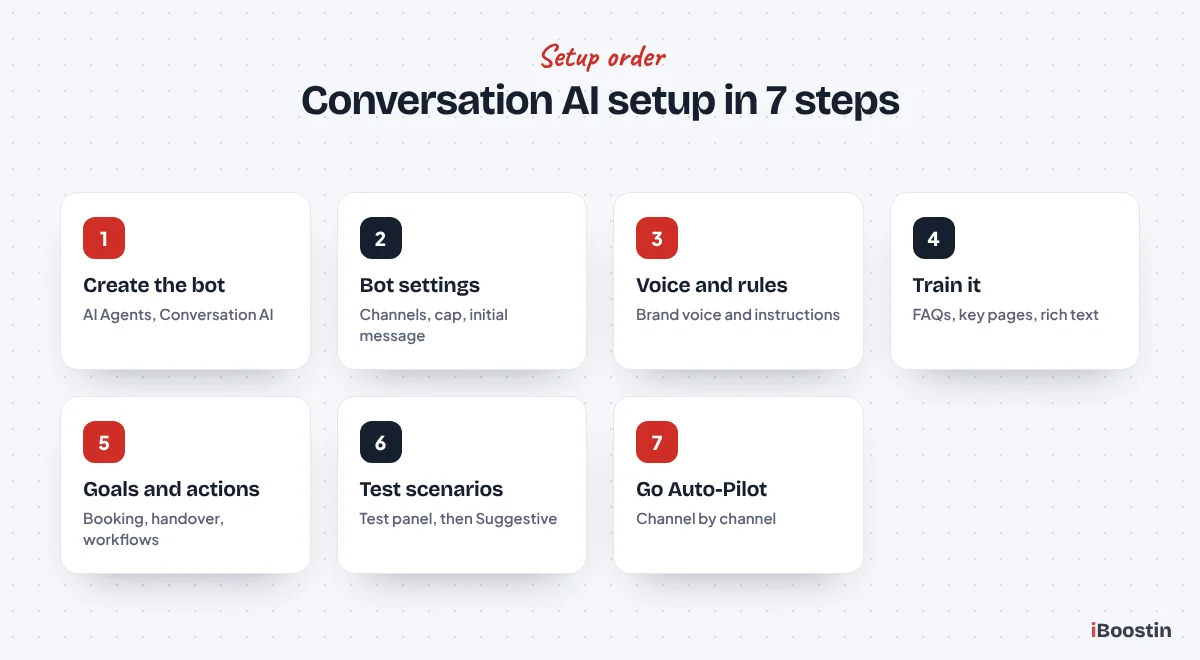
Step 1: Open AI Agents and create the bot
Inside the sub-account, follow this path:
- Click AI Agents in the left menu.
- Open Conversation AI.
- Click + Create Bot.
- Choose a build method: Guided Form Setup, Prompt Based Bot or Flow Based Builder.
- Pick a starting type, such as General Q&A or Appointment Booking, or start from scratch.
The three build methods suit different people. Guided Form Setup asks you questions and fills in the bot for you, which is the easiest start. Prompt Based Bot gives you more control through written instructions and unlocks options such as booking across multiple calendars or by service. Flow Based Builder lets you draw the conversation as a visual flow with fixed steps, which suits businesses that need the same questions asked in the same order every time.
| Build method | Best for | Watch out for |
|---|---|---|
| Guided Form Setup | First bot, simple Q&A plus one booking calendar | Single calendar only for booking |
| Prompt Based Bot | Most service businesses that want control | Instructions must be written carefully |
| Flow Based Builder | Strict intake with set questions in order | More time to build and maintain |
In most client builds we use the Prompt Based Bot, because it gives the most control over instructions and booking while staying easy to edit later.
Step 2: Fill in the bot settings
The Bot Settings area controls how the bot behaves in every conversation. Work through these fields:
- Bot Name: an internal name such as “Website and SMS Booking Bot”. Make it obvious which channels and job it covers.
- Preferred Channels: the channels the bot answers on. Start with one or two, not all of them.
- Bot Initial Message: the first message the bot sends. If you leave it blank, a generic greeting is used, so write your own.
- Primary bot: only one bot can be set as primary. The primary bot answers general inbound messages on its channels. Other bots only reply when a workflow assigns them.
- Wait time and response delay: a short delay of a few seconds looks more natural and gives the contact time to finish typing a second message.
- Maximum messages a Bot can send in a Conversation: a cap from 1 to 100. When the bot hits it, it goes to sleep in that conversation. The default is 100, which is far too high for most businesses.
Pro tip: we usually set the message cap between 15 and 25 for a booking bot. A real booking conversation rarely needs more. If a chat runs longer than that, something has gone wrong and a person should look at it.
Step 3: Choose a brand voice and write additional instructions
The bot’s tone comes from its Brand Voice and its written instructions. Brand Voice sets the general style: friendly, professional, short or detailed. Instructions tell the bot what it is, who it serves, what it must do and what it must never do. On guided bots this sits in an Additional Instructions box with a character limit, so every line has to earn its place.
Write instructions the way you would brief a new receptionist on day one. Name the business, the services, the service area, the booking goal and the hard rules. Avoid vague words like “be helpful”, which the bot already tries to do. A sample set of instructions you can adapt is in the sample section further down.
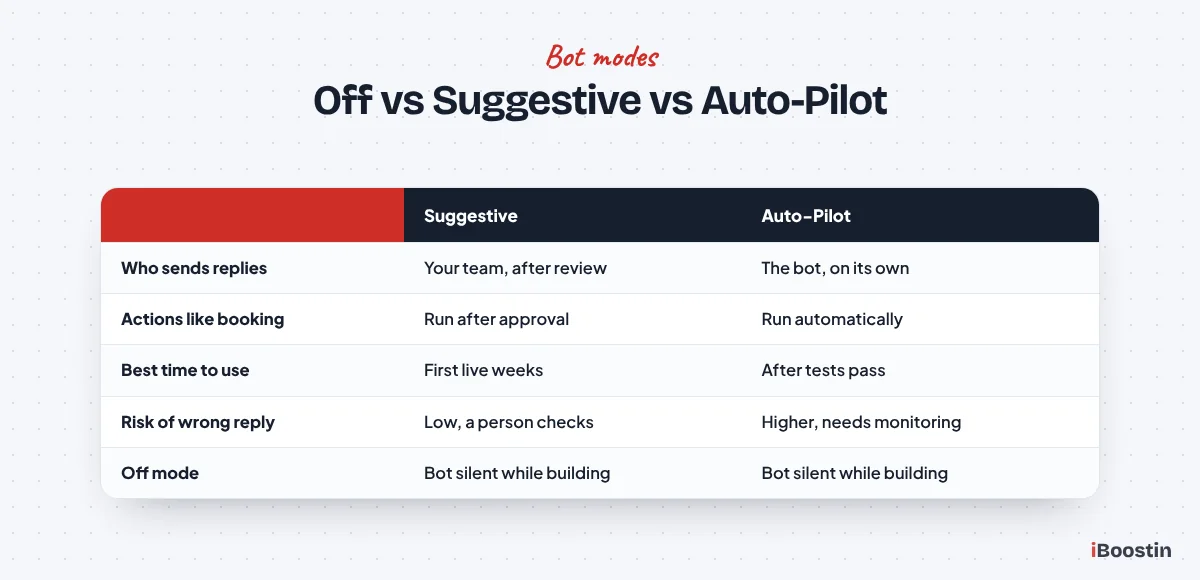
Step 4: Pick the mode: Off, Suggestive or Auto-Pilot
Every bot has three modes, and choosing the right one at the right time is the biggest safety control you have.
| Mode | What happens | When to use it |
|---|---|---|
| Off | The bot does nothing | While you build and train |
| Suggestive | The bot drafts a reply, a person approves and sends it | First live weeks, new services, sensitive industries |
| Auto-Pilot | The bot replies and acts on its own | After testing shows answers are reliable |
In Suggestive mode, an AI Suggested Reply card appears in the Conversations inbox. Your team can click Edit Reply, change the text, and then click Send & run. If the bot also proposes actions, like booking an appointment or updating a field, they appear under the reply as suggested actions, and none of them run until someone approves and sends. This is the safest way to see how the bot thinks while real leads are coming in.
How Do You Train Conversation AI So It Gives Correct Answers?
Training is where accuracy is won or lost. The bot searches the content you connect to it and builds an answer from what it finds. Good content gives good answers. Messy, outdated or conflicting content gives confident wrong answers.
The training options in the Knowledge Base
Training content is managed under AI Agents, then Knowledge Base, and the knowledge base is then attached to your bot. Some accounts still show web crawler and custom responses inside the bot’s Bot Training tab. Either way, these are the content types you can add:
- Web Crawler: pulls in pages from your website. You can crawl an Exact URL, All URLs with this Path or All URLs in this Domain. Enter the full address, click Get Data, select the pages, then click Train Bot and wait until each page shows as trained. An Auto Refresh option can re-crawl pages daily, weekly or monthly.
- FAQ: short question and answer pairs, added with + Add Q & A.
- Rich Text: policies and business details typed straight into HighLevel.
- File Upload: documents with searchable text, such as a service guide.
- Tables: structured lists like services, durations or locations.
- Google Drive: imports Docs and document files, which you re-sync after changes.
- Web Search: lets the bot look beyond your content. We leave this off for most service businesses, because you want answers from your own material only.
The mistake we see most is crawling the whole domain on day one. That pulls in old blog posts, legal pages, menus and duplicate content, and the bot starts quoting a promotion that ended two years ago. Crawl only your key service, area and policy pages, then add the rest as FAQs and rich text.
How to write training content the bot can use
The bot finds answers by matching the meaning of a question to chunks of your content. Clear, direct statements match well. Long marketing paragraphs do not. Write each FAQ answer as the exact reply you would want a lead to read: one topic, plain words, the real rule and any limits.
Compare two answers to “Do you work in Newark?”. A weak one says “We proudly serve communities across the region with excellent service.” A strong one says “Yes, we cover Newark and all ZIP codes within 25 miles of our office. For areas further out, a team member will confirm by text.” The second answer gives the bot a clear yes, a boundary and a next step. Write every FAQ like that, remove duplicate versions of the same rule, and update the knowledge base the same day a policy changes.
Check what the bot can find before testing replies
HighLevel includes a Knowledge Base Retrieval Tester. It shows whether a question finds the right piece of content, separate from how the bot words its reply. Run your top 20 questions through it. If the wrong page comes back, the problem is the content, not the bot settings, so fix the content first.
After the bot is live, the Response Info link beside each AI message in Conversations shows which content the bot used. When an answer is wrong, this tells you exactly which page or FAQ to fix. We check it for every wrong answer during the first weeks.
How Do You Set the Bot’s Goal and Actions?
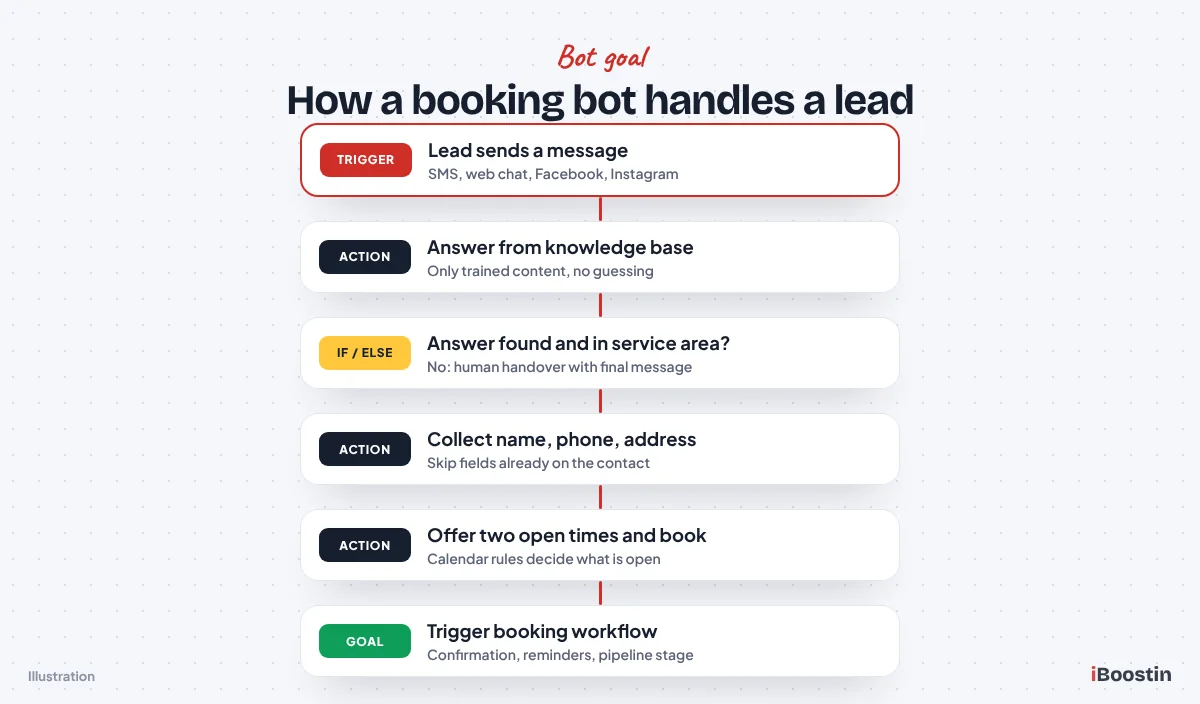
A bot without a goal just chats. The Bot Goals tab is where you tell it what success looks like: collect these details, book this calendar, and hand off in these situations. The actions you switch on here are what turn a chatbot into a booking assistant.
Collect the contact details you actually need
Under Bot Goals you choose which contact details the bot should collect, such as name, email, phone and address. Turn on Skip if Already Filled so the bot does not ask a returning contact for an email you already have. Nothing annoys a lead faster than being asked the same thing twice.
Only ask for what you need to book and serve the lead. A cleaning company might need the address and the size of the home. A dental clinic might need new or existing patient. If you need custom details saved, create the custom fields first and tell the bot in its instructions which details matter and why.
Book appointments into your calendar
Turn on Appointment Booking and select your calendar. On guided and flow bots this is a single calendar. On prompt-based bots you can also choose Multiple Calendars, giving each one a description and keywords so the bot can route a “consultation” to one calendar and a “repair visit” to another, or book from Services if you use HighLevel’s services booking.
Then decide what happens after booking. You can switch on Trigger Workflows After Appointment Booking, and choose whether to allow the bot to cancel the appointment and allow the bot to reschedule the appointment. We usually allow rescheduling, because it saves no-shows, and keep cancellations with a person on high-value services so someone can try to save the booking. The bot does not collect payment during booking, so if you need a deposit, send the payment link through a workflow after the appointment is created.
Hand off to a human
Under Setup Your Actions, the Human Handover action decides when the bot stops and a person takes over. You can enable three scenarios: Human Requested, where the contact asks for a person and you can add example phrases, Lack of Information, where the bot cannot find an answer, and Failed to Resolve Issue, after repeated failed attempts.
For each handover you can assign the conversation to a user, send a final message such as “Thanks, a team member will reply shortly”, pause the bot for a set time, create a task and add a tag (by default “human_handover”). Make sure the assigned user has notifications on under Settings, then My Staff, then the user’s Notification Settings. A handover nobody sees is worse than no bot at all. Depending on your account, this action may need to be switched on in HighLevel’s Labs area first.
Stop bot, transfer bot and trigger workflow
The other actions round out the bot’s job. Stop Bot ends the bot’s part in a conversation when a condition is met, for example when the contact says they are not interested or asks to stop. Transfer Bot passes the conversation to another bot, which is useful if one bot handles sales and another handles existing customers.
Trigger Workflow lets the bot start a published workflow when something happens in the conversation, such as the lead saying they want a quote. You describe the condition in plain words and pick the workflow. One warning from experience: do not also set that same event as the workflow’s own trigger, or the actions run twice.
Auto follow-up, used carefully
The Auto Follow-Up action sends messages when a contact stops replying, says they are busy or asks to be contacted later. You can set several follow-ups per scenario, choose AI-written or custom messages, and limit sending to active hours. The bot stops following up when the contact replies or shows they are not interested.
Use this sparingly. Two well-timed follow-ups usually do the job, and more can feel like pressure. Also avoid running a separate follow-up workflow for the same contacts, because HighLevel warns that it breaks the follow-up logic and leads can get double messages. If you already run a missed call text back sequence, map out who sends what so the bot and the workflow do not talk over each other.
Which Channels Can Conversation AI Answer?
Conversation AI can reply on SMS, website chat, Facebook Messenger, Instagram direct messages, WhatsApp and email, subject to what is enabled in your account. Each channel has its own setup and its own risks, so add them one at a time.
Website chat widget
The chat widget is the easiest place to start, because there is no carrier registration and the visitor is already on your site with a question. Build or edit the widget under Sites, then Chat Widget, install it on your website, and include the chat channels in the bot’s Preferred Channels.
Write the initial message for this channel specifically. A visitor on your pricing page needs a different opener from a visitor on your home page. If you collect a phone number in chat, the bot can continue the conversation by SMS later, but only if your SMS setup is compliant.
SMS and A2P 10DLC compliance
If the bot texts US contacts from a local 10-digit number, your business must have an approved A2P 10DLC registration. AI replies are business messages like any other, and carriers filter or block unregistered traffic. Your campaign description and sample messages should reflect that you reply to customer enquiries and book appointments, and your opt-in wording must cover the texts the bot will send.
Do not start the bot on SMS while registration is pending or after a rejection. Our guide on how to register for A2P 10DLC in GoHighLevel covers each field, and if your registration keeps getting rejected, our A2P 10DLC registration service prepares it for carrier review. Also make sure opt-out words like STOP are honored and that the bot never messages contacts marked as do not disturb.
Facebook and Instagram
Connect your Facebook page and Instagram business account to the sub-account first, then add those channels to the bot. Social messages are often short and casual, like “price?” or “available sat?”, so add FAQs written in that style and make sure the bot asks one clarifying question instead of guessing.
Meta has its own time limits on business replies in Messenger and Instagram. HighLevel’s Auto Follow-Up action has a Dynamic Channel Switching option that can move a quiet social conversation to SMS after 24 hours without a reply, but only when the contact has a phone number and your SMS setup is compliant. Keep follow-ups inside Meta’s rules and let a person handle anything sensitive that arrives through social.
WhatsApp and email
WhatsApp needs HighLevel’s WhatsApp connection set up for the sub-account, and its own message rules apply. Once connected, add it to the bot’s channels like any other. It works well for businesses with international or Gulf customers who prefer WhatsApp to SMS.
Email is listed as a supported channel, but email enquiries tend to be longer and more detailed, which suits a person better. In most accounts we keep email with the team and use the bot on chat, SMS and social, where fast short replies matter most.
How Do You Set Guardrails, Tone and Stop Conditions?
Guardrails are the rules that stop a good bot from doing something embarrassing. Set them before Auto-Pilot, not after the first complaint.
Write rules the bot cannot misread
Put your hard rules in the instructions as short, direct sentences. Good examples: “Never quote prices. Say a team member will confirm pricing after a free assessment.” “Only book customers inside the service area listed in the knowledge base.” “If someone mentions an emergency, tell them to call emergency services and hand over to a human.” “Never give medical, legal or financial advice.”
Keep each rule on its own line and avoid conflicting instructions. If one line says “always book a call” and another says “do not book customers outside the area”, the bot has to choose, and it may choose wrong. Order matters too: put safety rules first, booking rules second and style notes last.
Set stop conditions so the bot knows when to step back
A bot should stop in four situations: the contact asks for a person, the bot cannot find the answer, the conversation has gone on too long, or the contact wants no more messages. Human Handover covers the first two. The message cap covers the third. The Stop Bot action and your opt-out handling cover the fourth.
Also set a fallback message, the reply the bot uses when it cannot give a confident answer. Something like “Good question. Let me get a team member to confirm that for you” keeps the lead warm while a person steps in. And check how the bot behaves when your team replies by hand. Depending on your settings, a manual message can put the bot to sleep for that contact, and you can change any contact’s bot status from the icon in the message composer in Conversations.
Keep the tone close to how your team texts
Leads can usually tell when a reply sounds like a brochure. Tell the bot to keep replies to two or three short sentences, ask one question at a time, use the contact’s first name and avoid exclamation marks in every line. Match your real team: a med spa may be warmer, a law firm more formal.
It is fine for the bot to be open about being an assistant. In many industries and regions, that honesty is expected, and it sets fair expectations. A line in the initial message such as “I am the virtual assistant for Bright Smile Dental” is simple and avoids awkward moments later.
How Do You Test Conversation AI Before Going Live?
Testing is the step most people rush, and it is where most problems are caught. Plan at least a few hours for it, and repeat the key tests after every big change.
Use the test panel and reset between scenarios
Under the bot’s Bot Training tab, use Test your Bot to chat with the bot as if you were a lead. Start each scenario fresh with the reset icon, so earlier messages do not influence the next answer. Test with a dummy contact that has no existing data, then with one that already has an email and phone, to check that Skip if Already Filled works.
For booking tests, use a test calendar or block a time you can delete later, and confirm that the appointment appears on the calendar, the contact record and any connected Google or Outlook calendar. Check the confirmation workflow fires once, not twice.
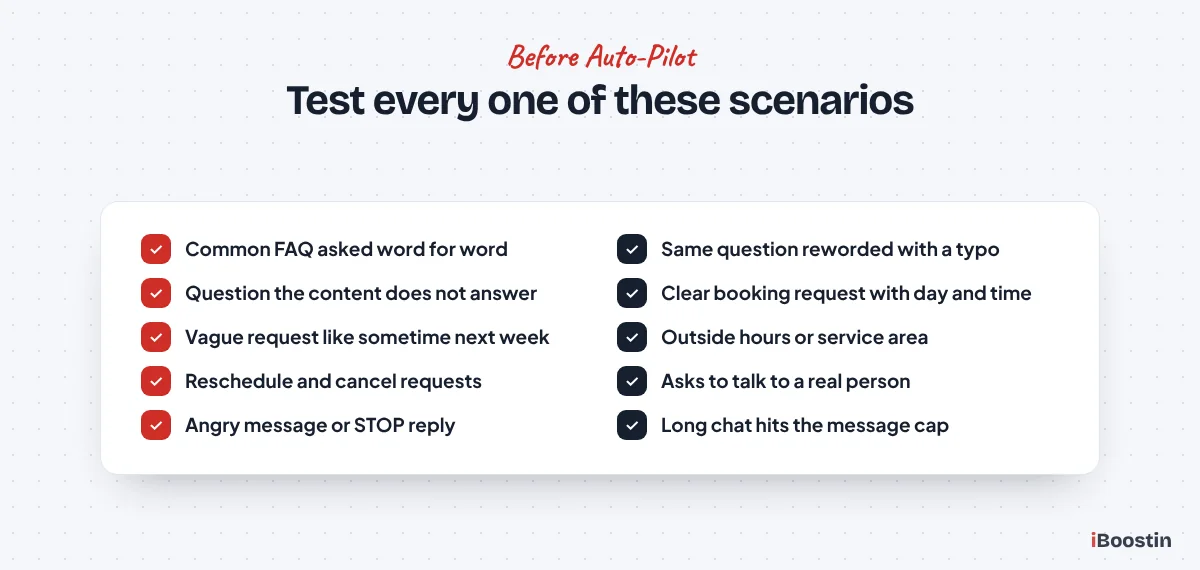
The scenarios we run on every bot
This is the test list we use in client builds. Each one must pass before Auto-Pilot:
- A common question asked exactly as it appears in your FAQ.
- The same question reworded, with a typo.
- A question your content does not answer. The bot should fall back or hand off, not guess.
- A booking request with a clear day and time.
- A vague booking request like “sometime next week”.
- A request outside your hours or service area.
- A reschedule, and a cancellation if you allowed it.
- “Can I talk to a real person?”
- An angry or frustrated message.
- “Stop” or “not interested”.
- A pricing question, if you told the bot not to quote prices.
- A long conversation to check that the message cap and fallback work.
Write down each result. If a test fails, fix the content or instructions, retest that scenario and then rerun the first three, because a change in one place can affect answers elsewhere.
Run Suggestive mode with real leads first
Test chats only show you how you think leads write. Real leads write differently. Switch the bot to Suggestive mode and let your team approve, edit and send its drafts for one to two weeks. Every edit your team makes is a sign of missing or unclear training content.
Move to Auto-Pilot when your team is sending most suggestions without edits, and only on the channels where that is true. It is perfectly fine to run Auto-Pilot on website chat while SMS stays in Suggestive mode for a while longer.
Sample Training Script and Conversation
Here is a sample setup for a fictional home cleaning company. Change the details to match your business, and keep the same structure: who the bot is, the goal, hard rules, booking rules and style.
Sample bot instructions
Use this as a starting point in your bot’s instructions or prompt:
You are the virtual assistant for Fresh Nest Cleaning, a home cleaning company. Your goal is to answer questions and book a free in-home estimate. Only answer using the knowledge base. If the answer is not there, say a team member will confirm and hand over to a human. We only serve the ZIP codes listed in the knowledge base. If the contact is outside them, say so politely and do not book. Never quote prices. Say the estimate visit sets the price. Ask for first name, phone and address before booking. Offer two available times at once. Keep replies under three short sentences and ask one question at a time. If the contact asks for a person, is upset or mentions damage or a complaint, hand over to a human.
Notice that every line is a rule the bot can follow or check. There is no “be awesome” or “delight customers”. Short, testable lines make it easier to see which rule failed when something goes wrong.
Sample FAQ entries
Pair the instructions with direct FAQ entries such as these:
- Q: Do you bring your own supplies? A: Yes, our team brings all cleaning supplies and equipment. If you prefer we use your products, tell us at booking.
- Q: How long does a standard clean take? A: Most standard cleans take two to four hours, depending on the size of the home. The estimate visit gives you an exact time.
- Q: Do I need to be home? A: Not for regular cleans. For the first estimate visit, someone over 18 needs to be home.
Each answer covers one topic and ends with a clear fact or next step. If you find yourself writing “it depends” without saying on what, the answer is not ready.
Sample conversation
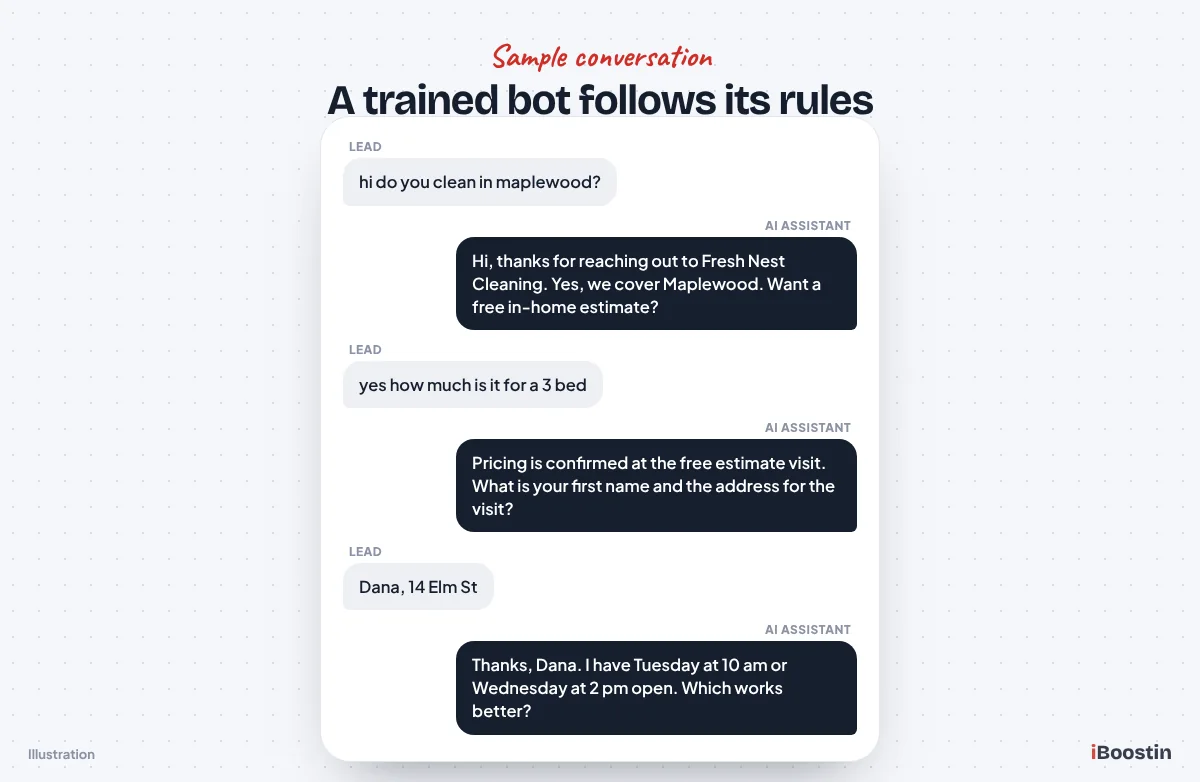
Below is how a well-trained bot handles a typical SMS enquiry. The figure shows the same exchange as a chat mock.
Lead: hi do you clean in maplewood?
Bot: Hi, thanks for reaching out to Fresh Nest Cleaning. Yes, we cover Maplewood. Would you like to book a free in-home estimate?
Lead: yes how much is it for a 3 bed
Bot: Pricing depends on the home, so we confirm it at the free estimate visit. What is your first name and the address for the visit?
Lead: Dana, 14 Elm St
Bot: Thanks, Dana. I have Tuesday at 10 am or Wednesday at 2 pm open. Which works better?
Two things to notice. The bot did not invent a price when asked directly, because the rule told it not to. And it offered two concrete times instead of asking “when are you free?”, which keeps the booking moving. If Dana had replied “can I just talk to someone”, the Human Requested handover would assign the chat to a team member and send the final message.
How Do You Connect Conversation AI With Workflows?
Conversation AI and workflows work best as a pair. The bot handles the conversation, and workflows handle everything around it: confirmations, reminders, pipeline moves, notifications and which bot talks to which contact. If you are new to the builder, our step-by-step guide on how to build workflows in GoHighLevel explains triggers, actions and conditions first.
Trigger workflows from the bot
The simplest connection is booking. Turn on Trigger Workflows After Appointment Booking and point it to a workflow that moves the opportunity to a Booked stage, sends your normal confirmation and reminders, and notifies the team. The bot books, the workflow does the rest.
The Trigger Workflow action in Bot Goals goes further. You can start a workflow when the lead asks for a quote, says they are a commercial client or shares a detail you want to act on. Keep the workflow focused on one job, and as noted earlier, do not give it a duplicate trigger of its own.
Use workflows to assign, activate or pause the bot
The Update Conversation AI Bot and Status workflow action assigns a specific bot to a contact and sets it to Active or Inactive. This is how you run more than one bot. A common pattern is a sales bot for new leads and a separate support bot that switches on only for contacts with a “customer” tag or after a payment is received.
You can also use it to switch the bot off. For example, when an opportunity moves to Won, set the bot to Inactive so your sales bot stops trying to book someone who already bought. When a team member takes over a deal, pause the bot for that contact so two voices are not replying.
Ask one AI question inside a workflow
Workflows also include a Conversation AI action. It sends one AI-written question, waits for the reply and branches on the answer, with a Time Out branch and a No Condition Met branch built in. This is useful in nurture workflows, such as asking an old lead whether they still need help and routing them by their answer.
For ideas on what to build around the bot, our list of GoHighLevel workflow examples includes several that pair well with an AI assistant. If you would rather have the bot and its workflows built as one tested system, our GoHighLevel workflow automation service covers both.
Send conversation summaries to your team
The Conversation Summary option creates a short summary after a chat goes quiet. You set the inactivity time and the minimum number of messages, then choose to save the summary to a custom field, trigger a workflow or receive it by email. You can also turn on an email notification when the bot does not know an answer.
We save summaries to a contact field and show them in the opportunity card. When a team member picks up a lead, they read four lines instead of scrolling through 30 messages, and the call starts from where the bot left off.
How Do You Monitor Conversation AI After Launch?
Going live is the start, not the finish. Your services, prices, staff and schedule change, and leads ask new questions. A bot that nobody reviews slowly drifts out of date.
What to review every week
Set aside 30 minutes a week for the first two months, then every two weeks. In Conversations, filter for chats the bot handled and read a sample of them, plus every chat that ended in a handover. Look for wrong answers, missed bookings, loops where the bot asked the same thing twice and leads who stopped replying after a particular message.
Also check the numbers you care about: how many conversations the bot handled, how many booked, how many were handed over and how many booked appointments turned up. You do not need a complex report. A simple weekly note of those figures shows whether the bot is helping or quietly losing leads.
How to fix wrong answers
When an answer is wrong, open Response Info on that message to see which content the bot used. Usually the fix is one of three things: a missing FAQ, an outdated page in the knowledge base, or an unclear rule in the instructions. Fix the cause, then rerun the related test scenario.
Resist the urge to keep adding rules. Ten clear rules beat forty overlapping ones. If the bot keeps struggling with one topic, such as complex quotes or complaints, the best fix is often a handover rule for that topic rather than more training. HighLevel also updates its AI features regularly, so after a major update, rerun your core tests to make sure nothing changed in how the bot behaves.
Should You Set Up Conversation AI Yourself or Get Help?
You can set up a working Conversation AI bot yourself. If your business has a simple service list, one calendar and clear FAQs, and you have a few days to build, test and run Suggestive mode, a do-it-yourself setup is realistic. Use this guide as your checklist and do not skip the testing section.
Getting help makes sense when the stakes are higher: several calendars or locations, regulated industries like healthcare or legal, SMS traffic that depends on A2P approval, or a team that is too busy to review drafts in Suggestive mode. It also makes sense when a bot is already live and giving wrong answers, because each bad reply costs you a lead.
| Situation | DIY is fine | Get help |
|---|---|---|
| Services and calendars | One service, one calendar | Many services, staff or locations |
| Channels | Website chat only | SMS, WhatsApp and social together |
| Industry | Low-risk questions | Healthcare, legal, finance |
| Time to test | You can review drafts daily | No one free to supervise |
If you hire, keep admin access to your account, ask for the written instructions and FAQ list the bot uses, and ask how it was tested. Our GoHighLevel AI chatbot setup service covers the training, booking, handover and testing in this guide, and if your account needs wider work around it, our GoHighLevel experts can review the calendar, workflows and A2P setup the bot depends on. For the account basics, see our guide on how to set up GoHighLevel from scratch.
Frequently Asked Questions About Setting Up Conversation AI in GoHighLevel
Is Conversation AI included in every GoHighLevel plan?
Conversation AI is part of HighLevel’s AI Employee offering, which the agency switches on and then enables for each sub-account. It is available through a pay-per-use option or monthly AI plans, and the details change from time to time. Check current pricing and limits in your account, and remember that SMS and WhatsApp message usage is billed separately from the AI itself.
What is the difference between Suggestive mode and Auto-Pilot?
In Suggestive mode, the bot writes a draft reply and a team member reviews, edits and sends it, along with any suggested actions like booking. In Auto-Pilot, the bot replies and takes actions on its own. Start in Suggestive mode with real leads, and switch to Auto-Pilot only when your team sends most drafts without changes.
Can Conversation AI book appointments in GoHighLevel?
Yes. In the bot’s Bot Goals tab, turn on Appointment Booking and choose a calendar. Prompt-based bots can also route between multiple calendars or book by service. You can let the bot reschedule or cancel and trigger a workflow after booking. It does not take payments during booking, so send any deposit link through a workflow.
How do I train Conversation AI on my business?
Add content to the Knowledge Base under AI Agents and attach it to the bot. Use the web crawler for key service and policy pages, add short FAQ pairs for common questions, and use rich text or tables for policies and service lists. Avoid crawling your whole domain, remove outdated pages, and test retrieval before testing replies.
Do I need A2P 10DLC registration for Conversation AI on SMS?
Yes, if the bot texts US contacts from a local 10-digit number. Bot replies are business text messages, and carriers filter or block unregistered traffic. Get your A2P 10DLC campaign approved before you add SMS to the bot’s channels, and make sure your opt-in wording and sample messages reflect that you reply to enquiries and book appointments.
How do I stop the bot from replying to a specific contact?
Open the contact’s conversation, click the Conversation AI status icon in the message composer and set the bot to Inactive, optionally with a time after which it reactivates. You can also use the Update Conversation AI Bot and Status workflow action to switch the bot off automatically, for example when a deal is marked as won.
Why is my Conversation AI bot not replying?
The usual causes are the bot being in Off or Suggestive mode, the channel not being in its Preferred Channels, no bot set as primary, the bot being inactive or asleep for that contact, or the message cap being reached. Marking the conversation as read can wake a sleeping bot. Also check that AI Agents are enabled for the sub-account.
Will Conversation AI ever give a wrong answer?
Yes, it can. Even a well-trained bot can misread a vague message or pull the wrong piece of content. You reduce mistakes with clean training content, clear rules, a fallback message and human handover, and you catch the rest by reviewing conversations every week and fixing the content behind any wrong answer.
Get Your Conversation AI Bot Booking Calls the Right Way
Conversation AI can answer leads in seconds and fill your calendar while your team is busy, but only when it is trained on real answers, given clear rules and watched after launch. Build it in order: foundations, bot settings, training, goals and actions, channels, guardrails, testing, then Auto-Pilot, and keep reviewing it every week.
If you would rather skip the trial and error, iBoostin builds and tests Conversation AI bots inside GoHighLevel accounts for service businesses and agencies, with every handover and booking path checked before a real lead sees it.