In this guide
- How Do You Check Where Your GoHighLevel Emails Actually Land?
- Why Are Your GoHighLevel Emails Going to Spam?
- How Do You Set Up a Dedicated Sending Domain in HighLevel?
- What Do the DNS Records Actually Do?
- What Do Gmail, Yahoo and Microsoft Require From Senders Now?
- How Do You Warm Up a New Sending Domain in HighLevel?
- What List Hygiene Rules Keep GoHighLevel Emails Out of Spam?
- Pre-Send Checklist for GoHighLevel Emails
- How Do You Monitor Email Deliverability After You Fix It?
- Should You Fix GoHighLevel Email Deliverability Yourself or Get Help?
- Frequently Asked Questions About GoHighLevel Emails Going to Spam
- Get Your GoHighLevel Emails Back in the Inbox
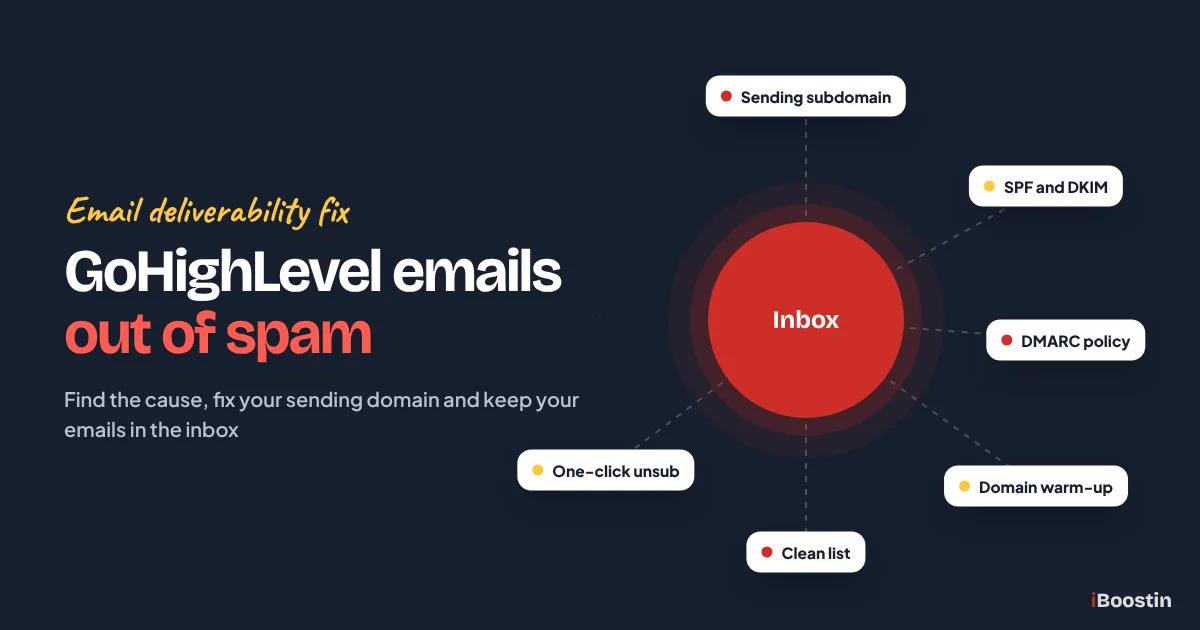
GoHighLevel emails go to spam when inbox providers do not trust the sender. The usual causes are sending from HighLevel’s shared domain or a free Gmail address, missing or misaligned SPF, DKIM and DMARC records, a new domain with no warm-up, and a list full of bad or unengaged addresses. Fix the domain first, then the list, then the content.
Here is the call we get most weeks. A business owner sends a promotion to 3,000 past customers from HighLevel. Opens come in far below normal, a few replies say “found this in my junk folder”, and the owner’s own test email went straight to spam in Gmail. The workflow shows every email as sent. Nothing looks broken inside HighLevel, but most of the list never saw the message.
This guide shows you how to check where your emails really land, the twelve reasons GoHighLevel emails go to spam (each with the symptom, the cause and the fix), how to set up a dedicated sending domain step by step, a warm-up plan, list hygiene rules, a pre-send checklist and how to monitor your sender health. It comes from the iBoostin team’s hands-on work fixing HighLevel accounts for service businesses and agencies. If you are new to the platform, start with what GoHighLevel is and how it works.
Key takeaways
- “Sent” in HighLevel only means the email left the platform. Seed tests and email headers show whether it reached the inbox.
- Send from a dedicated subdomain such as mg.yourbusiness.com with SPF, DKIM and DMARC that align with your From address. This is the biggest single fix.
- Gmail, Yahoo and Microsoft now reject or junk bulk mail that fails authentication, has no one-click unsubscribe or draws too many spam complaints.
- Warm up any new sending domain with your most engaged contacts first, and spread large sends with batch scheduling or the Drip action.
- Clean lists beat clever copy. Remove hard bounces, stop emailing people who never engage and never use bought lists.
How Do You Check Where Your GoHighLevel Emails Actually Land?
Before you change anything, find out what is really happening. Low opens can mean spam placement, the Promotions tab, hidden opens or a list that is not interested. Each has a different fix.
Step 1: Send seed tests to Gmail, Outlook and Yahoo
A seed test means sending your real email to a handful of inboxes you control at the big providers. Create or reuse a personal Gmail address, an Outlook.com or Hotmail address and a Yahoo address. Add them as contacts in HighLevel and send them the exact email your list gets, through the same campaign or workflow, not a test send from the builder. Some send paths behave differently, so the real path is the one that counts.
Then open each inbox and note where the email landed: Primary, Promotions, Updates, Junk or Spam, or nowhere at all. Promotions is not spam. Gmail puts marketing-style mail there by design, and it still gets seen. Spam and Junk are the real problem. Do not test only by sending to your own business address on the same domain, because internal mail can look spoofed to your own mail server and give you a false alarm.
- Add three seed contacts with Gmail, Outlook and Yahoo addresses.
- Send the real campaign or run the real workflow to them.
- Record the folder each one lands in.
- Repeat after every DNS or content change so you can see what moved.
Step 2: Read the authentication results in the email headers
Every email carries hidden headers that show whether SPF, DKIM and DMARC passed. In Gmail, open the email, click the three dots and choose Show original. You will see a short summary at the top with SPF, DKIM and DMARC marked PASS or FAIL, plus the domain each one checked. In Outlook.com you can view the message source or message details to find the same Authentication-Results line.
Look at two things. First, does each check say PASS? Second, do the passing domains match your From address? If DKIM passed for a HighLevel domain but your From address is on your own domain, DMARC alignment fails even though the individual checks look fine. That one detail explains a large share of the accounts we audit where the owner swears “my records are set up”.
Step 3: Check your sending stats and bounce reasons in HighLevel
Inside HighLevel, open Marketing, then Emails, and check the statistics for recent campaigns: delivered, opened, clicked, bounced, unsubscribed and complaints. For workflow emails, open the workflow’s statistics and execution logs. A delivered rate well below your sent count, or a bounce rate creeping above a couple of percent, tells you the problem is the list or the domain, not the subject line.
Open individual bounced contacts and read the bounce reason. Messages that mention poor reputation, policy, authentication or a code such as 550 5.7.515 from Microsoft point to a domain or DNS problem. Messages such as “user unknown” or “mailbox does not exist” point to bad addresses. HighLevel also groups error patterns under Settings, then Email Services, in the bounce classification area, which helps you see which problem is most common.
Step 4: Run a spam score and blocklist check
Next, send one copy of the email to a free tester such as mail-tester. It scores your message, shows whether SPF, DKIM and DMARC passed, flags content issues and checks common blocklists. It cannot tell you where Gmail puts the email, but it catches technical faults quickly.
Then run your sending domain through a DNS health tool such as MXToolbox to check for duplicate SPF records, missing DMARC and blocklist listings. If everything passes and emails still land in spam, the cause is almost always reputation: list quality, complaints, volume or content.
Why Are Your GoHighLevel Emails Going to Spam?
Inbox providers decide on three things: can they verify you are who you say you are, does your domain have a good track record, and do recipients want your email. The twelve reasons below cover all three. Work through them in order, because the early ones are technical gates. A perfect email from an unauthenticated domain still goes to spam.
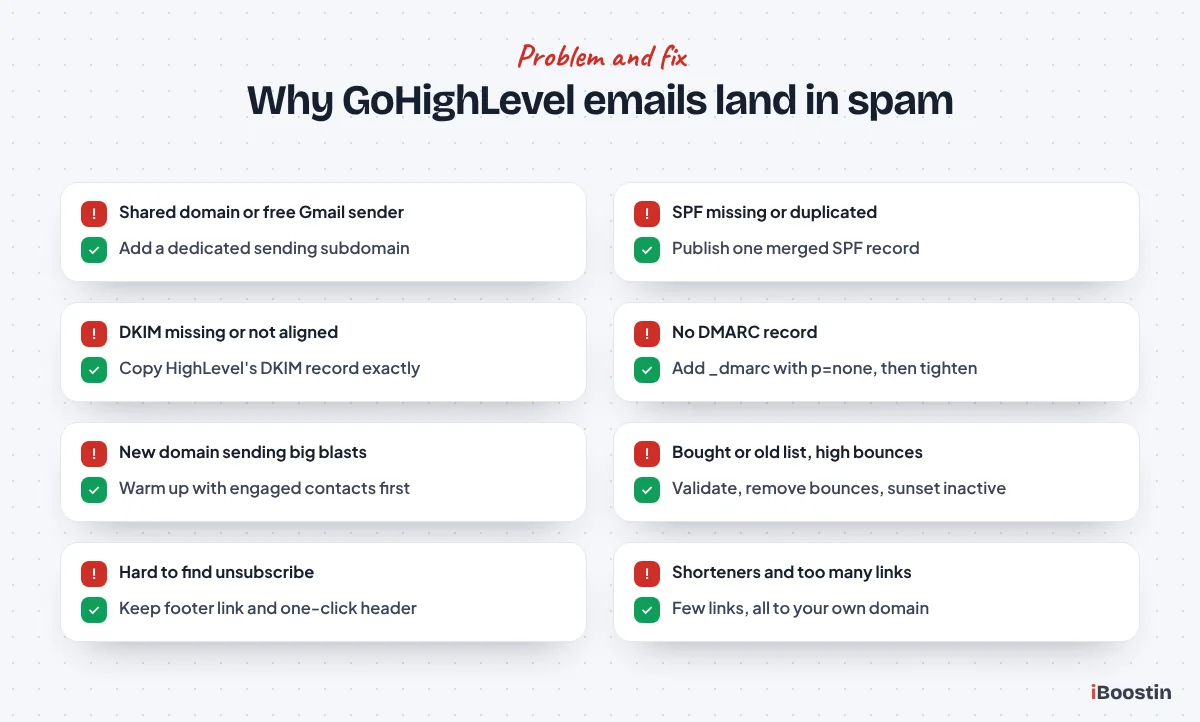
Reason 1: You send from the shared domain or a free Gmail address
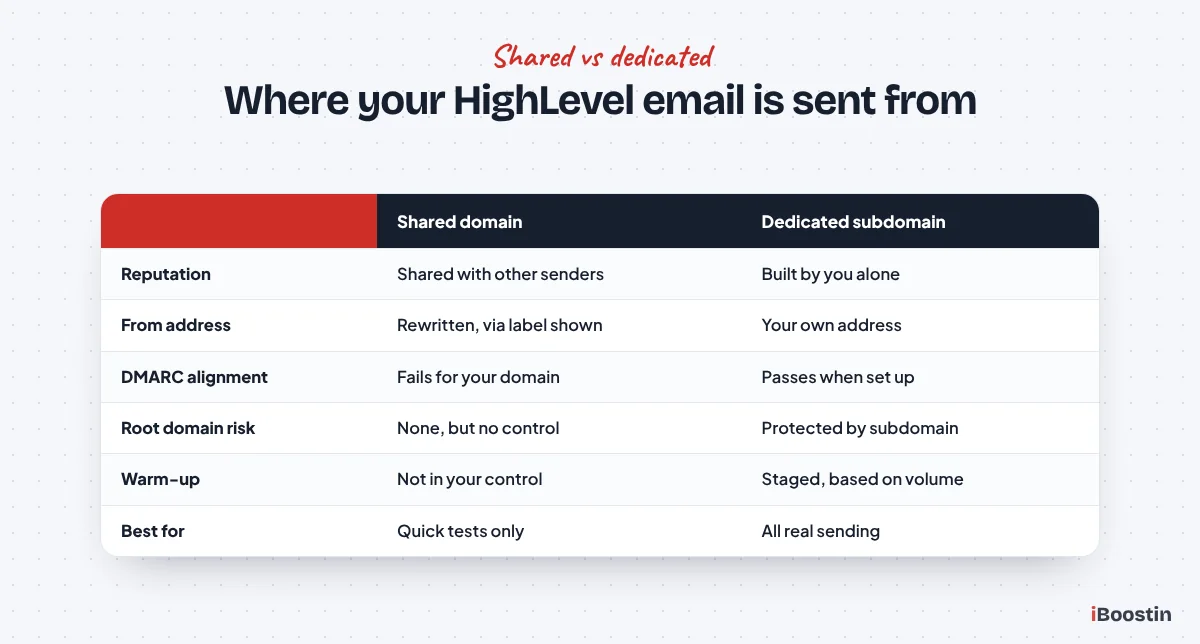
Symptom: Gmail shows “via” next to your name, or the sender address looks odd, sometimes ending in msgsndr.com. Your From address is a free address such as yourbusiness@gmail.com, or HighLevel still uses its shared sending domain because you never added your own. Placement changes from week to week for no clear reason.
Cause: On the shared domain, your email travels with mail from many other HighLevel senders, and HighLevel rewrites the sending address so it can be delivered. You inherit everyone’s reputation, good and bad. Free addresses are worse. Gmail, Yahoo and other free providers publish DMARC records that tell receiving servers to distrust mail claiming to come from their domain but sent from servers they do not own, and some providers tell receivers to reject it outright. HighLevel’s servers are not Google’s servers, so that mail fails.
- Stop using any free mailbox address as your From address.
- Add a dedicated sending subdomain in HighLevel (full steps later in this guide).
- Send from an address on your own domain, such as hello@yourbusiness.com or hello@mg.yourbusiness.com.
- Keep replies going to your normal inbox with a reply-to address.
Reason 2: SPF is missing, duplicated or wrong
Symptom: Header checks show SPF as fail, softfail, none or permerror. MXToolbox warns about multiple SPF records or too many DNS lookups. Emails to Outlook and Hotmail suffer most, and some bounce with authentication errors.
Cause: SPF is a TXT record that lists which servers may send for a domain. It breaks in three common ways. The record was never added for the sending subdomain. Someone added a second SPF record instead of merging into the first, and two SPF records on one hostname make SPF fail completely. Or the record has so many includes for other tools that it goes past the limit of ten DNS lookups and returns an error.
- In HighLevel, open your dedicated domain and copy the SPF value it shows.
- In your DNS host, check how many TXT records starting with v=spf1 exist on that exact hostname.
- If there is one, merge the HighLevel include into it. If there are two, combine them into one.
- Remove includes for tools you no longer use, then recheck with a DNS lookup tool.
Reason 3: DKIM is missing or not aligned
Symptom: The header shows DKIM fail or none, or DKIM passes but for a domain that is not yours. DMARC fails even though SPF looks fine. Gmail sometimes shows a warning banner on your messages.
Cause: DKIM adds a digital signature to each email that the receiver checks against a public key in your DNS. If the key record is missing, mistyped or truncated by your DNS host, the signature cannot be checked. If you never added a dedicated domain, the email is signed with a HighLevel domain, which does not align with your From address. HighLevel also does not support multiple DKIM records for the same sending domain, so old keys from earlier attempts can cause trouble.
- Copy the DKIM host name and value exactly as HighLevel shows them for your domain.
- Paste the host name without your root domain if your DNS host adds it automatically.
- Delete any old DKIM records from earlier setup attempts on the same subdomain.
- Verify in HighLevel, then send a seed test and confirm DKIM shows PASS for your domain.
Reason 4: You have no DMARC record, or a policy that blocks your own mail
Symptom: Header checks show DMARC none. Yahoo or Gmail placement drops once your volume grows. Or, the reverse: you set a strict policy and now invoices from your accounting tool or emails from your website form bounce or vanish.
Cause: Gmail, Yahoo and Microsoft expect bulk senders to publish a DMARC record, and missing DMARC is one of the quickest routes to the spam folder. DMARC also tells receivers what to do with mail that fails checks. A policy of reject on a domain where other tools still send unauthenticated mail tells inboxes to block your own legitimate email. Both mistakes are common.
- Add a TXT record named _dmarc on your root domain.
- Start with a monitoring policy: v=DMARC1; p=none; rua=mailto:dmarc@yourbusiness.com.
- Read the reports for a few weeks to find every service that sends as your domain.
- Fix authentication for each one, then move to p=quarantine and later p=reject.
Reason 5: You send from your root domain instead of a subdomain
Symptom: You tried to add yourbusiness.com as the sending domain and HighLevel said the domain is already pointing to an email server. Or you forced it through and your normal staff inbox stopped receiving mail. Or a single bad campaign pushed your everyday one-to-one emails into spam too.
Cause: A HighLevel dedicated domain needs its own MX, SPF, DKIM and tracking records. Your root domain already has MX records for Google Workspace or Microsoft 365, and you cannot point the same domain at two mail systems without breaking one of them. Reputation is also the issue. Marketing mail and staff mail on one domain share one reputation, so a complaint spike on a promotion hits the email your sales team sends to quotes.
- Choose a subdomain used for nothing else, such as mg.yourbusiness.com or mail.yourbusiness.com.
- Add that subdomain in HighLevel instead of the root domain.
- Keep Google Workspace or Microsoft 365 on the root domain untouched.
- Use the root domain address as the reply-to so replies reach your team.
Reason 6: The domain is new and was never warmed up
Symptom: Everything authenticates, but your first big send from a new domain went mostly to spam or was deferred. Gmail slowed delivery and messages arrived hours late. Mail-tester scores are fine, which makes it confusing.
Cause: A new domain or subdomain has no history, and inbox providers treat unknown senders with caution. Jumping from zero to thousands of emails in one day looks like a spammer who just bought a domain. HighLevel now runs a fixed-stage warm-up on new dedicated domains in many accounts, but it is a pacing guide based on the volume you actually send, and it does not create engagement for you.
- Check the domain’s warm-up stage under Settings, then Email Services, then Dedicated Domain and IP.
- Send first to your most engaged contacts: recent customers, recent leads and people who opened recently.
- Increase volume step by step over about four weeks (see the warm-up plan below).
- Pause the increase whenever bounces or complaints rise.
Reason 7: Your list is bought, old or full of bad addresses
Symptom: Bounce rates of several percent or more, lots of “user unknown” bounces, very low opens and a sudden reputation drop after a send to an imported list. Sometimes a blocklist listing appears out of nowhere.
Cause: Bought, scraped and very old lists contain dead addresses, role addresses such as info@ that nobody owns, and spam traps: addresses run by blocklist operators to catch senders who do not get permission. Hitting them tells every provider you did not collect your list properly. High bounce rates also signal poor list practices, so providers start filtering your good emails too.
- Never import bought or scraped lists into HighLevel for email marketing.
- Run old lists through an email validation service before importing.
- Turn on HighLevel’s email verification for new contacts in the Business Profile settings, where your plan includes it (check current pricing in your account).
- Remove hard bounces immediately and suppress invalid and role addresses.
Reason 8: Too many people mark you as spam
Symptom: Gmail placement drops after each campaign, Google Postmaster Tools shows a rising user-reported spam rate and HighLevel shows complaints on your campaign stats. The pattern is worst after promotions to older contacts.
Cause: A spam complaint is the strongest negative signal there is. Gmail asks bulk senders to keep the user-reported spam rate below 0.1% and never reach 0.3%, and Yahoo uses 0.3% as its limit. That is one or two complaints per thousand emails. People complain when they do not remember signing up, when they get more email than they expected, or when the unsubscribe link is hard to find, so marking spam is easier.
- Email only people who opted in, and remind them why they are getting the email in the first line or footer.
- Make the unsubscribe link easy to find, not hidden in grey small print.
- Stop sending to contacts with no opens or clicks over several months.
- Lower your frequency if complaints rise after each send.
Reason 9: There is no working one-click unsubscribe
Symptom: Gmail does not show the unsubscribe option next to your sender name, your footer has no unsubscribe link, or people who unsubscribe keep getting emails from a different workflow. Complaints are higher than they should be.
Cause: Gmail and Yahoo require bulk senders to support one-click unsubscribe in the email headers for marketing mail and to honor requests within two days. HighLevel’s own email service adds the unsubscribe header for you, but the visible footer link depends on your settings, and accounts that send through another SMTP provider depend on that provider. When unsubscribing is hard, people press the spam button instead.
- In Settings, then Business Profile, make sure the option to include an unsubscribe link in emails is turned on.
- Check that every email template has a footer with the unsubscribe link.
- If you use an outside SMTP service, confirm with them that one-click unsubscribe headers are added.
- Unsubscribe from a seed contact and confirm the contact’s email DND status changes in HighLevel.
Reason 10: Your content, links and images look like spam
Symptom: Plain service reminders reach the inbox, but promotions and newsletters go to spam. Mail-tester flags content issues. Image-heavy emails do worst.
Cause: Content matters less than authentication and reputation, but it still counts. Filters dislike image-only emails, shouting or misleading “Re:” subjects, attachments, broken HTML pasted from other tools and link text that hides the real destination. Single “spam words” are rarely the cause on their own.
- Write emails that read like a person wrote them, with real text and a clear reason for sending.
- Keep images supporting the text, add alt text and never send an image-only email.
- Use honest subject lines without all caps or rows of exclamation marks.
- Build in HighLevel’s email builder instead of pasting HTML from another platform, and send a plain test first.
Reason 11: Too many links or public link shorteners
Symptom: Emails with many links or a shortened link land in spam while short emails get through. Mail-tester or a blocklist check flags a domain inside your email, not your sending domain.
Cause: Every link domain in your email is checked for reputation. Public shorteners such as bit.ly are heavily abused, so they drag your email down, and HighLevel’s own sending guide warns against them. Linking to many different domains, or to a site that is itself blocklisted, adds risk. Click tracking also rewrites links through a tracking domain, which is why HighLevel’s dedicated domain setup includes a tracking record on your own subdomain.
- Remove public link shorteners and use full links to your own domain.
- Keep links to a few per email, ideally one main call to action.
- Make sure the tracking record from your dedicated domain setup is verified.
- Hover over links in a seed test to see which domain they really go through.
Reason 12: Sudden spikes in sending volume
Symptom: Your domain sends a few dozen emails a day from workflows, then one Black Friday blast goes to the whole list and placement collapses, sometimes for weeks after. Gmail starts deferring messages, which show as delayed.
Cause: Inbox providers judge you against your own history. A sudden jump to many times your normal volume looks like a hacked account or a spammer, even on an old domain. It also usually means you are emailing people who have not heard from you in months, so complaints and bounces arrive at the same time as the spike.
- Use Batch Schedule when sending email campaigns, and set a batch quantity and a repeat interval.
- In workflows, add the Drip action to release contacts in batches at a set interval.
- Send your most engaged segment first, then expand to older segments over several days.
- Keep a steady weekly rhythm instead of long silences followed by big blasts.
If emails never send at all, rather than landing in spam, the problem is usually the automation, not deliverability. Our guide to why a GoHighLevel workflow is not triggering covers filters, triggers and skipped steps.
How Do You Set Up a Dedicated Sending Domain in HighLevel?
A dedicated sending domain is the foundation every other fix sits on. It lets you send from your own address, builds your own reputation and gives you aligned SPF and DKIM. The steps below match our guide on how to set up GoHighLevel from scratch, where the sending domain is part of the delivery phase. Menu labels shift slightly between accounts, so look for the closest match.
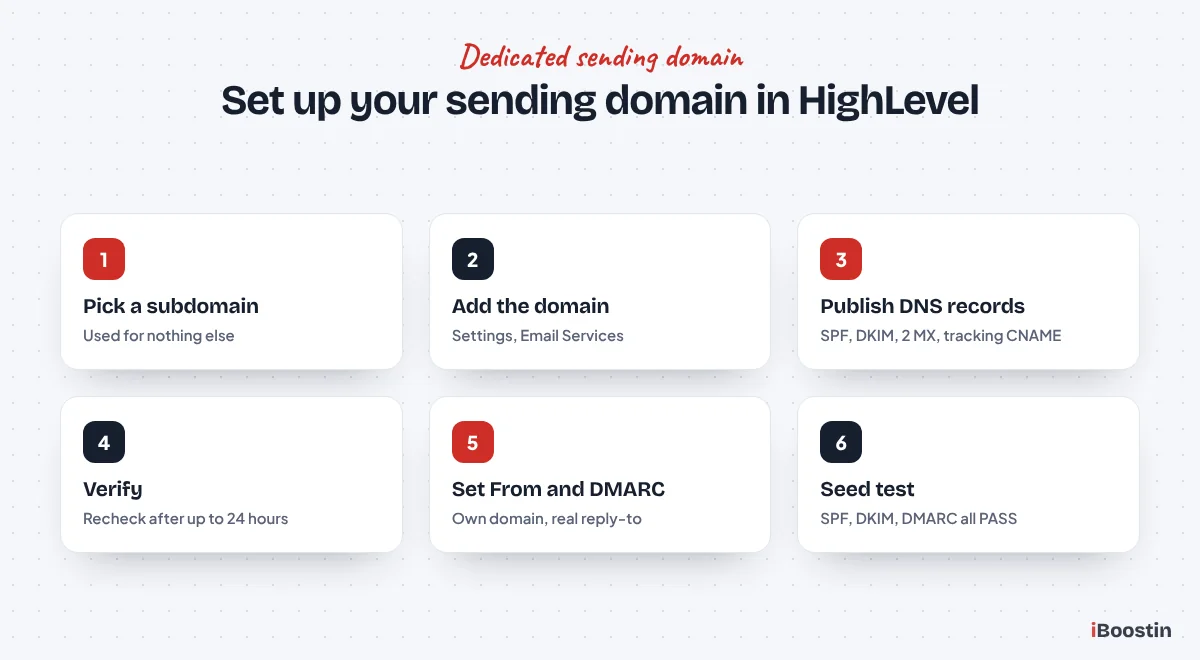
Step 1: Pick a clean sending subdomain
Choose a subdomain of your main business domain that is used for nothing else, such as mg.yourbusiness.com or mail.yourbusiness.com. HighLevel recommends a subdomain because it protects the reputation of your root domain, where your staff email lives. Avoid buying a separate lookalike domain, because a sender that looks unrelated to your brand confuses recipients.
Before you add it, check the subdomain in a DNS lookup tool. If it already has MX or SPF records from an old email tool, verification fails with a “domain already pointing to email server” style error. Either remove the old records if the tool is truly gone, or pick a different clean subdomain. If your DNS uses a wildcard record that makes every subdomain look like it exists, you may need to remove it temporarily during verification.
Step 2: Add the domain in Email Services
Work inside the sub-account that will send the email. Agencies can also add domains at the agency level, but for most businesses the sub-account is the right place. Some settings, such as the domain used for calendar emails, only let you pick domains created in the sub-account. Adding it there avoids a second round of setup later.
Agencies with many clients should give each client its own sending subdomain on the client’s own domain. Sharing one agency domain across clients means one client’s bad list can push every other client’s email into spam. It also keeps the From address on the client’s brand, which recipients recognize and trust more.
- In the sub-account, go to Settings, then Email Services.
- Open the Dedicated Domain and IP tab (in some accounts it sits under an SMTP Service tab).
- Click Add Domain and type your sending subdomain, such as mg.yourbusiness.com.
- Choose automatic DNS setup if HighLevel offers it for your DNS provider, or choose to add the records manually.
Step 3: Publish the DNS records at your DNS host
If you add the records by hand, log in to wherever your DNS is managed. That is not always where you bought the domain. If your nameservers point to Cloudflare, add the records in Cloudflare, not at the registrar. HighLevel shows you a set of records: an SPF TXT record, a DKIM TXT record, two MX records and a CNAME used for tracking. Copy each one exactly.
Watch the host name field. Many DNS hosts add your root domain automatically, so you enter “mg” instead of “mg.yourbusiness.com”, and “email.mg” for the tracking CNAME. Entering the full name produces mg.yourbusiness.com.yourbusiness.com, which never verifies. If your DNS is on Cloudflare, set the tracking CNAME to DNS only, not proxied.
- Log in to the DNS host that controls your nameservers.
- Add each record with the type, host and value HighLevel shows.
- Merge SPF into any existing SPF record on the same host name rather than adding a second one.
- Save, and note the time you made the change.
Step 4: Verify the domain and fix errors
Go back to the domain in HighLevel and click verify. DNS changes can take up to 24 hours to spread, so a record showing unverified ten minutes after you added it is normal. If some records still fail after a day, recheck them in a DNS lookup tool.
The failures we fix most are a doubled host name, a DKIM value cut short by the DNS host, a second SPF record, old MX records on the subdomain and a proxied CNAME on Cloudflare. HighLevel generates the SSL certificate for the tracking domain once verification completes. If the domain shows verified but SSL does not, run verification again.
Step 5: Set the From address, reply-to and DMARC
Once verified, make sure the sub-account actually uses the domain for its email. Set a From name people recognize, such as “Sam at Bright Plumbing” rather than “Admin” or “Noreply”. Your From address should sit on the same organizational domain as the sending subdomain. Either hello@mg.yourbusiness.com or hello@yourbusiness.com keeps DMARC aligned when you send through mg.yourbusiness.com. An address on an unrelated domain breaks alignment.
Set the reply-to to a real inbox your team watches, usually on the root domain. Then add DMARC on the root domain if it is not there yet: a TXT record named _dmarc with p=none and a reporting address, as described in the DNS table below. DMARC on the root domain covers your subdomains unless you set a separate policy for them.
Common mistake: Using noreply@ as the From address. People cannot reply, so you lose the strongest positive signal a sender can get, and Microsoft asks senders to use addresses that can receive replies. Use a real address and route replies to your team.
Step 6: Send seed tests and check the headers
Do not move to campaigns until you see proof. Send a real email through a workflow or campaign to your Gmail, Outlook and Yahoo seed contacts. Open Show original in Gmail and confirm SPF, DKIM and DMARC all show PASS, with your own domain listed, and that the “via” label has gone.
Then check the warm-up status for the new domain in the same Dedicated Domain and IP area. In accounts where the feature is live, warm-up starts automatically for new domains once DNS verifies. For an existing domain, you may see a Start Warmup button that recommends a starting stage. The feature is rolling out in phases, so it may not appear in every account yet.
What Do the DNS Records Actually Do?
Most owners copy the records without knowing what they do, which makes troubleshooting hard later. The examples below show the pattern only. Always use the exact values your HighLevel account shows, because DKIM keys and some host names are unique to you.
| Record | Type and host | What it does | Example value pattern |
|---|---|---|---|
| SPF | TXT on your sending subdomain (mg) | Lists the servers allowed to send for that subdomain | v=spf1 include:mailgun.org ~all |
| DKIM | TXT on a host such as xx._domainkey.mg | Publishes the public key receivers use to check your signature | k=rsa; p=MIGfMA0G… (long unique key) |
| MX (two records) | MX on mg, priority 10 | Handles bounces and replies for the sending subdomain | mxa.mailgun.org and mxb.mailgun.org |
| Tracking | CNAME on email.mg | Branded domain for open and click tracking | mailgun.org |
| DMARC | TXT on _dmarc of your root domain | Tells inboxes what to do when checks fail and sends you reports | v=DMARC1; p=none; rua=mailto:dmarc@yourbusiness.com |
How to roll out DMARC without blocking your own email
DMARC has three policies. p=none only monitors, p=quarantine tells inboxes to put failing mail in spam, and p=reject tells them to refuse it. HighLevel’s own sending guide shows a reject example, and that is the right end point. But jumping straight there on a domain where your invoicing tool, website forms or old newsletter platform still send unauthenticated mail will block those emails without warning.
Start with p=none and a reporting address. After two to four weeks, the reports show every service sending as your domain. Fix authentication for each one, or stop it. Move to p=quarantine, watch for a few more weeks, then move to p=reject once reports are clean. Gmail, Yahoo and Microsoft accept p=none as the minimum for bulk senders, so you are compliant from day one while you tighten it safely.
What Do Gmail, Yahoo and Microsoft Require From Senders Now?
The big inbox providers tightened their rules for bulk senders over the last two years, and enforcement is now real rather than a warning. Gmail began rejecting or rate limiting non-compliant bulk mail more firmly in late 2025, and Microsoft started enforcing its rules for Outlook.com, Hotmail and Live addresses in 2025. If your HighLevel emails worked fine a while ago and now land in spam, this is often why.
Gmail and Microsoft define bulk senders as those sending around 5,000 or more emails a day to their personal accounts. The rules are good practice at any volume, though, and smaller senders who follow them get better placement too.
| Requirement | Gmail | Yahoo | Microsoft (Outlook.com) |
|---|---|---|---|
| SPF and DKIM | Both required for bulk senders | Both required for bulk senders | Both required for high-volume senders |
| DMARC | At least p=none, aligned with From | At least p=none, must pass | At least p=none, aligned with SPF or DKIM |
| One-click unsubscribe | Required for marketing mail | Required for marketing mail | Clear working unsubscribe expected |
| Honor unsubscribes | Within two days | Within two days | Promptly |
| Spam complaint rate | Keep under 0.1%, never reach 0.3% | Keep under 0.3% | Keep low, remove inactive contacts |
In HighLevel terms, that means a verified dedicated sending domain, DMARC on the root domain, a working unsubscribe link and header, and a list that rarely complains. Rules change, so recheck each provider’s sender guidelines once or twice a year.
How Do You Warm Up a New Sending Domain in HighLevel?
Warm-up means building a sending history slowly so inbox providers learn that your domain sends wanted email. HighLevel’s fixed-stage warm-up sets daily volume thresholds for new dedicated domains, starting at 1,000 emails a day in stage one and 2,500 in stage two, and moves the domain up only when it actually reaches the current stage’s volume. Treat those numbers as ceilings, not targets. A small business with a list of 2,000 contacts does not need to send 1,000 emails on day one.
The plan below is the one we use. It assumes the domain is verified and seed tests pass. Adjust the pace to your list size, and slow down whenever the numbers in the monitoring section move the wrong way.
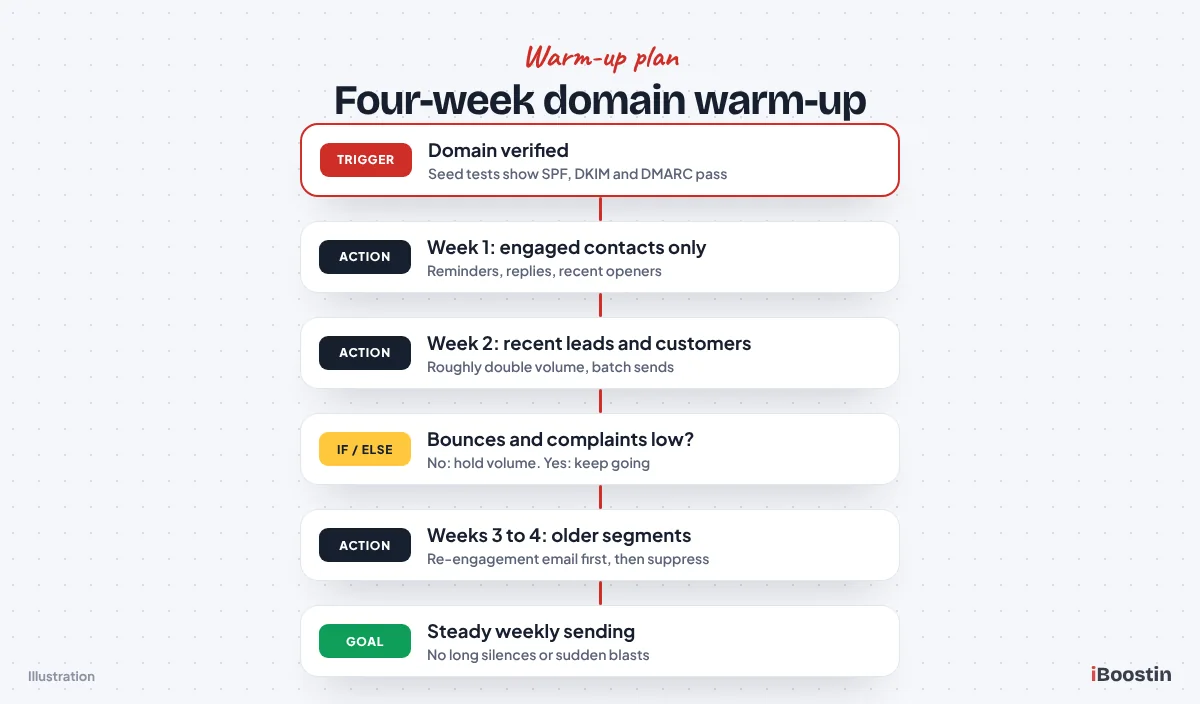
Week 1: Transactional and engaged contacts only
In the first week, send only email that people expect and want. Appointment confirmations, reminders, replies to new leads and one-to-one conversations are perfect because they get opened and replied to. If you also want to send a campaign, build a smart list of contacts who opened or clicked in the last 30 days, or who became customers recently, and send to that group only.
Keep daily volume small, a few dozen to a few hundred depending on your list size. Use batch scheduling so a campaign goes out over hours rather than all at once. Ask a few friendly customers to reply, because replies are one of the strongest positive signals a new domain can get.
Week 2: Add recent leads and customers
If week one showed low bounces, no complaints and inbox placement in your seed tests, widen the audience. Add contacts who engaged in the last 60 to 90 days and customers from the past year. Roughly doubling volume from the first week is a sensible pace for most small senders.
Keep checking seed tests after each send. If placement slips into spam, hold volume for a few more days instead of pushing on. Set up Google Postmaster Tools for the domain this week so you start collecting data early.
Weeks 3 and 4: Expand gradually to the full opted-in list
Add older segments in steps, oldest last. Contacts who have not engaged in six months or more should get a short re-engagement email before they rejoin regular campaigns. Anyone who does not open or click that email can be suppressed. This step protects the reputation you built in the first two weeks.
By the end of week four, most small business domains are sending their normal weekly campaigns to the full engaged list. Larger senders may take longer. HighLevel’s guide says warm-up can take up to about four weeks, and its stage system only advances when real volume reaches each threshold, so time alone does not move you forward.
After warm-up: Keep a steady rhythm
Warm-up is not a one-time event. A domain that goes silent for months and then sends a big blast looks almost as risky as a brand new one. Keep a steady cadence, even if it is one useful email a week.
Before a big send, such as a holiday promotion, build volume over the two weeks before it rather than sending your largest blast cold. Use the Drip action in workflows or batch scheduling in campaigns to spread it out. Our guide on how to build workflows in GoHighLevel shows where the Drip action fits and how to set batch size and interval.
What List Hygiene Rules Keep GoHighLevel Emails Out of Spam?
Once the DNS records are fixed, the list decides whether email stays in the inbox. These are the rules we set up in every account we manage, and most can be automated with smart lists and workflows.
- Only email people who opted in. Forms should say clearly that the person will get emails. Never upload bought or scraped lists.
- Use double opt-in for newsletters and lead magnets. A confirmation email removes typos and fake sign-ups.
- Validate before you import. Run any list older than a few months through a validation service.
- Remove hard bounces immediately. Soft bounces can be retried, but suppress addresses that keep soft bouncing.
- Sunset unengaged contacts. No opens or clicks over several months means one re-engagement email, then no more marketing email.
- Honor unsubscribes everywhere. An unsubscribe should stop marketing email from every workflow and campaign.
- Keep cold outreach off your HighLevel sending domain. Cold prospecting puts the reputation of your reminders and invoices at risk.
Pro tip: Build a smart list of contacts with no email engagement over your chosen period and review it monthly. In the accounts we look after, this five-minute habit does more for complaint rates than any copy change.
Pre-Send Checklist for GoHighLevel Emails
Run this checklist before every campaign and before you publish any workflow that sends email to a large group. It takes a few minutes and catches most of the mistakes that send a good email to spam.
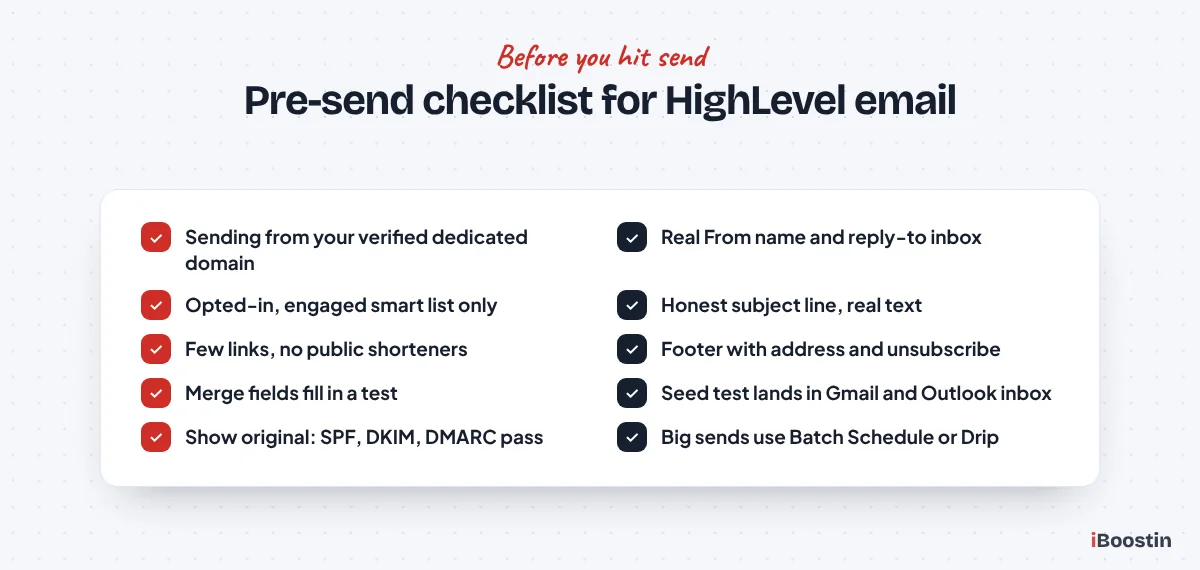
- The sub-account sends from your verified dedicated domain, not the shared domain.
- The From name is a person or brand people recognize, and the From address is on your own domain.
- The reply-to address is a real inbox someone checks.
- The audience is a smart list of opted-in, engaged contacts, with bounced and unsubscribed contacts excluded.
- The subject line is honest and matches the content.
- The email has real text, images with alt text, and only a few links, all to your own domain or trusted sites.
- No public link shorteners, no attachments and no HTML pasted from another platform.
- The footer has your business name, physical address and a working unsubscribe link.
- Merge fields and custom values fill correctly in a test, with no blank “Hi ,” greetings.
- A seed test reached the inbox in Gmail and Outlook, and Show original shows SPF, DKIM and DMARC as PASS.
- Large sends use Batch Schedule or the Drip action instead of going out all at once.
How Do You Monitor Email Deliverability After You Fix It?
Fixing deliverability once is not enough. Lists age, new staff add new tools, DNS gets changed during a website rebuild and reputation drifts. A short monthly review catches problems while they are small. These are the numbers and tools we watch for clients.
Bounce rate
Your bounce rate is the share of sent emails that came back. HighLevel’s guidance treats a bounce rate under 2% as healthy, and we aim for well under 1% on lists that are cleaned regularly. Check it in campaign statistics after every send and in workflow statistics for automated email.
A sudden jump usually means an old segment or a newly imported list. Look at the bounce reasons on a few contacts. If they are “user unknown”, clean the list. If they mention reputation, policy or authentication, recheck your DNS and look for blocklist listings before your next send.
Spam complaints and unsubscribes
Complaints are the number that hurts most. Watch the complaint count in HighLevel’s campaign stats and the user-reported spam rate in Google Postmaster Tools. Keep the Gmail rate below 0.1%. If it touches 0.3%, stop campaigns until you find the cause.
Unsubscribes are healthy in small numbers, because people who leave quietly do not press the spam button. A rising unsubscribe rate after a certain type of email tells you the audience does not want it. Change the content or the frequency before it turns into complaints.
Google Postmaster Tools
Google Postmaster Tools is a free dashboard from Google that shows how Gmail sees your domain: user-reported spam rate, authentication results, delivery errors and whether you meet Gmail’s sender requirements. You verify your sending domain once with a DNS record, and data appears after you send enough volume to Gmail users. HighLevel’s warm-up feature can also use Postmaster data if you connect it.
Small senders may see little or no data, because Google only shows it above a minimum daily volume. That is fine. Keep relying on seed tests and HighLevel’s own stats, and Postmaster becomes more useful as you grow. For agencies sending for many clients, set it up for every sending domain from day one.
Blocklists and DNS health
Once a month, run each sending domain through a DNS and blocklist checker such as MXToolbox. You want one SPF record, a valid DKIM record, a DMARC record and no blocklist listings. Also check after any website migration or DNS provider change, because records are often lost in the move.
If you find a listing, fix the cause first, then request removal through the blocklist’s own process. If the listing is on a HighLevel IP rather than your domain, contact HighLevel support. If a dedicated subdomain stays in spam after you have fixed everything, HighLevel’s own guidance suggests moving to a fresh subdomain rather than repairing a burned one, while you fix the list practices that caused it.
Should You Fix GoHighLevel Email Deliverability Yourself or Get Help?
You can fix most deliverability problems yourself. If you have access to your DNS, are comfortable copying records exactly and have the patience to wait for propagation and run seed tests, the steps in this guide will get you there. DIY makes sense for a single business with one sending domain, a list it collected itself and no urgent campaign waiting.
Getting help makes sense when your staff email shares DNS with other tools you do not fully understand, when you have already lost a domain’s reputation, when you are an agency setting up sending domains across many client accounts, or when a big campaign is days away and you cannot afford a failed send. A done-for-you GoHighLevel setup covers the sending domain, DNS records and seed testing as part of the build. For ongoing monitoring of bounce rates, complaints and DNS changes, our GoHighLevel management service keeps an eye on it every month. If your problem spans email, workflows and SMS, a GoHighLevel expert can look at the whole account at once. Whoever does the work, keep admin access to your own account and DNS, and ask for a written list of every record that was changed.
Frequently Asked Questions About GoHighLevel Emails Going to Spam
Why are my GoHighLevel emails going to spam?
Most often the domain is not trusted. You may be sending from HighLevel’s shared domain or a free Gmail address, your SPF, DKIM or DMARC records may be missing or misaligned, or a new domain was never warmed up. List problems come next: bought lists, old contacts, hard bounces and spam complaints. Fix authentication first, then clean the list, then review the content.
How do I stop GoHighLevel emails going to spam?
Add a dedicated sending subdomain under Settings, then Email Services, then Dedicated Domain and IP, and publish the SPF, DKIM, MX and tracking records it shows. Add a DMARC record on your root domain. Warm up new domains with engaged contacts, remove bounces and unengaged contacts, keep a working unsubscribe link, and spread large sends with batch scheduling.
Do I need a dedicated sending domain in GoHighLevel?
You can send without one, but we recommend it for every account that sends marketing or automated email. A dedicated subdomain lets you send from your own address, removes the via label some inboxes show, aligns SPF and DKIM with your From address for DMARC, and builds a reputation that belongs to you instead of the shared pool of HighLevel senders.
Should I use my root domain or a subdomain for sending?
Use a subdomain such as mg.yourbusiness.com. HighLevel recommends it, and it protects your root domain, where your staff email lives. Adding HighLevel’s MX records to the root domain would conflict with Google Workspace or Microsoft 365 and can stop your normal inbox receiving mail. A subdomain also keeps a bad campaign from hurting your everyday email.
Why do my GoHighLevel emails go to the Promotions tab?
Gmail sorts marketing-style email into Promotions automatically, based on layout, images, links and how people treat similar emails. Promotions is not spam, and people do see it. Plain, personal emails with one link are more likely to reach Primary. Do not use tricks to force Primary placement. Focus on keeping your emails out of spam and relevant to the reader.
How long does it take to warm up a new email domain in HighLevel?
Plan for about four weeks. HighLevel’s fixed-stage warm-up raises your daily threshold only when you actually reach the volume of your current stage, so time alone does not advance the domain. Start with your most engaged contacts, increase volume step by step, and pause any increase if bounces or complaints rise or your seed tests start landing in spam.
What bounce rate and complaint rate are safe?
Keep your bounce rate under 2%, and ideally under 1% on a regularly cleaned list. Keep the spam complaint rate in Google Postmaster Tools below 0.1% and never let it reach 0.3%, which is the limit Gmail and Yahoo use for bulk senders. If either number rises, stop sending to older segments and clean your list before the next campaign.
Get Your GoHighLevel Emails Back in the Inbox
Emails land in spam for reasons you can find and fix. Check where they really land with seed tests and headers, put your sending on a dedicated subdomain with SPF, DKIM and DMARC aligned, warm it up with engaged contacts, and keep your list clean. Then watch bounce rate, complaints and DNS health every month so the problem does not come back quietly.
If you would rather hand it over, the iBoostin team sets up sending domains, fixes broken DNS and builds list hygiene workflows inside HighLevel, then tests placement before your next campaign. Either way, start with the checks at the top of this guide.