In this guide
- How Do You Diagnose a GoHighLevel Workflow That Is Not Triggering?
- Did the Workflow Not Trigger, or Did It Trigger and Stop?
- Reasons 1 to 6: The Contact Never Enters the Workflow
- Reasons 7 to 12: The Contact Enters but Nothing Happens or It Stops Early
- How Do You Stop Workflows From Breaking Again?
- When Should You Fix It Yourself and When Should You Ask for Help?
- Frequently Asked Questions About GoHighLevel Workflows Not Triggering
- Get Your Workflows Firing Again
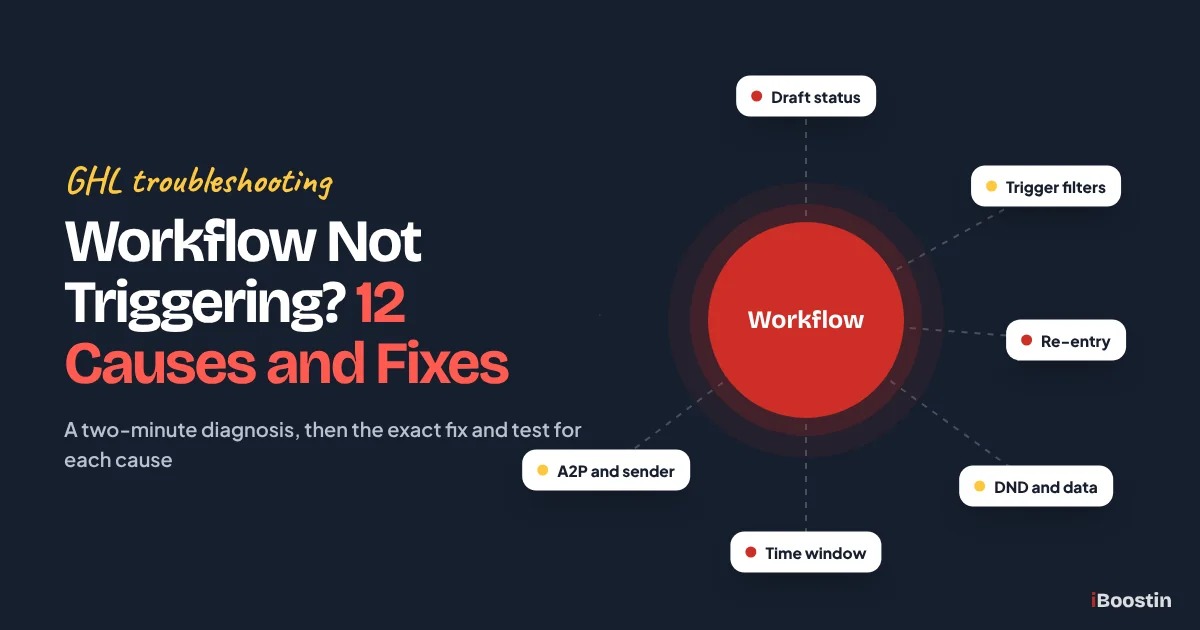
When a GoHighLevel workflow is not triggering, check five things in this order: the workflow is set to Publish and saved, the contact shows up in Enrollment History, the trigger filters match the real event, the contact is allowed to re-enter, and the Execution Logs show no failed or skipped step. Most cases trace back to twelve causes.
Here is how it usually shows up. You launch a Facebook ad on Monday morning. By Wednesday, fourteen leads have come in, and not one of them has received the instant text you spent an evening writing. The workflow looks perfect on the canvas. The trigger is there, the message is there, the booking link works. But somewhere between the lead arriving and the text going out, something quietly stopped, and HighLevel did not send you an alert about it.
This guide gives you a two-minute diagnosis first, so you know where to look, then walks through the twelve causes we find most often, each with the symptom, why it happens, the exact fix and how to confirm it worked. It comes from the iBoostin team’s hands-on work repairing workflows in client accounts every week. New to the platform? Start with what GoHighLevel is and how it works.
Key takeaways
- Start with two screens: Enrollment History tells you whether the contact entered, and Execution Logs tell you what happened after that.
- If the contact never entered, the cause is the workflow status, the trigger, its filters, re-entry, timing or the connection that feeds it.
- If the contact entered but nothing arrived, look at DND, missing contact data, waits and time windows, early removal, sender setup and A2P.
- Triggers only react to events that happen while the workflow is published. They never fire backwards for past leads.
- A short testing routine and clear names prevent most of these problems before a real lead ever hits them.
How Do You Diagnose a GoHighLevel Workflow That Is Not Triggering?
Before you change a single setting, spend two minutes finding out where the workflow broke. Rebuilding or editing the trigger first often hides the real cause. The five checks below tell you which of the twelve reasons applies to you.
Pick one real contact who should have entered the workflow and did not get what they should have, and use that contact for every check. A specific person at a specific time turns “it is not working” into a question HighLevel’s screens can answer.
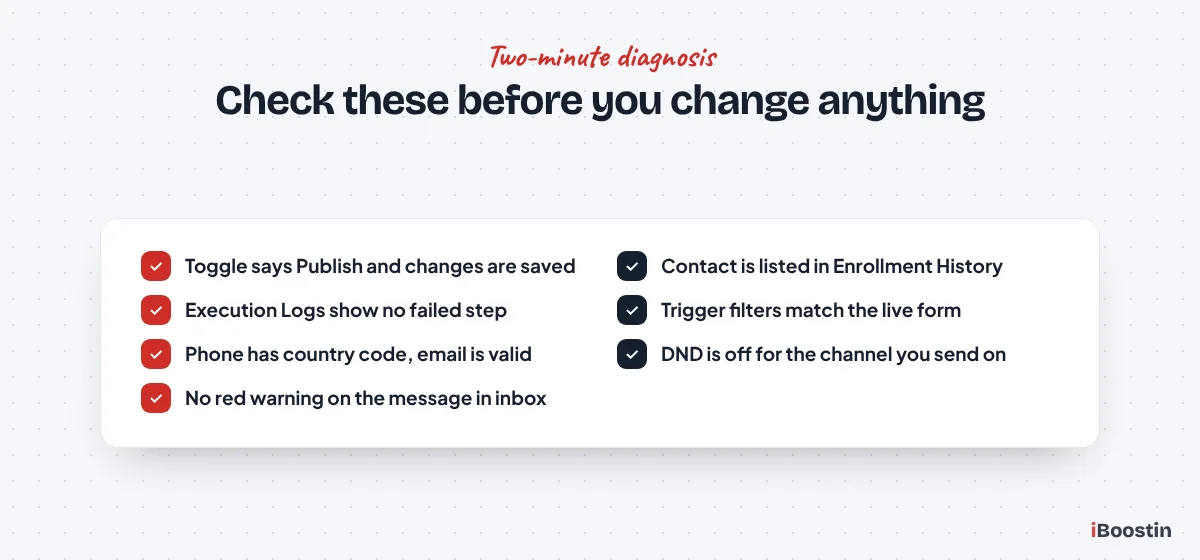
Check 1: Is the workflow published and saved?
Open Automation in the left menu (some accounts say Automations), go to the Workflows tab and open the workflow. Look at the toggle in the top right of the builder. If it says Draft, the workflow is not listening for anything, and no contact will enter it, however well it is built. If it says Publish, make sure your latest change was saved, because an edit you never saved does not exist as far as HighLevel is concerned.
This check takes five seconds and is the most common fix we make. Many “broken” workflows we audit were switched to Draft during an edit and never switched back. If HighLevel says the workflow cannot be published yet, Reason 1 explains how to clear it.
Check 2: Did the contact enter? Open Enrollment History
Inside the workflow, open the Enrollment History tab and search for your contact. This screen lists every time a contact entered the workflow and how each run ended: Workflow Completed, Removed by Workflow Action, or Removed by External Workflow Action, which means another workflow took them out. Contacts who are still inside show as in progress.
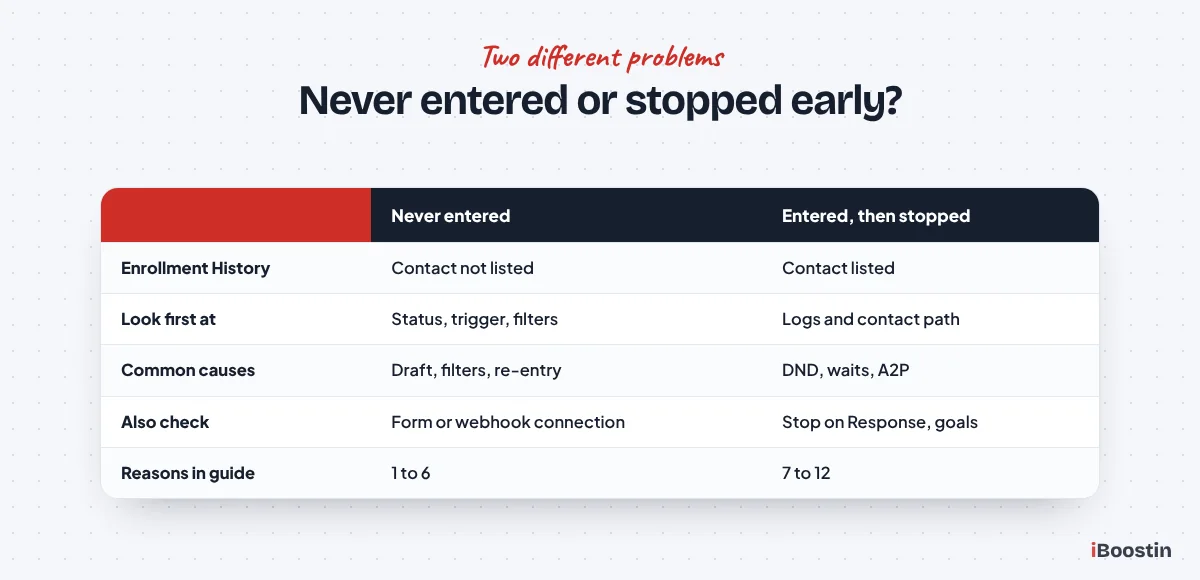
If the contact is not listed at all, the workflow never triggered for them, and your answer is in Reasons 1 to 6. If the contact is listed, the trigger worked, and the problem happened after they entered, which points you to Reasons 7 to 12. That one split saves more time than anything else in this guide, because it tells you which half of the workflow to stop staring at.
Check 3: What happened inside? Read the Execution Logs
Open the Execution Logs tab next to Enrollment History and filter it to your contact. Each row shows an action by the name you gave it, when it ran and its status, with a View Details link for more information. Errors are highlighted. You can filter by action and by date range, which helps when the contact went through the workflow several times.
The fastest view is Highlight Contact Path. Click its icon from Enrollment History or the logs and the builder opens with the contact’s route marked, including skipped steps, errors and where they are now. From the inbox, you can also open an automated message’s details and click the workflow link to jump straight into the logs for that run.
Check 4: Does the real event match the trigger filters?
Click the trigger at the top of the canvas and read every filter out loud. Then compare it with what actually happened to your contact. Which form did they submit, exactly? Which calendar did they book on? Which pipeline and stage did their opportunity move into? Which tag was added, and was it added or removed? The contact’s activity history and the form submissions list show you the real event.
Look for small differences. A form called “Contact Us” and a newer copy called “Contact Us (copy)” look identical in a hurry. A calendar filter can point at a calendar you replaced last month. A tag filter can say “hot-lead” while your team types “Hot Lead”. If the event and the filter do not match word for word, you have found your cause, and Reason 2 shows you how to fix it cleanly.
Check 5: Can this contact receive what the workflow sends?
Open the contact record. Check that they have a phone number with the country code and a valid email address, look at the DND section in the left column, and check their timezone. Then look at their conversation in Conversations. A failed text shows a red warning on the message, and hovering over it shows the error.
This check catches contact and sending problems that look like workflow failures. A lead who replied STOP months ago, a form with no phone field or a number not yet registered for A2P all produce a workflow that “ran” but sent nothing. If you see one of these, go to Reasons 7, 8 or 11.
Did the Workflow Not Trigger, or Did It Trigger and Stop?
Two different problems hide behind the same complaint. In the first, the contact never enters the workflow. In the second, the contact enters, some steps run, and then the messages never arrive or the run ends early. Enrollment History tells you which one you have.
Use the table to jump to the most likely reason. If more than one row fits, work through them in order, because the earlier reasons are quicker to check.
| What you see | What it usually means | Go to |
|---|---|---|
| Nobody has entered since you built it | Workflow in Draft or not saved | Reason 1 |
| Some leads enter, others never do | Trigger or filters do not match the real event | Reasons 2 and 3 |
| New leads work, returning leads do not | Re-entry is off or the contact is still active | Reason 4 |
| Old leads never got anything | Workflow went live after the event | Reason 5 |
| Leads from your website or ads never arrive | Form, integration or webhook not connected | Reason 6 |
| Contact entered but no text or email | DND, missing data or sender setup | Reasons 7, 8 and 11 |
| Messages arrive hours late | Wait step, time window or timezone | Reason 9 |
| Contact dropped out after replying or booking | Stop on Response, goal event or another workflow | Reason 10 |
| Leads get two texts or two reminders | Duplicate workflows or built-in features | Reason 12 |
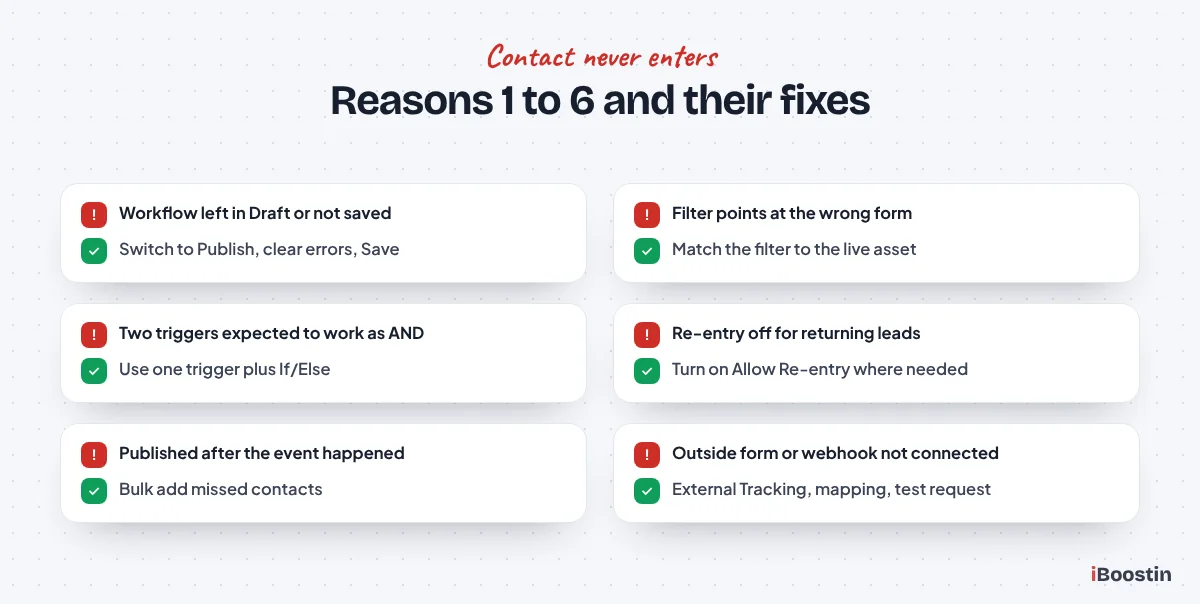
Reasons 1 to 6: The Contact Never Enters the Workflow
These six causes share one symptom: the contact is missing from Enrollment History. We check them in this order because the first ones take seconds, while the last ones need you to look outside the workflow.
Reason 1: The workflow is still in Draft or your changes were not saved
Symptom: Nobody has entered the workflow since you finished building it, and Enrollment History is empty for every contact. A related version of the same problem: you edited a message, but leads still receive the old wording, because the edit was never saved.
Why it happens: Draft workflows do not process events. They exist so you can build safely, and HighLevel treats them as if they were switched off. People switch a workflow to Draft while making a change, get pulled into something else and never switch it back. Others click Publish but leave the page before saving. HighLevel also blocks publishing when it finds configuration errors, such as an appointment trigger with no calendar picked or a text action with an empty message, and shows a message that the workflow cannot be published yet.
How to fix it:
- Go to Automation, open the Workflows tab and open the workflow.
- Look at the toggle in the top right. If it says Draft, switch it to Publish.
- If HighLevel says the workflow cannot be published yet, click Review issues. The Resolve Errors panel lists each problem step. Click Open step on each one and complete the missing setting.
- Click Save.
- Reload the page and confirm the toggle still says Publish and your last edit is still there.
How to confirm it is fixed: Trigger the event with a test contact you control, for example by submitting the live form with your own email and phone. Within a minute or two, the contact should appear in Enrollment History. If you want to be sure which version is live, the History icon at the top of the builder shows earlier saved versions and when they changed.
Reason 2: The trigger is wrong or its filters are too narrow
Symptom: The event clearly happened. You can see the form submission or the booked appointment on the contact. But the contact never entered the workflow. Often some leads enter and others do not, which makes the problem look random when it is not.
Why it happens: Either the trigger type is not the event you think, or a filter excludes the real event. Common trigger mistakes: Contact Created used for a form (it does not fire when an existing contact submits again) and Form Submitted used for something built as a survey, which has its own Survey Submitted trigger. Filter mistakes are more common still: the form filter points at an old copy of the form after a redesign, the calendar filter points at a replaced calendar, the stage sits in a different pipeline, or a Customer Replied phrase filter never matches real replies.
How to fix it:
- Open the trigger and write down the trigger type and every filter.
- Open the live asset: the actual funnel or website page with the form, the calendar your booking link opens, or the pipeline your team uses. Note its exact name.
- Check the real event on the contact. For forms, the submissions list under Sites, then Forms, then Submissions shows which form was submitted.
- Correct the trigger type or filter so it matches the live asset exactly, then save.
- If you cannot see which filter blocks the contact, duplicate the workflow, give the copy only an internal notification and remove filters one at a time on the copy until test contacts enroll.
How to confirm it is fixed: Submit the live form, or book on the live calendar, as a fresh test contact. The contact should appear in Enrollment History, and the logs should name the trigger that fired. Then test the opposite case, a contact who should not enter, and check that they stay out. A trigger that lets everyone in is just as broken as one that lets nobody in.
Common mistake: Leaving the form filter empty “for now”. The workflow then fires on every form in the sub-account, including newsletter and job application forms. Our guide on how to build workflows in GoHighLevel explains why every trigger should have at least one filter from day one.
Reason 3: Multiple triggers or stacked filters do not work the way you expect
Symptom: The workflow either fires for contacts you meant to exclude, or it never fires because you expected two conditions to work together. A typical example: the workflow should only run for commercial leads, but residential leads get the commercial messages too.
Why it happens: Separate triggers in one workflow work as OR, so a contact only needs to match one of them. People add Form Submitted as one trigger and Contact Tag “commercial” as a second, expecting the workflow to need both. Instead, anyone who submits the form enters, and anyone who gets the tag enters too. Inside a single trigger, separate filter rows generally all have to match. And a filter can only check data that exists when the trigger fires, so a tag added a second later may not be there yet.
How to fix it:
- Write the logic you want as one plain sentence, such as “enroll when the quote form is submitted AND the lead is commercial”.
- For AND logic, put the second condition as a filter on the same trigger, but only if that data exists at the moment of the event.
- If the second condition is written a moment later, keep one trigger, add a one or two minute wait, then use an If/Else to check the condition and send everyone else down the None branch to the end.
- For OR logic, add a separate trigger for each source and give each trigger a clear name, such as “Website quote form” or “Facebook lead form”.
- Save, then test each trigger with its own test contact.
How to confirm it is fixed: Run one test contact that should qualify and one that should not. In the Execution Logs, the qualifying contact should run the full path, and the other should either never enroll or exit through the None branch. Clear trigger names make this easy to read, because the logs and history tell you which trigger enrolled each contact.
Reason 4: The contact was already enrolled and re-entry is off
Symptom: The workflow works for brand new leads, but returning customers who submit the form again get nothing. Very often this is also why your own testing breaks: your test contact worked the first time and never again, so you assume something changed.
Why it happens: With Allow Re-entry turned off, each contact can go through the workflow only once, ever. With it on, a contact can enter again after they finish or are removed. A contact who is still active inside the workflow, for example sitting in a three-day wait, cannot enter it again either way. Workflows with appointment or invoice triggers are the exception: they allow one run per appointment or invoice regardless of the setting, because one person can book or be invoiced many times.
How to fix it:
- Open Enrollment History and search for the contact. Check how many times they entered and whether a run is still in progress.
- If a run is still in progress and the contact should start over, remove them from the workflow, either from the workflows section of the contact record or with a Remove from Workflow action.
- Open the Settings tab of the workflow and decide on Allow Re-entry. Turn it on if a repeat event, such as a new quote request next year, should start the workflow again.
- Click Save.
- For testing, use a fresh contact for each test, or remove your test contact from the workflow before each run.
How to confirm it is fixed: Run the trigger twice with the same test contact, letting the first run finish or removing them in between. Enrollment History should now show two separate enrollments. If only one shows, check whether the first run is still active.
Pro tip: Ask one question for every workflow: should a contact who does this twice get the messages twice? A welcome series should say no. A quote request, a missed call or a no-show recovery usually says yes.
Reason 5: The workflow went live after the event happened
Symptom: “I published it this morning, but none of yesterday’s leads got anything.” Or you added a Contact Tag trigger, and contacts who already have that tag never entered.
Why it happens: Triggers react to events at the moment they happen, and only while the workflow is published. They do not look back at events from before it went live, while it was in Draft or before you fixed a filter. A Contact Tag trigger fires when the tag is added, not because a contact has it, and Pipeline Stage Changed fires when the deal moves, not because it sits in the stage. Fixing a workflow never sweeps up the leads it missed.
How to fix it:
- Go to Contacts and build a smart list of the contacts who missed out, for example contacts created in the last three days with the source tag of your campaign.
- Select them, then use the bulk action for adding contacts to an automation (labeled Trigger automation in current accounts).
- In the dialog, set the automation type to Workflow and pick the workflow. Only published workflows appear in this list.
- Choose a mode: Send All at Once, Send at Scheduled Time or Send in Drip Mode, which releases contacts in batches and is safer for larger lists.
- Check progress under Contacts, then Bulk Actions.
How to confirm it is fixed: The bulk action shows as completed, and the contacts appear in Enrollment History. Read the first message they get before you send. A text that says “thanks for reaching out a minute ago” reads badly two days later, so a short catch-up workflow with honest wording is often better than pushing late leads into the instant reply.
Common mistake: Bulk adding already-booked contacts to an appointment reminder workflow. Workflows that wait for an upcoming appointment need the appointment that started them, and a manual or bulk enrollment may not carry it. Test with one contact first, and for a handful of appointments, a personal reminder from your team is simpler.
Reason 6: The form, integration or webhook is not actually connected
Symptom: The lead reaches you somewhere, an email notification, the Facebook leads center or your website plugin, but there is no matching form submission or contact in HighLevel, or the contact exists without the event the workflow watches for.
Why it happens: The Form Submitted trigger only sees forms HighLevel knows about, so a WordPress plugin or third-party form is invisible unless you connect it. HighLevel’s external tracking script can capture standard HTML forms on outside websites, but its help docs say forms loaded inside iframes or third-party widgets are not supported, and the form needs an email field. Facebook lead forms need the Facebook page connected with lead access and each lead form mapped. An Inbound Webhook needs the outside tool to post to the right URL, and the workflow needs an action that creates or updates the contact from the mapped data.
How to fix it:
- Find out exactly where the lead submitted: which website, which page, which form tool or which ad form.
- For outside website forms, go to Settings, then External Tracking, click Copy Script and add it to the site just before the closing body tag. Use the form submission trigger with the external form filters, such as domain, page path or form name. Check the exact filter labels in your account.
- Check external submissions under Sites, then Forms, then Submissions, filtered to external forms.
- For Facebook, go to Settings, then Integrations, check the Facebook connection, its permissions and the field mapping for each lead form. If leads still do not arrive, disconnect and reconnect the page.
- For webhooks, send a test request from the outside tool, map the fields in the Inbound Webhook trigger, add a Create Contact or Update Contact Field step, and make sure the tool posts to the URL of this exact workflow, not an older copy.
How to confirm it is fixed: Submit a real test entry through the outside form or a Facebook test lead. You should see the submission recorded in HighLevel, a contact created or updated, and the contact in Enrollment History. If the submission shows up but enrollment does not, go back to Reason 2, because the connection now works and the filter is the problem.
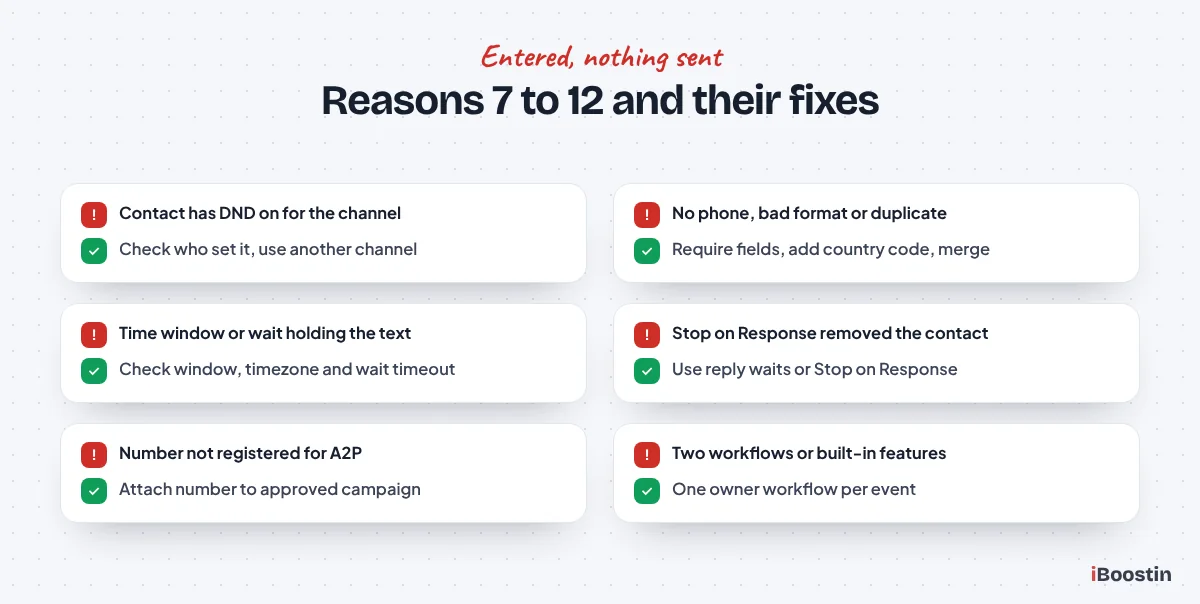
Reasons 7 to 12: The Contact Enters but Nothing Happens or It Stops Early
In these six cases, Enrollment History shows the contact, so the trigger did its job. Something stopped, delayed or ended the run, and the Execution Logs and Highlight Contact Path are your main tools.
Reason 7: The contact has DND turned on or has opted out
Symptom: The contact entered. Tags were added, the opportunity moved and your team got the notification, but the contact never received a text or email. In the logs, the message steps show as skipped rather than failed.
Why it happens: HighLevel’s help docs say workflows skip communication steps that conflict with a contact’s DND settings, while other steps keep running. DND can cover all channels or single channels. SMS DND switches on automatically when a contact replies STOP or a similar opt-out word, and email DND after an unsubscribe, a spam complaint or a permanent bounce. A team member, an import or another workflow’s DND action can also switch it on without anyone noticing.
How to fix it:
- Open the contact record and find the DND section in the left column. Check which channels are on.
- Open the contact’s activity to see who set it. HighLevel records “DND Enabled by” followed by Workflows, User or Contact.
- If the contact opted out themselves, leave DND on. They need to opt back in, for example by replying START, before you text them again.
- If a user or workflow set it by mistake, switch it off for that channel and fix the workflow or habit that caused it.
- For leads who cannot receive texts, add an If/Else or a task so a person calls or emails them instead.
How to confirm it is fixed: Run the workflow again for a test contact with no DND. The message step should show as executed in the logs and the message should appear in Conversations. For the real contact who opted out, the right result is that the workflow keeps skipping texts, and your team follows up another way.
Reason 8: The contact is missing the data the step needs
Symptom: The Send SMS step fails or is skipped, emails never go out, an If/Else always sends everyone down the None branch, or texts arrive as “Hi ,” with no name. Sometimes the workflow did run, but on a second copy of the contact you were not looking at.
Why it happens: Every action reads data from the contact record. If the form does not require a phone number, a text step has nothing to send to. If the number is saved without the country code, or is a landline, the text fails. If an If/Else checks a form field one second after the trigger, the answer may not be written yet. Duplicate contacts add another twist: depending on your deduplication settings, a returning lead who types a different email can create a new contact, and the workflow runs on that one.
How to fix it:
- Open the contact and check the phone (with country code) and email fields are filled and correct.
- Make phone and email required on any form that feeds a workflow that texts or emails.
- Add a one or two minute wait before any If/Else that reads form answers or fields set by another workflow.
- Add an If/Else early in the workflow that checks “phone is empty” and sends those contacts to an email or a call task instead.
- Check Settings, then Business Profile, then Contact Deduplication Preferences, and decide whether Allow Duplicate Contact should be on. Merge any duplicates you find.
How to confirm it is fixed: Submit the form with a test contact and check the Execution Logs. The send step should show as executed, the If/Else should take the branch you expect, and the message should appear in the right contact’s conversation with the merge fields filled in.
Pro tip: For new leads where the name may be missing, write first messages that read naturally without it. “Hi there, thanks for reaching out” never breaks. “Hi {{contact.first_name}}” breaks every time the field is empty.
Reason 9: Wait steps, the time window or the timezone are holding actions
Symptom: The contact shows as still in progress and nothing has been sent, or messages arrive hours later, often at 9 a.m. the next working day. Reminders go out at the wrong hour for some contacts.
Why it happens: Several settings hold contacts on purpose. The Time Window in the Settings tab pauses communication actions outside your chosen hours and days and releases them at the next open slot, while tags and field updates still run. The Timezone setting decides whose clock counts, and contacts with no timezone fall back to the account’s. HighLevel’s help docs also say contacts already in a wait keep the wait they started with, even if you shorten it later. Event waits with no timeout can hold a contact forever.
How to fix it:
- Use Highlight Contact Path to see whether the contact is sitting on a wait step right now.
- Open the Settings tab and check the Time Window start time, end time and included days, and the Timezone choice.
- Check the timezone saved on the contact record.
- Open each wait step and check its type, its duration, any Advance Window, its timeout and what it does if the date has already passed.
- For contacts stuck in an old long wait you have since shortened, remove them and enroll them again, or let them finish, whichever causes fewer duplicate messages.
How to confirm it is fixed: Run a test contact during the time window and check that the message goes out straight away. Then run one outside the window and check the log shows the message held until the next slot. If the time window holds back your instant lead reply, consider moving the instant reply into its own workflow without a window, as our workflow guide recommends.
Reason 10: Stop on Response, a goal event or another workflow removed the contact
Symptom: The first message went out, the contact replied, and then nothing else happened. Or contacts skip half of the sequence. Enrollment History shows the run ended with Removed by Workflow Action or Removed by External Workflow Action, or ended much earlier than it should have.
Why it happens: Stop on Response removes a contact as soon as they reply to any message this workflow sent, on any channel the workflow uses. That is fine for a simple nurture sequence, but it removes the contact before your reply waits, reply branches or goal event can do their job. On call actions, voicemail detection decides whether a voicemail counts as a reply. A Goal Event with criteria that are too broad, such as any appointment status on any calendar, pulls contacts to the end the moment something unrelated happens. And another workflow’s Remove from Workflow or Remove from All Workflows action can take contacts out without anyone looking at this workflow at all.
How to fix it:
- In Enrollment History, read the exit reason for the contact.
- If it says Removed by External Workflow Action, find the workflows that use Remove from Workflow actions and check which one names this workflow.
- In the Settings tab, turn Stop on Response off if the workflow uses reply waits, reply branches or a goal event. Use one approach, not both.
- Open the goal event and narrow it to the exact result, such as the right appointment status on the right calendar. Choose on purpose what happens to contacts who reach the goal without meeting it.
- Save, then test a reply path and a no-reply path with two test contacts.
How to confirm it is fixed: The contact who replied should follow your reply branch, and the one who did not should finish with Workflow Completed as the exit reason. If a contact still leaves early, the exit reason tells you which setting or workflow did it.
Reason 11: The sender, number or email domain is not set up, or A2P is not approved
Symptom: The Execution Logs show the send step ran, but the contact never received the text. In Conversations, the message has a red warning. Or emails go out but land in spam or never arrive at all.
Why it happens: The workflow is fine. The delivery layer is not. US texting from local numbers needs an approved A2P 10DLC campaign with the sending number attached to it, and HighLevel’s own SMS error list includes 30034, “A2P Registration Pending on Number”. Other common codes are 30007 for carrier filtering, 30032 for an unverified toll-free number and 21610 for a contact who replied STOP. The workflow’s from number may also be unable to text. For email, a missing dedicated domain or a from address that does not match it hurts delivery.
How to fix it:
- Open the contact’s conversation, hover over the red warning on the failed message and note the exact error code.
- Go to Settings, then Phone System, then Trust Center, and check your brand and campaign status and that the sending number is attached to the approved campaign.
- In the workflow’s Settings tab, check Sender Details: the from number should be your registered texting number, and the from email should sit on your verified sending domain with no sender domain mismatch warning.
- Open each Send SMS and Send Email action and check for overrides that use a different number or address.
- Add a workflow on the Messaging Error – SMS trigger, filtered to the error codes you care about, that tags the contact and notifies your team.
How to confirm it is fixed: Send a test from the workflow to your own phone and check the message shows as delivered with no warning. For email, send to a Gmail and an Outlook address and check both land in the inbox. Our guide on how to register for A2P 10DLC in GoHighLevel covers the carrier side in full, and why GoHighLevel emails land in spam covers domains, DNS records and sender reputation.
Reason 12: Duplicate or conflicting workflows, and built-in features doing the same job
Symptom: Leads get two texts that say slightly different things, two sets of appointment reminders at different times, or a workflow seems to do nothing because another workflow already handled the event or removed the contact.
Why it happens: A template gets published, someone builds a better version and forgets the first, or a snapshot brings in workflows nobody reviewed. Two workflows on the same trigger both fire, because HighLevel evaluates every workflow on its own. Built-in features add a third layer: the built-in missed call text back setting under Settings, Phone System, Voice, Voicemail & Missed Call Text Back texts every missed call by itself, and each calendar has its own reminders under Calendars, Calendar Settings, then the calendar’s Notifications tab. Run either alongside a workflow that does the same job, and the contact hears from you twice.
How to fix it:
- Go through the Workflows list, including every folder, and open each workflow with a similar name or the same trigger as the one you are fixing.
- Decide which single workflow owns each event: one for new form leads, one for missed calls, one for reminders.
- If a workflow handles missed calls, untick Enable Missed Call Text Back in the phone system settings.
- Open the calendar’s Notifications tab and turn off any reminders your workflow already sends, or the other way round.
- Switch old versions to Draft, rename them with “OLD” at the front and move them to an Archive folder instead of deleting them.
How to confirm it is fixed: Trigger the event once with a test contact and count the messages in Conversations: it should be exactly one of each. If you rebuild the missed call flow, our guide to missed call text back in GoHighLevel shows the single workflow structure we use, and our GoHighLevel calendar and booking setup page explains how we split reminders between calendars and workflows.
How Do You Stop Workflows From Breaking Again?
Every cause in this guide is easier to prevent than to fix. You need a short test routine, clear names and a simple way to hear about errors before your leads do.
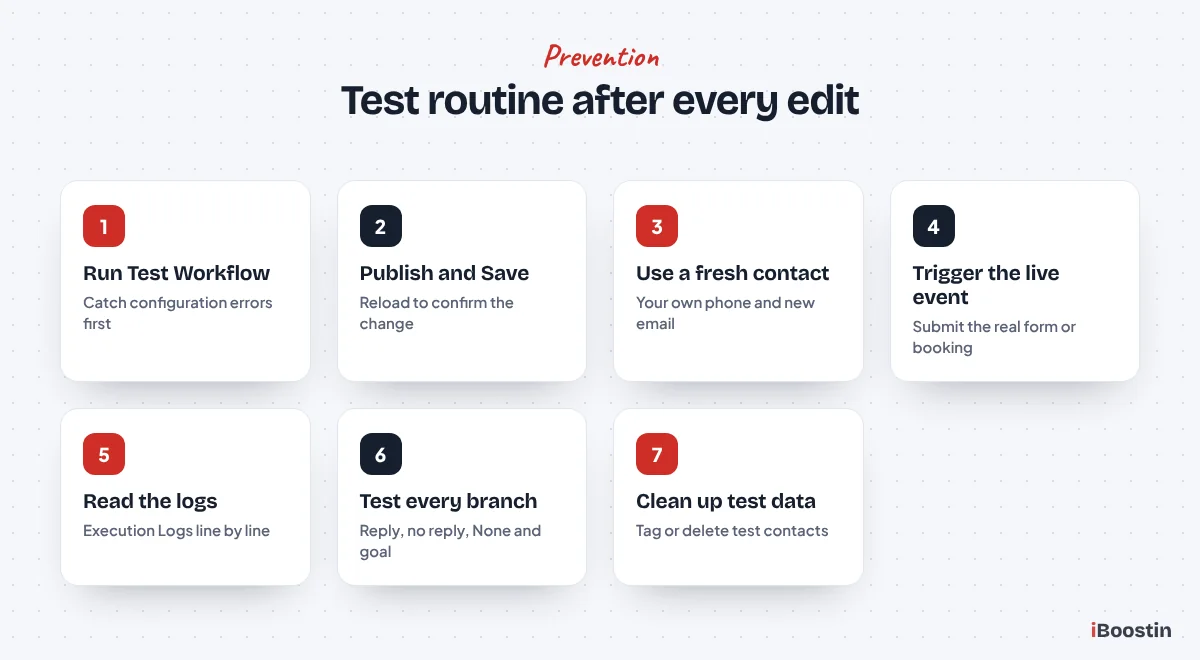
A testing routine for every new or edited workflow
Test every workflow with a contact you control before a real lead touches it, and again after every edit that changes a trigger, filter, wait or setting. Use your own phone and a fresh email address. Run the built-in Test Workflow button first to catch configuration errors, then publish and trigger the real event, for example by submitting the live form, because the button alone does not simulate days of waits, replies and goals.
Read the Execution Logs line by line after each test, and test every path, not only the happy one: the reply branch, the no-reply branch, the None branch and the goal. For long waits, shorten them on a copy of the workflow while testing. Delete or tag your test contacts afterwards so they do not distort your reports, and so they do not block your next test through re-entry.
Naming, folders and a workflow register
Name every workflow with one pattern, such as CATEGORY | trigger or purpose | version, for example “LEAD | Quote form instant reply | v2”. Name the triggers and actions inside too, because the Execution Logs show your action names. “SMS 1: instant reply with booking link” tells you exactly where a contact stopped. “Send SMS” tells you nothing.
Keep a simple register outside HighLevel, a shared sheet with each published workflow, its trigger, what it does, which workflows it starts or stops and who owns it. That one sheet would have prevented most of the duplicate and conflicting workflows we fix, because two workflows on the same form become obvious the moment you write them down. For proven structures to standardize on, our GoHighLevel workflow examples show twenty builds with their triggers and logic.
Monitoring: error alerts, Needs Review and a weekly log check
HighLevel can email sub-account admins when a workflow hits an error. Turn it on from the Workflow Settings option on the Workflows page, where you can also add or remove recipients. Errors then show in a Needs Review tab on the workflows list, where you open each one and mark it as read once handled. HighLevel’s help docs say the first version covers certain action types, such as webhooks and some integrations, so do not rely on it alone for texts and emails.
Fill the gap with two habits: a workflow on the Messaging Error – SMS trigger that tags failed contacts and alerts your team, and a ten-minute weekly check. Open your three most important workflows and compare last week’s enrollments with the leads you know came in. If the numbers differ, you found a problem in days, not months.
When Should You Fix It Yourself and When Should You Ask for Help?
You can fix most of these problems yourself. If your account has a handful of workflows, you built them yourself and the logs point clearly at one cause, the steps in this guide are all you need. Work through the five diagnosis checks, find the matching reason, make one change at a time and test after each change. That habit alone fixes the majority of cases.
Asking for help makes sense when leads are coming in right now and every day of silence costs you bookings, when you inherited workflows from a template, snapshot or old agency and nobody knows what fires what, or when the cause sits in A2P, email domains, webhooks or integrations. A GoHighLevel automation expert can read your logs, find the conflicting pieces and repair them without disrupting the leads already inside. If you would rather hand over the whole account, ongoing GoHighLevel management covers monitoring and fixes every month.
| Fix it yourself | Get expert help | |
|---|---|---|
| Best for | Few workflows you built yourself | Inherited, busy or complex accounts |
| Typical cause | Draft status, filters, re-entry, settings | Conflicts, A2P, domains, webhooks |
| Main risk | Fixing the symptom, not the cause | Picking someone who does not document |
| What you get | Deep understanding of your own system | Tested fixes with notes on what changed |
For genuine platform problems, where the event is recorded, the workflow is published, the filters match and the contact still does not enroll, contact HighLevel support. Send the workflow name, the contact, the exact time of the event and screenshots of Enrollment History and the Execution Logs. If you want someone to own the problem end to end, our GoHighLevel expert team works inside your own account and shows you the test results for every fix.
Frequently Asked Questions About GoHighLevel Workflows Not Triggering
Why is my GoHighLevel workflow not triggering?
The most common causes are a workflow left in Draft, a trigger filter pointing at the wrong form or calendar, Allow Re-entry turned off for returning contacts, or a workflow published after the event happened. Open Enrollment History for one contact who should have entered. If they are not listed, the problem is the status, the trigger or its filters.
How do I check if a contact entered a workflow in GoHighLevel?
Open the workflow and click the Enrollment History tab, then search for the contact. It shows every enrollment and how each one ended, such as Workflow Completed or Removed by Workflow Action. Then open Execution Logs, or use Highlight Contact Path, to see which steps ran, which were skipped and where the contact is now.
Do GoHighLevel workflows trigger for past events?
No. Triggers only react to events that happen while the workflow is published. Leads who submitted a form while the workflow was in Draft or broken will not enter when you fix it. To catch them up, build a smart list of those contacts and add them with the bulk action for adding contacts to a workflow.
Why did my workflow run but not send the text message?
The usual reasons are DND on the contact, a missing or badly formatted phone number, a time window holding the message, or a sending problem such as an unregistered A2P number. Check the Execution Logs for the send step, then open the contact’s conversation. A failed text shows a red warning with the error code.
Why does my workflow work in testing but not with real leads?
Test contacts are usually cleaner than real ones. Your test may use a form the live page no longer uses, a contact with a perfect phone number or a contact entering for the first time. Real leads may submit a different form, skip the phone field, have DND set or already be inside the workflow. Always test through the live form.
How do I add existing contacts to a workflow in GoHighLevel?
Go to Contacts, filter a smart list to the contacts you want, select them and use the bulk action for adding them to an automation. Choose Workflow, pick the workflow and select a mode such as Send All at Once or Drip Mode. Only published workflows appear in the list, and progress shows under Bulk Actions.
Why are contacts removed from my workflow early?
Contacts leave early when Stop on Response removes them after a reply, when a goal event with broad criteria pulls them to the end, or when another workflow removes them. Enrollment History shows the exit reason. Removed by External Workflow Action means a different workflow took them out, so search your other workflows for remove actions.
Can two workflows on the same trigger cause problems?
Yes. HighLevel evaluates every workflow’s trigger separately, so two workflows on the same form or call event both fire and the lead gets two messages. Built-in features such as missed call text back and calendar reminders can double up with workflows too. Give each event one owner workflow and archive old versions.
Get Your Workflows Firing Again
A workflow that is not triggering almost never needs a full rebuild. It needs the right questions in the right order: is it published, did the contact enter, does the event match the filters, can the contact receive the message, and did anything remove them early. Enrollment History and the Execution Logs answer them in minutes.
Fix the cause, test it with your own contact, then put the prevention routine in place so the next problem shows up in your weekly check instead of in a lost lead. If you would rather have someone trace and fix it inside your account, our team does this every week and documents every change.